
Known Participant
March 5, 2014
Question

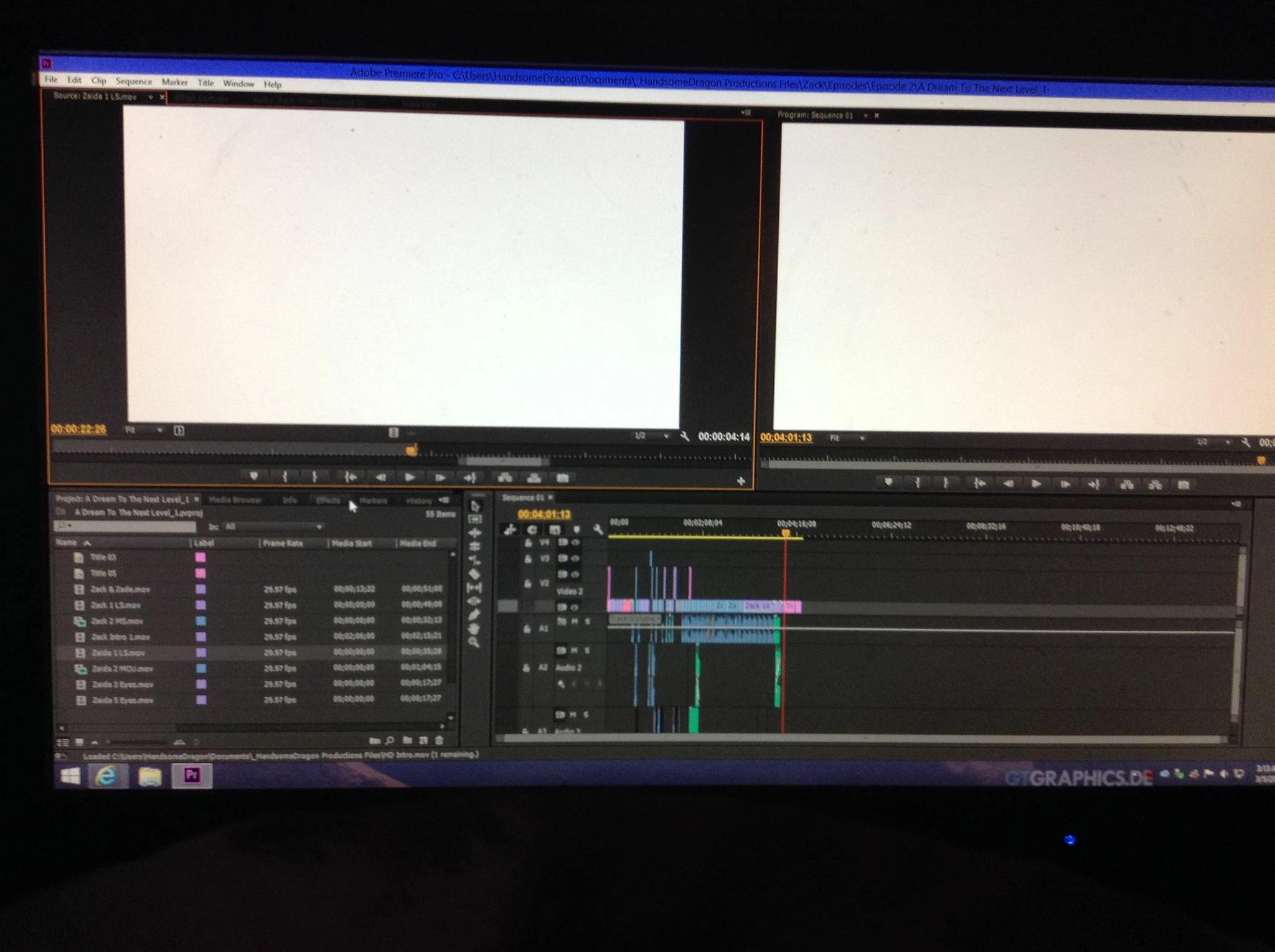
Adobe Premier Pro CC showing White Screen

  • March 5, 2014
  • 29 replies
  • 49387 views

So when I scrub or play through any clip, its's white. However when I export the video, the video is clear. It's just the viewers. This is happening to every single one of my projects with Adobe Premier Pro CC, even projects way before this

problem ever occured. I even used it last week. The only thing that changed between last week and now, was that I updated my Windows PC from 8 to 8.1. I was forced to there were certain things I could use without 8.1.

I tried reinstalling it, updated the software, nothing has worked. Also a side not, sometimes when I scrub through it, big blocks of random texs with a black background appear, its really weird.

Adobe Premiere Pro cs6 is working just fine though, its just the stupid CC.
This topic has been closed for replies.

29 replies

ToSt
Known Participant
April 19, 2017

Hi everybody.

Since a few days I'm experiencing the same issue on my Mac. Unable to finish my project.

I tried the workaround above that seems to have helped some of you but in my case. Instead of fixing the problem I now receive a complete black Premiere surface when switching to "Standard"-workspace. And one of my three screens still turns white a few seconds after launching Premiere.

I run a setup with GeForce 120 GT and Quadro 4000 on OSX 10.11.6, Mac Pro 4.1

Maybe somebody has a suggestion, why that still happens and how to avoid the problem?

Thanks and good luck for everyone!

Tobias

ToSt
Known Participant
April 19, 2017

Quick Update:

Found my solution on Creative COW: CC 8.2 Dual Monitor White Screen Freeze no playback : Adobe Premiere Pro

"... Simply enabling 'Mirror Displays' in system preferences, then again disabling it, fixed my issue. I hope sharing this helps someone else out...."

Known Participant
July 14, 2016

Thanks Heinz for the workaround - this is the one that worked for me.

Although I was already on the colour workspace - so I switched to another workspace, then switched back to colour. Re saved. Then when I opened it said media pending and I was good!

Like another poster said - make sure you save before quitting.

I am now scared to restart my computer or quit premiere pro - but hopefully it's fixed now.

Known Participant
June 3, 2016

Why has this still not been fixed by Adobe? It's super annoying. Premiere doesn't close properly and has to be killed by using the task manager as well.

Known Participant
March 5, 2016

Having the same problems now too. Windows 10 64 bit and Geforce GTX 970.

I also notice that when you exit out of premiere, it's not fully closed when you look under task manager. It's still there and wasting memory.

Participant
March 1, 2016

After trying all the options posted on this thread, I found another issue that resolved my exact same problem. I'm currently using Windows 10 64bit, it turned out that changing the Scratch Disk location worked for me.
I originally had it located to my Hard drive (G:),
when i switched it over to my SSD storage (D:) it worked perfectly fine after that.
Premiere is installed in (C:)

File > Project Settings > Scratch Disks


For instance:

--------------------------------------------------------------------

From

*Captured Video: Same As Project

*Path: G:/Premiere Scratch Disk

*The rest I had it located to the same location
--------------------------------------------------------------------
To

*Captured Video: Same As Project
*Path: D:/Premiere Scratch Disk
*The rest I had it located to the same location

-------------------------------------------------------------------

Participant
November 18, 2015

I think this will fall in line with the recent Nvidia posts as well along with a few potentially relevant details.

First off, I'm running a computer I built within the last two months with a GeForce 980 Ti. I originally noticed the problem a few days ago, did some searching and ultimately corrected it at the time by updating Nvidia drivers. Nothing I can recall has changed since I updated a few days ago, and I've only had a few restarts, but the original problem seems to have returned. Neither CUDA nor software rendering seem to make a difference.

2015111821382696.png

The preview screens aren't black or white or anything to suggest an encoding issue; just the dark-gray color of Premiere until you resize the window and make it apparent something is wrong. I also use Photoshop and Illustrator pretty often and don't see any hardware acceleration issues there.

Also trying Heinz' recommendation didn't appear to affect anything either.

EDIT: I was eventually able to work around the problem by reconnecting a random monitor and restarting Premiere. My guess is it resets a glitched graphics driver or something. I generally run three monitors, all I ended up doing was just unplugging the HDMI cable of one of them, waiting a few seconds then plugging it back in. At the moment it looks like this needs to be done after every restart, but luckily a relatively simply process.

Participant
November 11, 2015

Has a fix been found for this?

I'm running on win 10 and have all my drivers updated for my NVIDIA GTX 970.

Participating Frequently
November 12, 2015

@Jeremiah Pena

I've found a workaround until adobe fixes the problem.

01.Make sure your render settings is set to GPU - cuda!

02. Then change your workspace to the color workspace preset.

03. Save your project.

04. Quit Premiere pro.

05. Go to task manager and make sure no instances of adobe Premiere pro is still running.

06. Re-open premiere pro

07. open the same project and switch to old workspace.

This should work.

Please let me know if this works for you. I'm trying to study this issue.

Kindest Regards.

Heinz

Participant
November 13, 2015

This workround worked for me.  Thanks!

Participating Frequently
October 26, 2015

HandsomeDragon‌ Has there been any REAL fix for this? so that we can use our GPU and still edit in Adobe cc 2015.

October 26, 2015

Well for me the fix was to use a compatible graphics card. The only reason I had problems before was because I was using an old Radeon at the time. As soon as I was back on my main rig with Nvidea GTX 970 everything was fine.

Inspiring
October 26, 2015

I don't think that's correct.

I was using GPU acceleration, and it was fine, and then one day, after a CC update, I got the white screen of death.

I've not been able to solve this, as the CC app itself now crashed with WSOD, and therefore I am stuck in an endless cycle...  

Inspiring
September 12, 2015

So I have a really odd version of this.

I have been using CC 2015 for a few days, all ok, and as I was downloading some Lynda tutorials, I left my computer on overnight.

Came in this morning, and I have white screen on program panel.

I changed setting to software playback and it's fixed, however I have been using the OpenGL hardware playback all week with no issues, and I have applied NO windows or driver updates between going to bed and getting up!

What's going on?

Participant
November 16, 2014

I had this problem with the white playback screen earlier, managed to fix it by downgrading AMD Catalyst driver from 14.9 to 14.4. I updated the drivers yesterday and that seemed to break it for me.

Premiere Pro CC 8.0.1 (21) build (GPU acceleration enabled)

High Bitrate Uncompressed .avi files (recorded gameplay)

Windows 7 Ultimate x64

AMD FX 8350

Crossfire Radeon 7970

32GB DDR3 1866Mhz

Hope this helps anyone!