After Update to 2019 all clips with speed change are not working
Hi guys.
I was working on a project in premiere pro cc 2018. I didnt finish it yet. The i updated to cc2019. Now when i want to click on my .prproj file it says: "This Project was saved from a previous version of Adobe Premiere pro and must be converted. The original project file will not be modified. Continue?"
After i click ok the normal premiere pro window opens. Everything is working fine EXEPT of all the clip that i have speedramped or changed the speed of the clip. They dont work at all. These clips also look different in the timeline.
I was reading online to solve this problem. Then i downloaded the 2018cc version again but when i wanted to open the .prproj file it said exactly the same "the project was saved in a previous..."
Then i downloaded the 2017 version of premiere and then i got the message that the file was created on a more modern version of premiere 
I am dying. Thes are videos for clients.
I NEED HELP. PLEASE
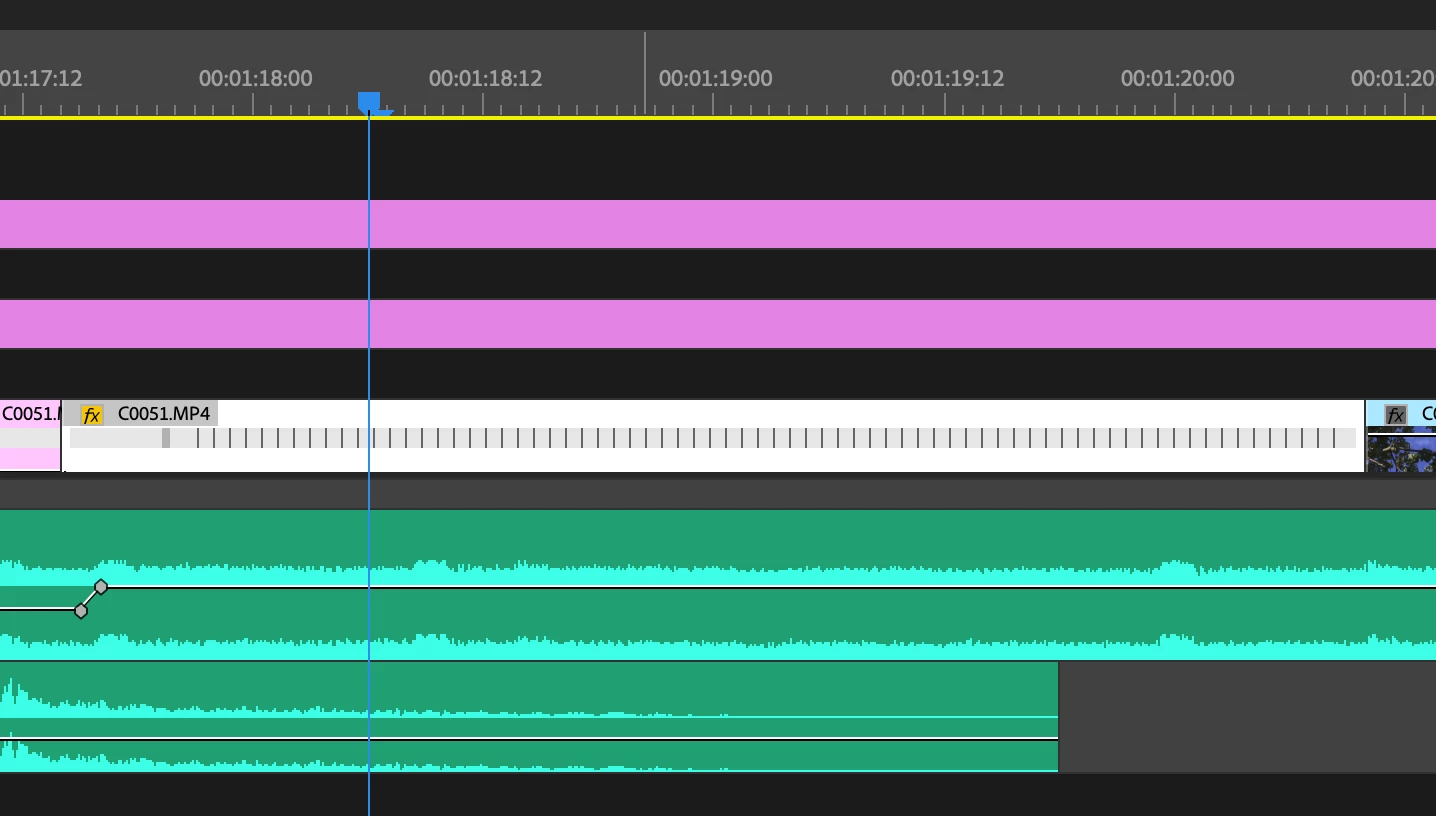
(the speed changed files look like the gray one and are just a frozen image)

 AdChoices