
Alpha Channel Videos Glitch
I'm encountering a very strange issue with my alpha channel videos that is costing me time and drive space. I import these Alpha Channel text graphic MOVs into Premiere, and at first they look flawless (see below). Crisp edges, clean alpha and motion blur. Exactly as they were in After Effects.
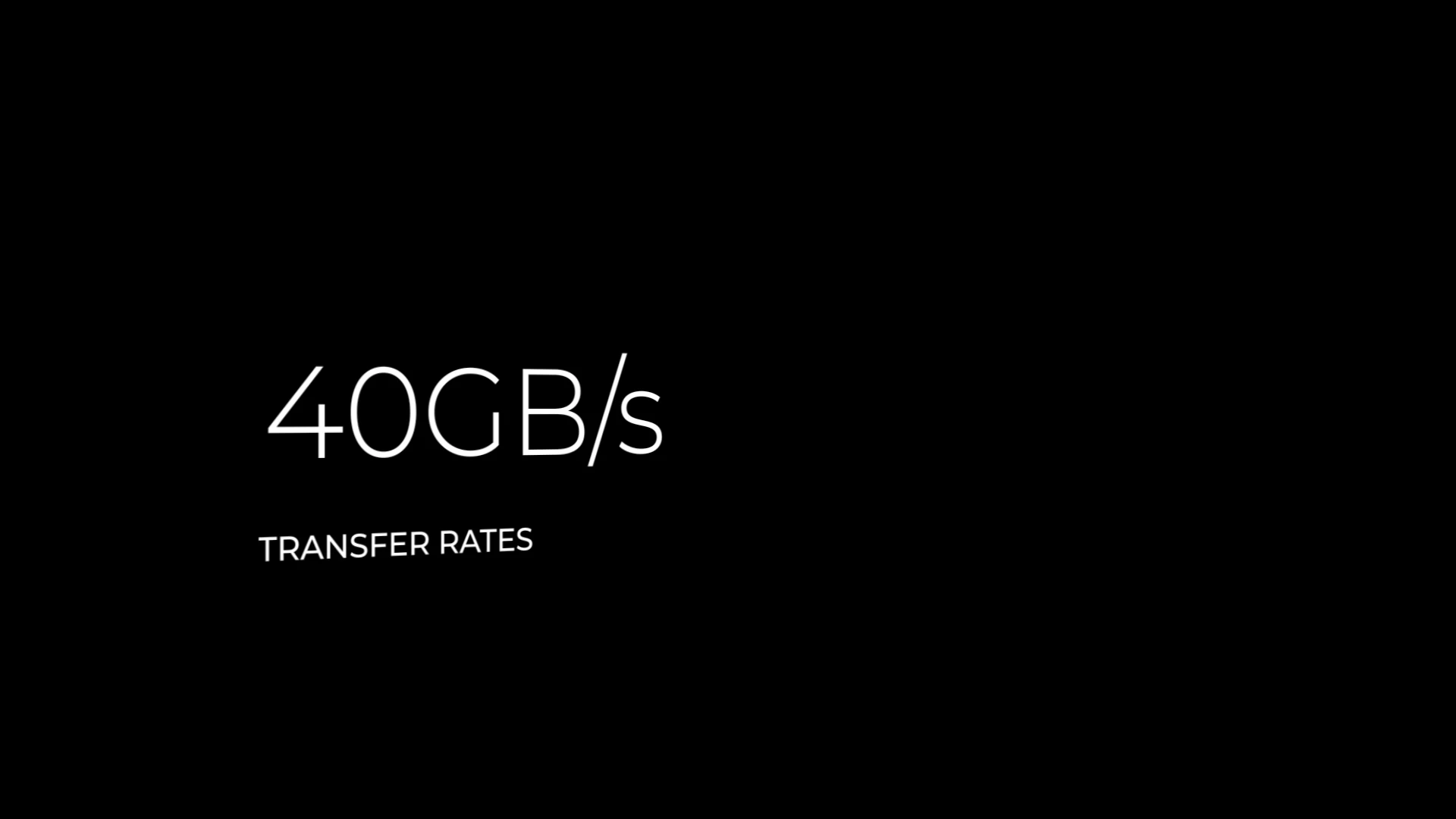
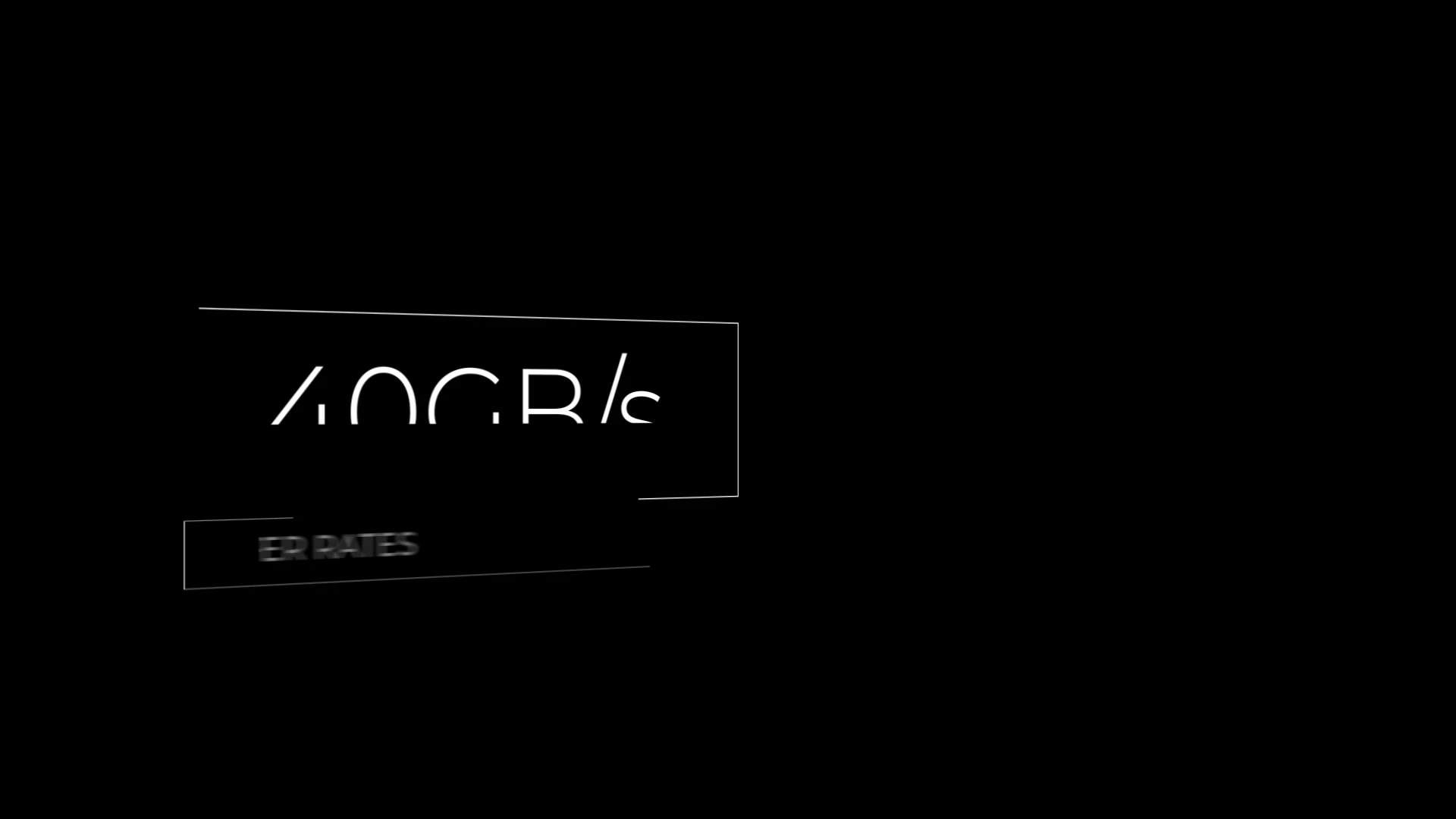
But then, after a short period of time, the videos suddenly look like crap. Semi-transparent blue background replaces the alpha, the edges become jagged, the motion blur becomes a pixely mess (see below)
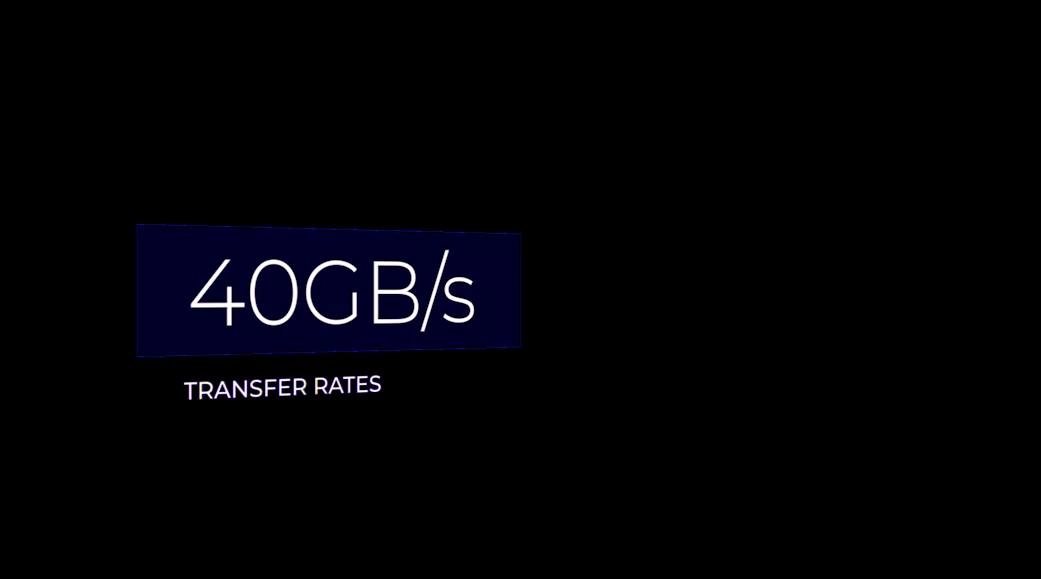
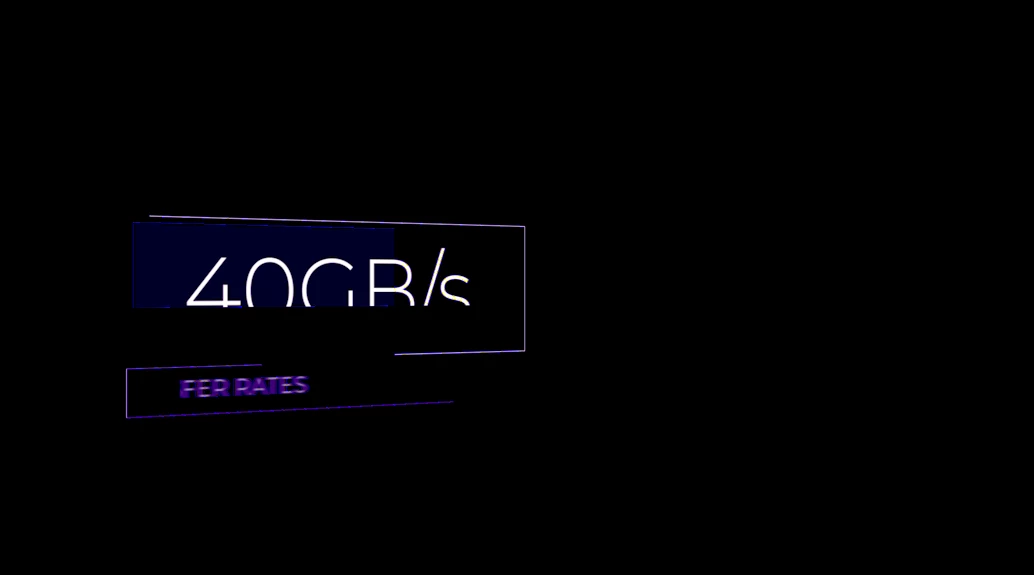
The source file never changed, the graphics just degrade immensely within the program. At first I thought it was just the playback or something related to sequence settings, but this visual degradation is present in the source window and remains in the final export. Making the file offline and relinking doesn't work. The only workaround I've found is making a duplicate of the source file in Finder, Importing that, and doing the Alt-Drag-Replace trick. But this is a ridiculous, time consuming extra step I should not have to do, and eventually the duplicate file undergoes the same degradation.
No matter what, I get this brief window where the alpha video files look pristine and accurate, then they become these ugly bastardizations, and once this transformation happens, it can't be undone. Even if I import the same file into Premiere, it has the fuzzy blue look. The only way to "remind" Premiere what these files are supposed to look like is bringing in a new copy, and even then, Premiere eventually "forgets" again. I can't make duplicates within Finder and manually realign them with the graphics every time I want to get an export out to the client where the text graphics aren't an ugly fuzzy mess.
This glitch happens regardless of whether the Alpha MOVs were exported from After Effects as Lossless with Alpha or Prores 4444 with Alpha.
Program is Premiere Pro CC 2020 V13.1.5 (up to date at time of posting)
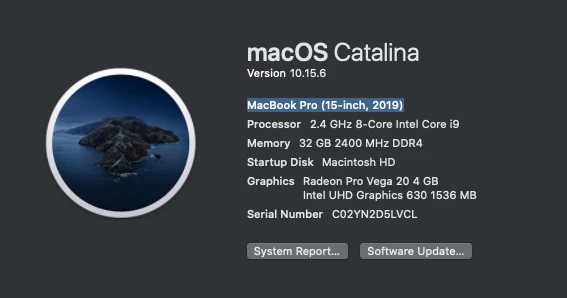
Below are my Computer Specs
 AdChoices