Participant
April 20, 2024
Answered

ASAP An empty timeline copied over to a video and deleted all of the editing

  • April 20, 2024
  • 4 replies
  • 557 views

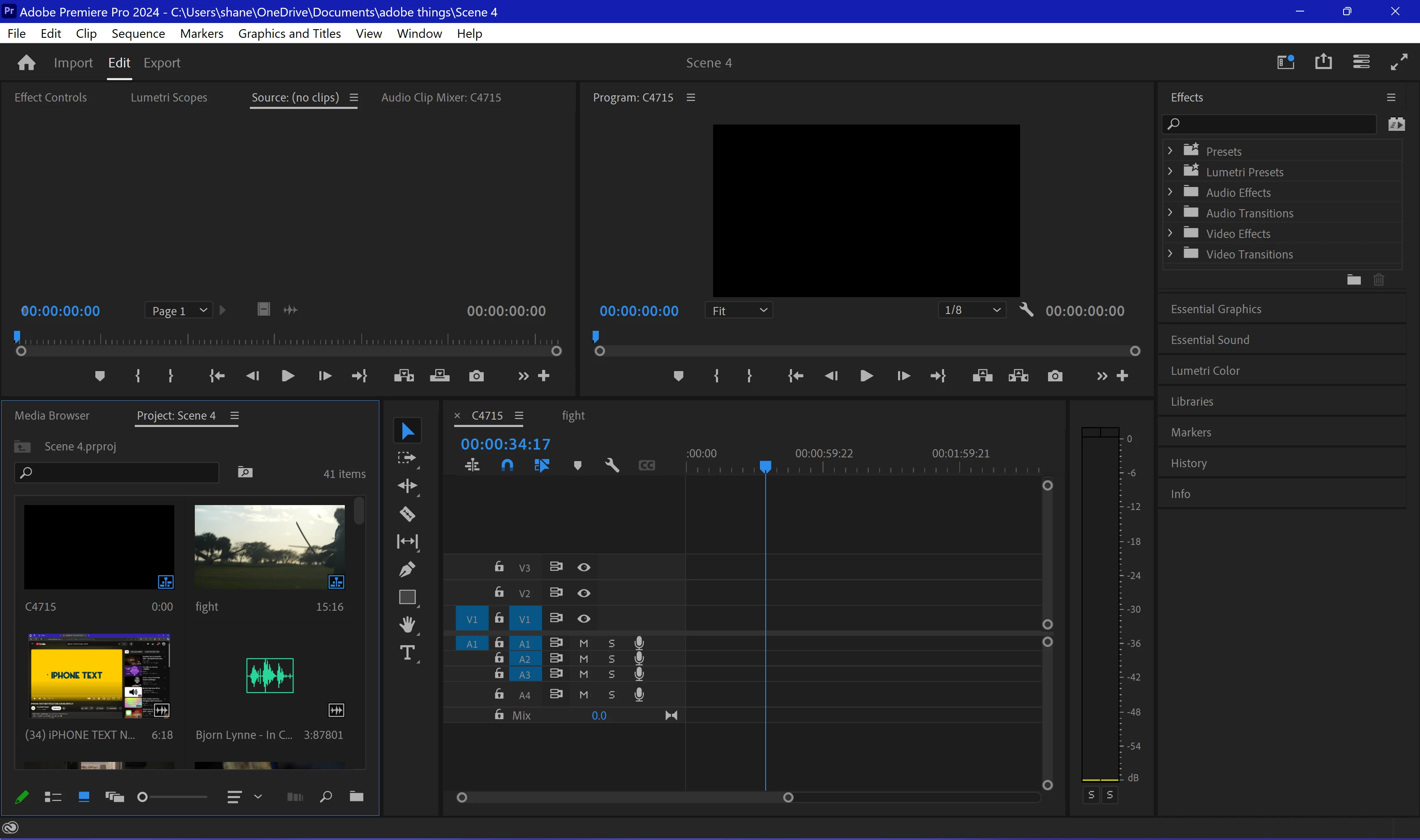
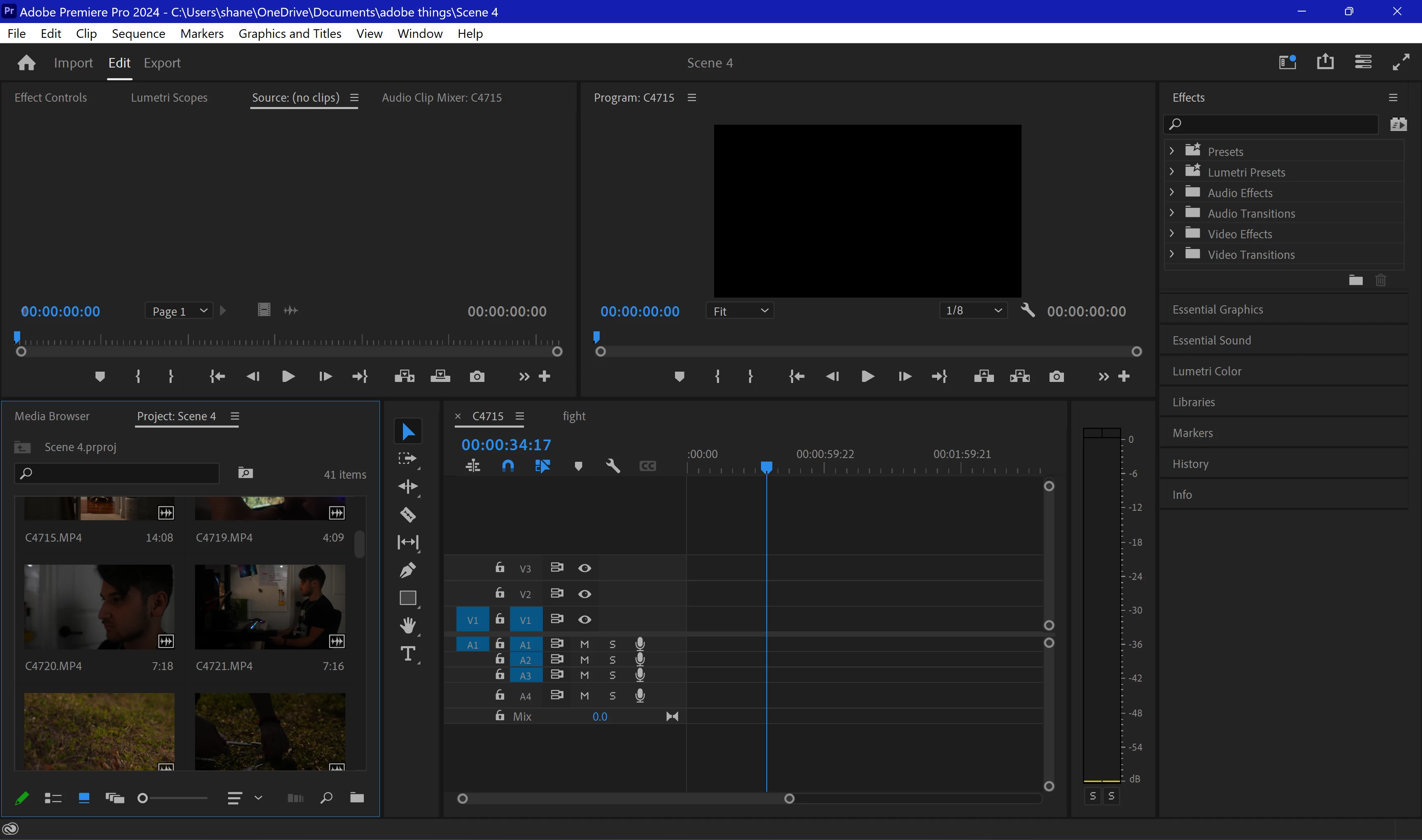
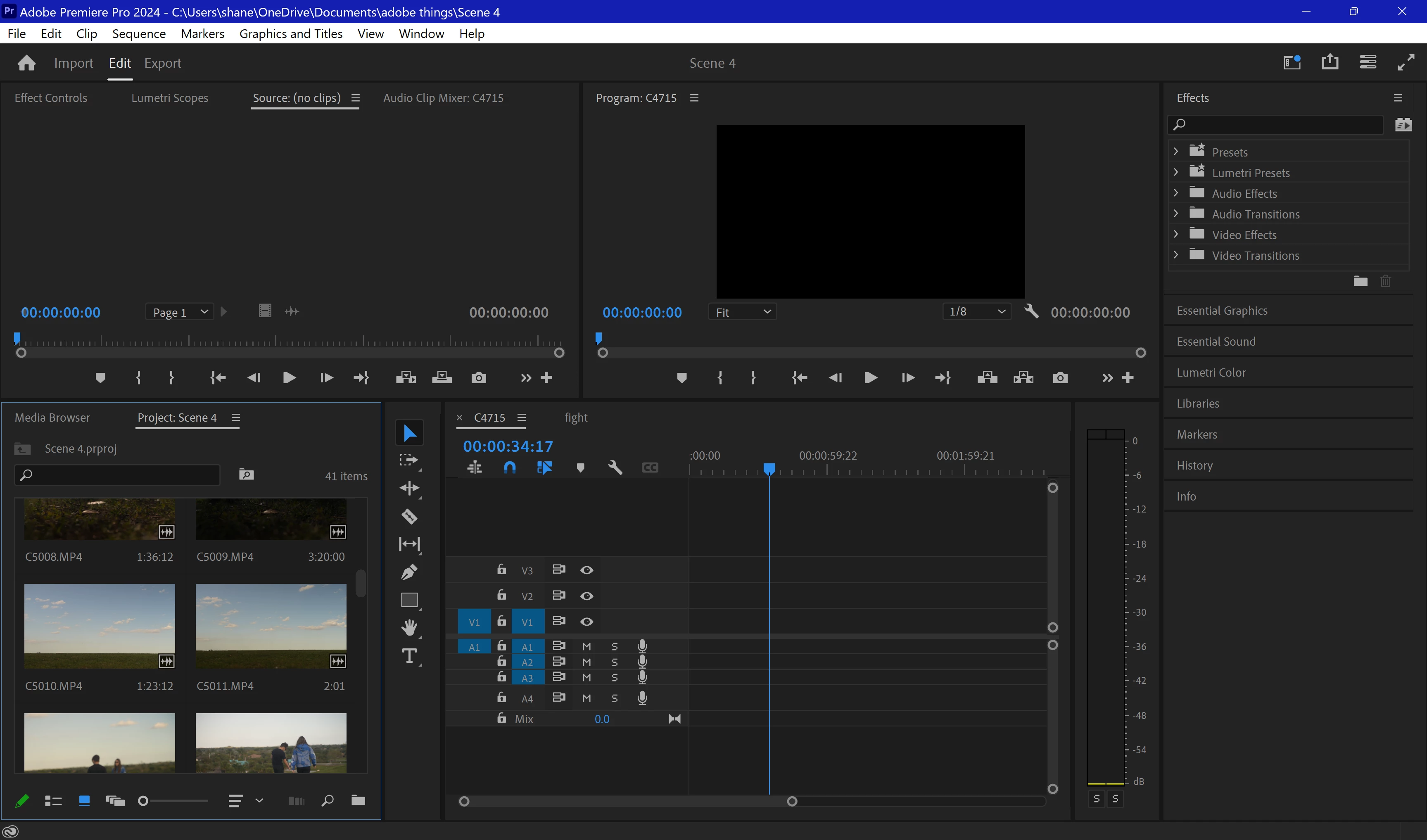
I was working on my film when I went over to an empty project to test something. When I reopened my main project with my film, the empty timeline copied over and deleted all of the editing I have done. I really need help ASAP, this film is due on May 1st for a film festival. I attached some photos to help.

This topic has been closed for replies.
Correct answer T - Sal

Hello,  locate your project name within the autosave folder. Look for the most recent autosave file and open it to check for your latest edits if you didn't find it open an older version. Save the correct version under a new name to prevent overwriting.


Windows:

Open File Explorer (press Win + E).
Navigate to the directory where your Adobe Premiere Pro project files are stored.
In the top-right corner of File Explorer, locate the search bar.
Type your project name into the search bar and press Enter.
Windows will search for files and folders containing the specified name within the current directory and its subfolders.
Mac:

Open Finder (click on the Finder icon in the dock or press Command + Space to open Spotlight and type "Finder").
Navigate to the directory where your Adobe Premiere Pro project files are located.
In the top-right corner of the Finder window, you'll see a search bar with a magnifying glass icon.
Click inside the search bar and type your project name.
Press Enter to initiate the search.
Finder will display files and folders matching the specified name within the current directory and its subfolders.
Using these search methods on both Windows and Mac will help you quickly locate your project files based on the project name. Once you find the relevant files, you can proceed with recovering your project from the autosave.
4 replies

Averdahl
Community Expert
Community Expert
April 20, 2024
quote

...the empty timeline copied over and deleted all of the editing I have done.


By @Just Shane Forte


You have a timeline named fight with clips in it, so what happens if you click on it? (See the attached image)


I think that is the timeline you are looking for but may be wrong.


T - SalCommunity ExpertCorrect answer
Community Expert
April 20, 2024

Hello,  locate your project name within the autosave folder. Look for the most recent autosave file and open it to check for your latest edits if you didn't find it open an older version. Save the correct version under a new name to prevent overwriting.


Windows:

Open File Explorer (press Win + E).
Navigate to the directory where your Adobe Premiere Pro project files are stored.
In the top-right corner of File Explorer, locate the search bar.
Type your project name into the search bar and press Enter.
Windows will search for files and folders containing the specified name within the current directory and its subfolders.
Mac:

Open Finder (click on the Finder icon in the dock or press Command + Space to open Spotlight and type "Finder").
Navigate to the directory where your Adobe Premiere Pro project files are located.
In the top-right corner of the Finder window, you'll see a search bar with a magnifying glass icon.
Click inside the search bar and type your project name.
Press Enter to initiate the search.
Finder will display files and folders matching the specified name within the current directory and its subfolders.
Using these search methods on both Windows and Mac will help you quickly locate your project files based on the project name. Once you find the relevant files, you can proceed with recovering your project from the autosave.
T-Sal
Participant
April 24, 2024

Thank you so much, it worked and I got most of it

Peru Bob
Community Expert
Community Expert
April 20, 2024

What do you see when you click here?

Peru Bob
Community Expert
Community Expert
April 20, 2024

I've moved this from the Using the Community forum (which is the forum for issues using the forums) to the Premiere Pro forum so that proper help can be offered.

Scroll down here to see a list of the forums:
https://community.adobe.com/