


Participating Frequently
October 24, 2025
Answered

Audio de-syncs after manually syncing and merging

  • October 24, 2025
  • 2 replies
  • 352 views

We've all had the experience where Premiere couldn't auto-sync audio and video, and so we switch the timeline to Audio Time Units and get to nudging. (I've also recently learned that you can use a multi-camera source sequence to auto-sync and merge audio and video). That is only where my problem begins.


Once the video and audio are "linked" together, either through merging it myself or via multicam or nesting, THE AUDIO IS NO LONGER ALIGNED! This is after Premiere supposedly aligns the audio by its exact waveform, or I do it manually by eye.


I've tried switching the timeline back to frame count after aligning via ATUs, trimming the video and audio,  and then merging, and it still happens.


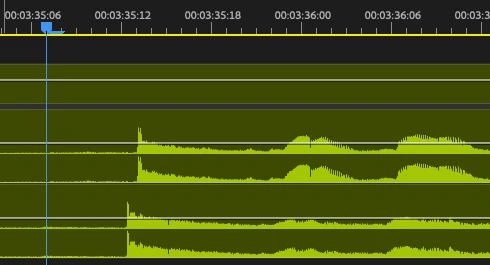
Here's an example of auto-synced multi-cam on my timeline. This is a clap, and the de-sync creates a very audible clap-clap.
 

Here's an example of a manually synced & merged clip, placed back into the timeline: 
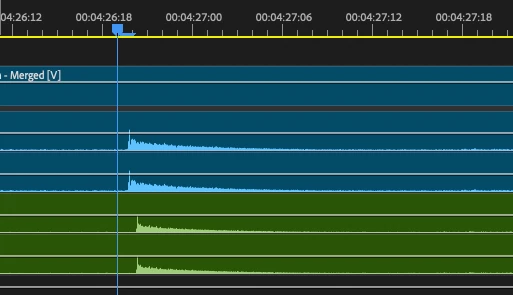
 

Again, the clap very distinctly sounds like a clap and a half because of the de-sync.


hardware / software specs:

  • Running Premiere Pro 25.5.0 (Build 13), but I've experienced this on versions prior
  • Macbook Pro M2 Max, using Ventura 13.2.1
  • Video is 2160x3840 (vertical 4K), 23.976 FPS, 48 kHz 16-bit stereo audio. Recorded on Sony a7S III in XAVC-S at 4:2:2 10-bit
  • Audio is a separate track at 48 kHz 32-bit float mono, recorded using a Rode Wireless PRO lav mic. You'll see in the screenshots, I've mapped the audio into duplicate L/R stereo channels, but this seems to have had no impact on the sync issue either way.


I really don't know what to do about this. I've been having this issue with Premiere for 10+ years and a fix has never been made for it. It's like the program is overriding where I place the audio on the timeline. Please help.
Correct answer PaulMurphy

@PaulMurphy @R Neil Haugen Ok one more question:


After doing the Open in Timeline fix, playback on my multicams in the source window are silent. I haven't changed any settings—just did the fix as stated above, returned to frame-based editing, closed the multicam sequence—and now, I don't hear audio in the source window. As soon as I drag it into my timeline, I can hear audio. What is going on?


Notably, this issue doesn't affect multicams I haven't fixed yet.


This issue is most likely related to how audio is routed in a multichannel sequence. By default, each audio channel in a multichannel sequence is mapped to a discrete output—so if you're monitoring through standard stereo speakers, some channels may be inaudible.

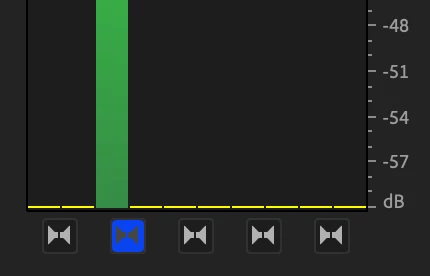
To properly monitor all audio channels through your stereo setup, click the small "bowtie" icons located at the bottom of the Audio Meters panel. These icons let you solo individual audio channels for monitoring.


Tip: Hold Shift and click the bowtie icons to enable all audio channels at once. This will ensure you're hearing everything, even in a multichannel timeline.

2 replies

Community Expert
October 26, 2025

The way Audio Time Units work in Premiere Pro can be a bit unintuitive. When you nudge an audio clip using Audio Time Units (ATUs), its position is maintained with sample-level precision—but only until the clip is moved or edited as part of a video selection. Once that happens, even using Edit > Undo won’t restore its previous ATU-aligned position.


This behavior is one of several reasons why merged clips are not recommended. They can often introduce sync inconsistencies, especially when precision is critical.


For a more reliable workflow, I recommend the following:

  • Manually sync your audio and video within a Multi-Camera Source Sequence, using Audio Time Units.
  • Do not adjust the synced clips after this point.
  • Once you've locked in sync, add a sequence marker at that sync point within the multi-camera source sequence using Audio Time Units. This will give you a reference that retains its exact position even when you return to frame-based editing.
Participating Frequently
November 17, 2025

Hi Paul,


Thank you for the detailed response. Would you be able to elaborate on this with either screenshots or a video?


I'm not sure what you mean when you say "within" a multi-camera source sequence, since my understanding is that a multi-camera source sequence is more like a merged clip and less like a sequence, in my experience so far. I'm also unsure how adding a sequence marker comes into play once those clips start getting edited and moved around.


Bringing this back up since I'm editing a similar video again and running into the same issue. Simply clicking "synchronize" never aligns the audio perfectly, so I am still having to nudge stuff around in ATUs, and need a reliable way to link them together once I've done so. Thank you for your help.

R Neil Haugen
Legend
November 17, 2025

Multicam and a simple timeline action of Merge or Sync are not at all the same things. In fact, it is normally recommended for all workflows that will need pass through to a sound person, that you never ever ever use Merge clips, as that dumps all audio metadata from the resultant 'merged' clip.


Multicams in Premiere are sort of in interesting thing, but they are very different from either merged or other 'normal' clips. 

Everyone's mileage always varies ...
R Neil Haugen
Legend
October 24, 2025

Wow, that's a total bummer. But also quite puzzling ... I've been using Pr for over a decade, with a ton of both Multicam and manual syncing, and never had this happen.


So I'm totally puzzled ... the only differences I see is that you're on Mac, and the sequence was vertical. Which shouldn't cause a problem one would think. Huh.


@PaulMurphy ... any help you could offer?

Everyone's mileage always varies ...