



Jamie233564008iop
Participant
February 23, 2026

Audio dips or sounds hollow after a cut or in general
  • February 23, 2026
  • 3 replies
  • 25 views

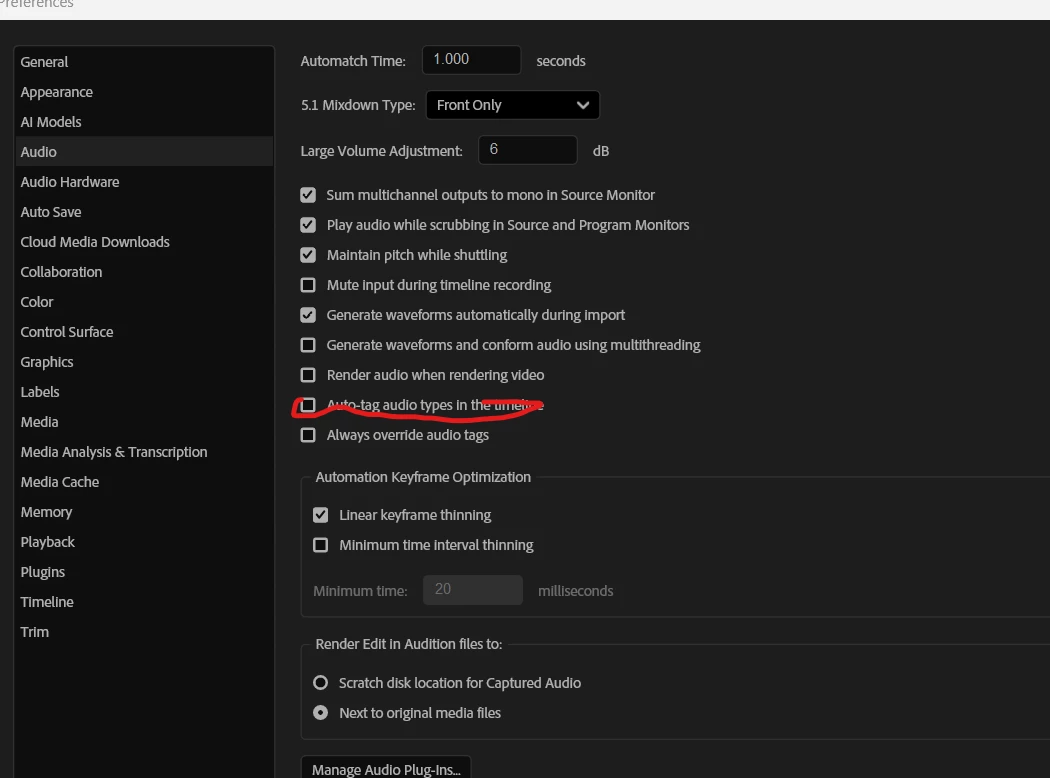
I was experiencing dips and hollowness after cuts here and there, then i found that checking off the auto-tag fixed my issue. it seems like AI was trying to decide which audio track was voice or music/sound. since i had a specific recording that had a lot mixed together it made every time i cut warbly sound. I hate AI and i wish i could turn it off. 

    3 replies

    Jamie233564008iop
    Participant
    February 24, 2026

    Ok that temporarily solved my issue but it came back. It seems random like one clip will sound fine then I continue editing and come back to check, its warbly again or hollow. Its something to do with syncing im sure cuz its only for this video which has multiple layers of voice audio on top of eachother. Idk ignore this post now 

    Community Expert
    February 24, 2026

    It sounds like you might be dealing with phase issues - this can be fixed by syncing audio using Audio Time Units instead of Frames. To prevent it from falling out of sync while editing with frames, it helps to do your syncing in a multi-camera source sequence.

    Community Expert
    February 24, 2026

    This setting only uses AI to apply tags to clips. Those tags simply control which options are available in the Essential Sound panel, they do not apply processing automatically.
     

    It should not be making any audio adjustments based on those tags alone.
     

    Are you using Auto-Match or Enhance Speech? Those features can adjust levels and may react differently across edits.

    Joëlle Bh
    Community Expert
    Community Expert
    February 24, 2026

    Hi,

    Thank you for sharing the details.There’s few ways to get smooth results:

    • Pre-separate tracks if possible, so voice, music, and effects are on their own layers.

    • Add short crossfades between cuts to prevent abrupt changes and maintain consistent audio.

    • Use high-quality render settings, sometimes previews can exaggerate these effects.