Participant
May 31, 2021
Answered

Audio issues

  • May 31, 2021
  • 3 replies
  • 756 views

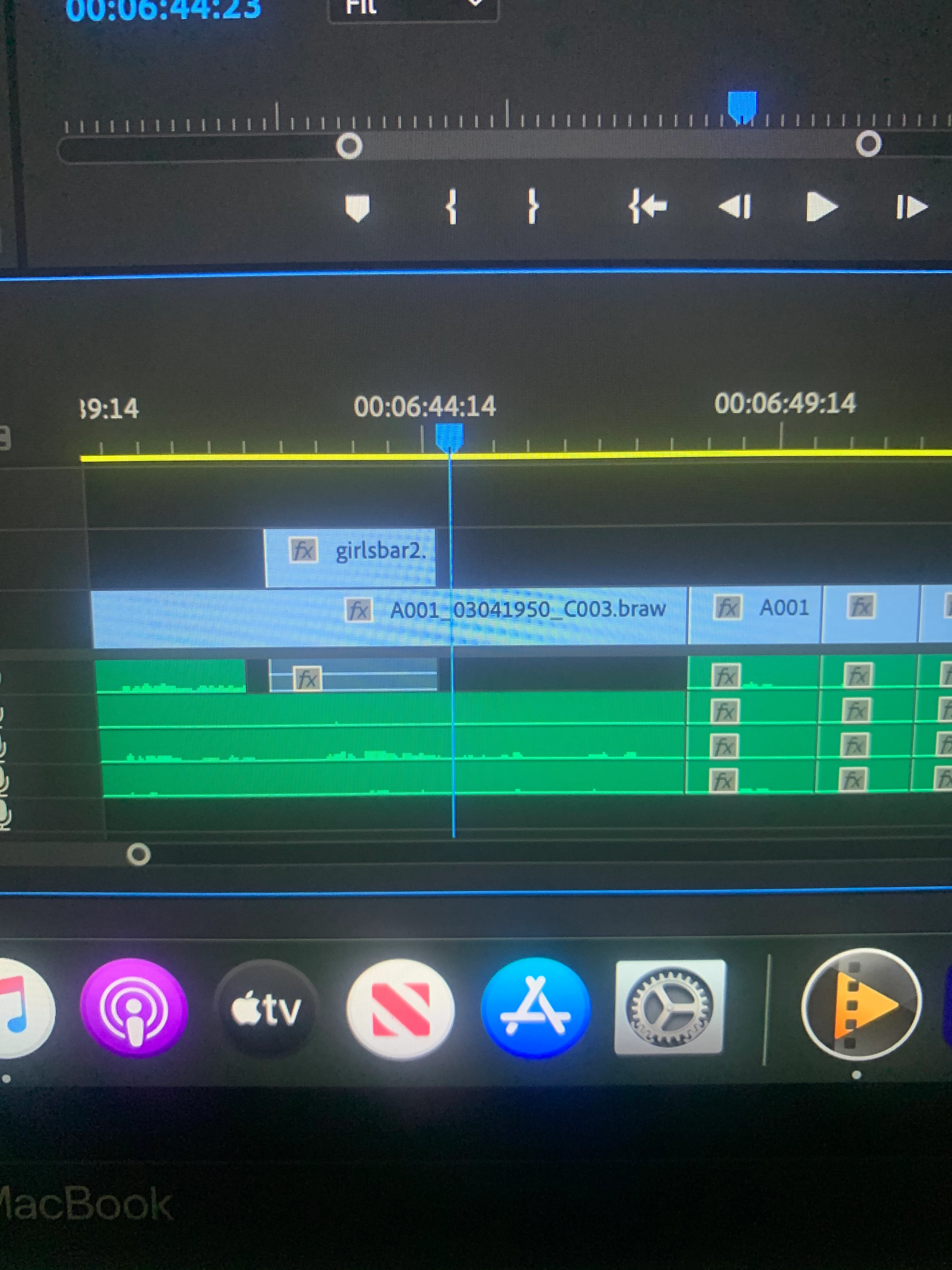
Hey all, I'm quite new to using Adobe so my apologies if I'm not using the correct terms! While editing a scene, I've run into some audio issues. I have my audio synched up with the clip, but when I add an insert video clip on top of my main video clip, the audio drops out in favor of the camera audio for the insert. I've attempted to drag the audio over the camera audio, but it doesn't work. I've attached a picture of what's showing up for me. How can I get rid of the camera audio on the insert clip and keep the audio underneath running the whole time?
This topic has been closed for replies.
Correct answer SoakingCheese

I'm pretty sure you can right-click on the clip that has the audio and then click "Unlink" so the audio and the video don't move together. Then you can just delete the audio track if you don't want it.

3 replies

Ann Bens
Community Expert
Community Expert
May 31, 2021

Hit F1 and type in the search: source patching and/or track targeting.


Hold down Alt > select audio > delete.

Avidwarp
Participating Frequently
May 31, 2021

Try the techniques explained in this video tutorial on the Adobe help pages.

It is from Jan 2021, and section 2 shows how to drag only video or audio.

You might find it helpful to go through all the rest of the tutorials marked beginner on the Adobe site.

How to create and edit sequences | Adobe Premiere Pro tutorials

Lots of very useful tips on the Adobe site.

SoakingCheese
SoakingCheeseCorrect answer
Participant
May 31, 2021

I'm pretty sure you can right-click on the clip that has the audio and then click "Unlink" so the audio and the video don't move together. Then you can just delete the audio track if you don't want it.

i make videos.
Participant
June 1, 2021

Thank you so much! That worked.