
October 10, 2010
Answered

Audio timeline snapping - way to turn it off?

  • October 10, 2010
  • 4 replies
  • 109447 views

I hate how in all the NLE's I've edited in, when I want to sync something perfectly to the audio and I zoom into the timeline to see the wave of the audio... it will only snap according to those vertical lines - and I don't want that, what if I want free control of where I want to move my cursor on the audio.

Does anyone know what I'm talking about?
This topic has been closed for replies.
Correct answer Tminus10web

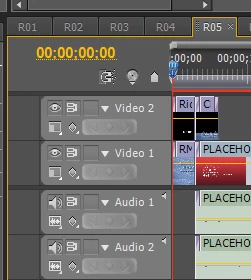
You can easily turn on and off 'Snapping' by clicking on the horseshoe (magnet) shaped icon in the top left of the timeline panel.   Here is a screenshot... the icon is near  the top left, under 00;00;00;00:

With snapping off, you will be able to freely move audio or video by hand, to any frame.  The more you zoom with snapping turned off,  the more accurate you can be.

Hope that helps,

David

4 replies

Participant
October 21, 2015

I found out, after you turn off your snap by pressing what should look like a magnetic horseshoe ( or just press "S" on your keyboard)

go to  the top right corner of every sequence , there should be a drop down menu, in that menu you will have to enable "Show Audio Time Unit" and in that same drop down menu you will click maximize frame (or you can press "Shift +") you wont be getting a visual preview but you will be allowed to move your video freely on the timeline. I edit music videos so this was key for me.

the_wine_snob
Inspiring
October 10, 2010

Besides the Snap icon, you can toggle Snap ON/OFF with the S key. For Audio syncing, you might want to also change the TimeCode to Audio Units.

Good luck,

Hunt

October 22, 2010

No, I'm not talking about that kind of snapping. Here is a capture I took of what I mean

http://img109.imageshack.us/img109/9681/capf.png

you see the horizontal blue line, and the vertical grey lines it seems to attach to? Well THAT's what I'm talking about. The vertical RED slider will only

go where the HORIZONTAL blue line snaps to (which are the vertical GREY lines)

the_wine_snob
Inspiring
October 22, 2010

The horizontal blue line is showing that you are at the Frame level, and that is the Frame that the CTI is resting on.

With Snap ON, your Clip will want to go to the Frame boundary, and with it OFF, you can slide along, as you wish, though can obviously only do that at the Frame level, as one cannot have an increment that is less than a Frame for Video. Audio is another issue, as you can nudge it along by Audio Units (the frequency will depend on the Sample Rate), if you have changed the TimeCode to Audio Units.

Good luck, and hope that helps.

Hunt

Tim Kolb
Participating Frequently
October 10, 2010

Premiere Pro can even take it a bit farther than most NLEs as when you turn off snapping, the audio will not 'snap to the edge of other clips, but you can magnify the timeline only down to frame increments in most video editing applications, and the most precise you can move/alter audio is in video frame increments.

If you go to the upper -right- of the same sequence panel, there's the panel menu (or window menu or whatever it's called now...it was windows, then panels and panes...), each panel has a panel function specific menu in the upper right corner...and select "audio units".  Now the audio can be moved, cut, and manipulated down to the audio sample or millisecond level (selectable in the prefs).  If you want "perfect" sync...in Premiere Pro you can achieve it -on the video editing timeline-.  In most workflows, you're off to the digital audio workstation app to do this type of work.

Also...when you're cutting that music bed to length but chopping/looping the center?  If you're a musician like me, finding the loud noise under which to hide the off-beat collision that used to have to pass for an edit if you didn't have time to work the music in your audio application used to be a pretty painful compromise...I haven't had to make that compromise since early 2003.

(...this capability has been in Premiere Pro since the "Pro" was added...approaching 8 years ago.  I run into people every day who still don't know this capability even exists.)

Known Participant
March 4, 2011

Tim kolb, you are a life-saver ... I can now keep my hair on my head and not in bunches on the studio floor where it falls when I tear it out in frustration.

Thank you!

Only question is - why is it SOOooo hard to find in the help menus? Oh well, I guess there's no answer to that .... I'm just light-headed with relief!

the_wine_snob
Inspiring
March 4, 2011

You point up my biggest complaint with Help files. One must know the term, for which to Search. Armed with Tim's, and others' keywords, "Audio Units," "Snap," and even "SMPT," that Search becomes a bit easier. [However, I do embrace the ability to instantly update the Help files, when online, so there is a tradeoff.]

One rec. that I can make is Adobe Classroom in a Book Premiere Pro CS5, Adobe Press. The author covers the Audio editing in PrPro pretty well.

Glad that Tim was able to point you in just the right direction.

Good luck,

Hunt

Tminus10web
Tminus10webCorrect answer
Participant
October 10, 2010

You can easily turn on and off 'Snapping' by clicking on the horseshoe (magnet) shaped icon in the top left of the timeline panel.   Here is a screenshot... the icon is near  the top left, under 00;00;00;00:

With snapping off, you will be able to freely move audio or video by hand, to any frame.  The more you zoom with snapping turned off,  the more accurate you can be.

Hope that helps,

David