


Inspiring
Feb 10, 2021 10:30 PM UTC
Answered

Audio Wave Form Peaks Not Showing

Hi,   I'm using music from Artlist.Io as well as from Epidemic Sound and having trouble with the wave form display.   The wave form is displayed,  but on most of the tracks a large portion exceeds the upper limit and therefore does not provide information on where the peaks occur.  The voice audio shows all of the peaks properly,  whereas  very little of the music displays in this manner.  I'ver restarted the computer as well as deleted the media cache files, but neither of these helped. Attached is a screen shot;  music is on audio track 2 while voice narration is on tracks 1 and 3.
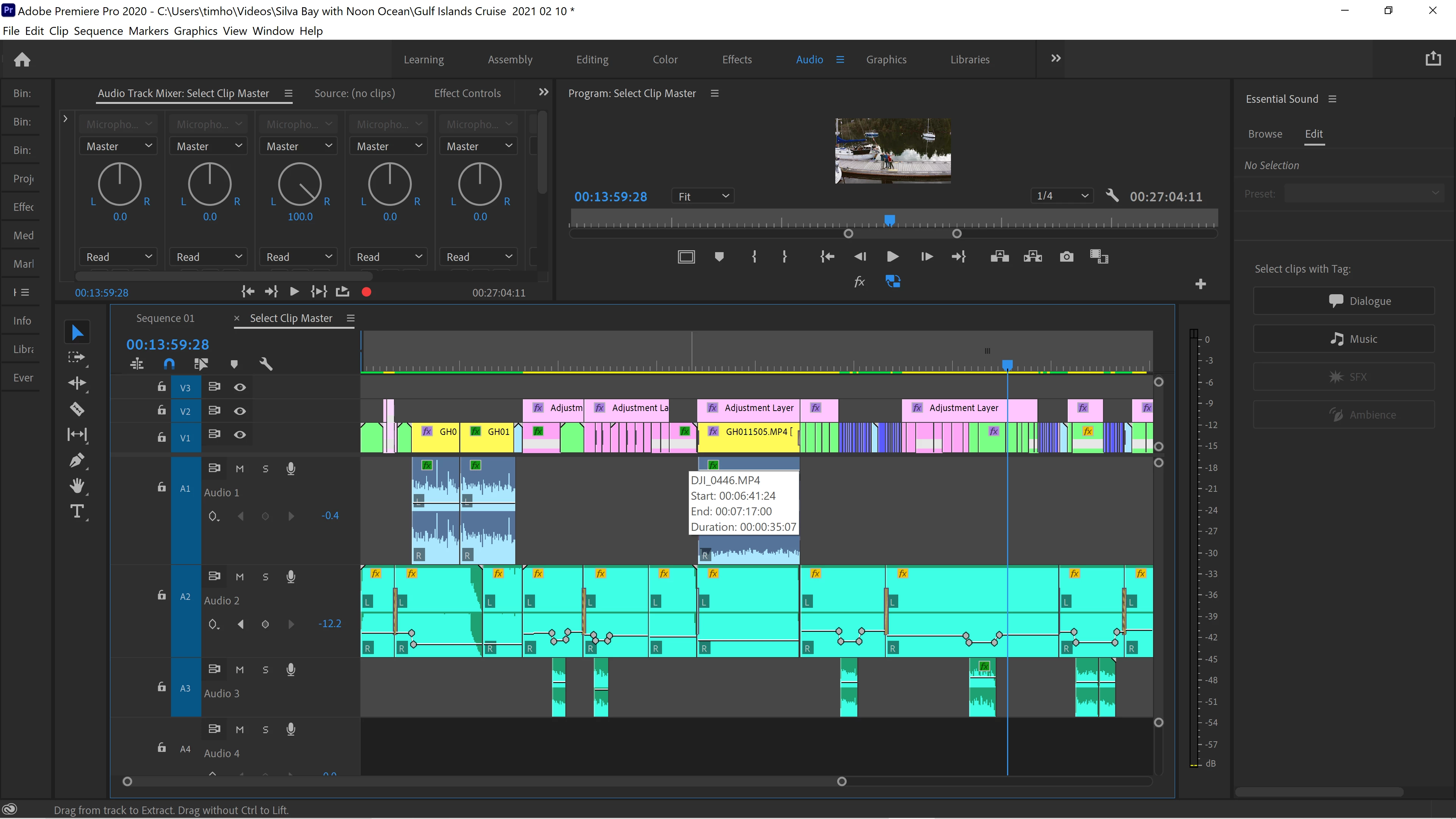
Another question is that I thought I could control the height of waveform was a visual representation of the volume level and that I could use this to even out volume between clips.  However,  none of the controls seem to affect the height of the wave form.


In summary, I'm looking for advice  on 1/ how to see the waveform peaks and 2/ whether the waveform display can be used to equalized volume levels.


Any input on this would be much appreciated.


thank you,

Tim


This topic is closed to new replies. Start a new post to keep the conversation going.
timh82449064Correct answer
Inspiring
Feb 11, 2021 7:36 PM UTC

hi again,   it looks like I stumbled upon a solution.   I had it set to display "track key frames".   In that mode the entire track becomes uneditible except for the track volume.     I changed it back to show "clip key frames" and then it behaved properly.    So the problem is now resolved.   Thanks for your help !

9 replies

Participant
Sep 7, 2022 7:59 AM UTC

Привет! Часто сталкивался с такой проблемой и решением было выполнить "рендеринг аудио" на панели "эпизод". Амплитуда аудио сразу появилась.

Translate
Peru Bob
Community Expert
Community Expert
Feb 11, 2021 4:12 PM UTC

You may want to try these:


Delete the Media Cache and Media Cache files:
https://community.adobe.com/t5/premiere-pro/faq-how-to-clear-your-media-cache-in-30-seconds-in-premiere-pro-2020/m-p/11017257/thread-id/260446?page=1

If that doesn't work,try resetting the preferences:
https://community.adobe.com/t5/premiere-pro/faq-how-to-reset-trash-preferences-in-premiere-pro/td-p/8236158?page=1

If that doesn't work, try resetting the Workspaces:
Reset a workspace
Reset the current workspace to return to its original, saved layout of panels.
1. Do one of the following:
• Click the Workspace menu icon and select Reset to Saved Layout.
• Choose Window > Workspace > Reset to Saved Layout.
from here:
https://helpx.adobe.com/premiere-pro/using/workspaces.html

If that doesn't work, try Preferences > Audio Hardware and set Input to None.

If that doesn’t work, try updating or rolling back your graphics driver directly from the video card manufacturer’s site. If NVIDIA, do a clean install of the latest Studio Driver (NOT the Game Driver).

If that doesn't work, try creating a new project and import the old one into it.

Translate
Inspiring
Feb 11, 2021 7:23 PM UTC

thanks for this advice !  I did everything as sugggested and unfortunately audio track #2 is still unresponsice to selecting or editing.   it still produces audio but the content is frozen and cannot be changed.

Translate
timh82449064AuthorCorrect answer
Inspiring
Feb 11, 2021 7:36 PM UTC

hi again,   it looks like I stumbled upon a solution.   I had it set to display "track key frames".   In that mode the entire track becomes uneditible except for the track volume.     I changed it back to show "clip key frames" and then it behaved properly.    So the problem is now resolved.   Thanks for your help !

Translate
Peru Bob
Community Expert
Community Expert
Feb 11, 2021 4:10 PM UTC

 track one has lost the M and S buttons


By @timh82449064

Use the scroll bar on the right of the audio tracks to scroll up to see the rest of track one.

Translate
Inspiring
Feb 11, 2021 1:18 AM UTC

Hi Again,  I think I found the solution to showing the peaks and adjusting them by using "normalize gain".   However,  now I have another problem.   Audio tracks 1 and 2 are no longer playable.   They won't responde to any commands and track one has lost the M and S buttons.      I've restarted premiere but the problem persists.   


Any advice on this would be greately appreciated.  


Following is a screenshot.


Translate
Peru Bob
Community Expert
Community Expert
Feb 11, 2021 12:39 AM UTC

Try Sequence > Render audio.

Translate
Inspiring
Feb 11, 2021 1:31 AM UTC

thanks Bob,  tried that but it didn't change the graph.  But audio gain normalize does adjust it.


In the meantime,  my track 2 has gone dead and is not responding to any commands.


Translate