
Auto Detect Log Color Space Causing Source Monitor Overexposure in Premiere
Subject: Issue with Auto Detect Log Color Space Causing Source Monitor Overexposure in Premiere Pro 2025
Description:
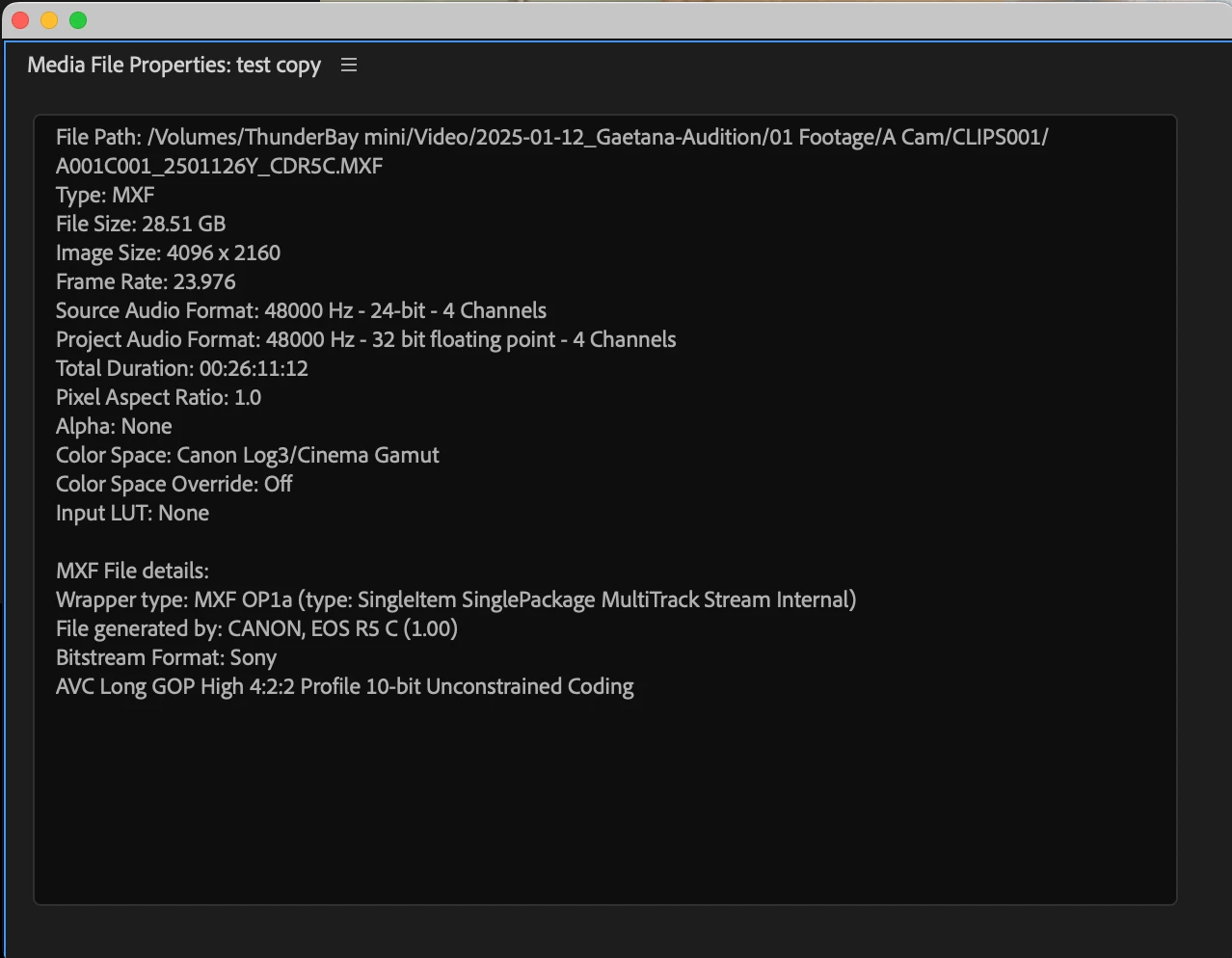
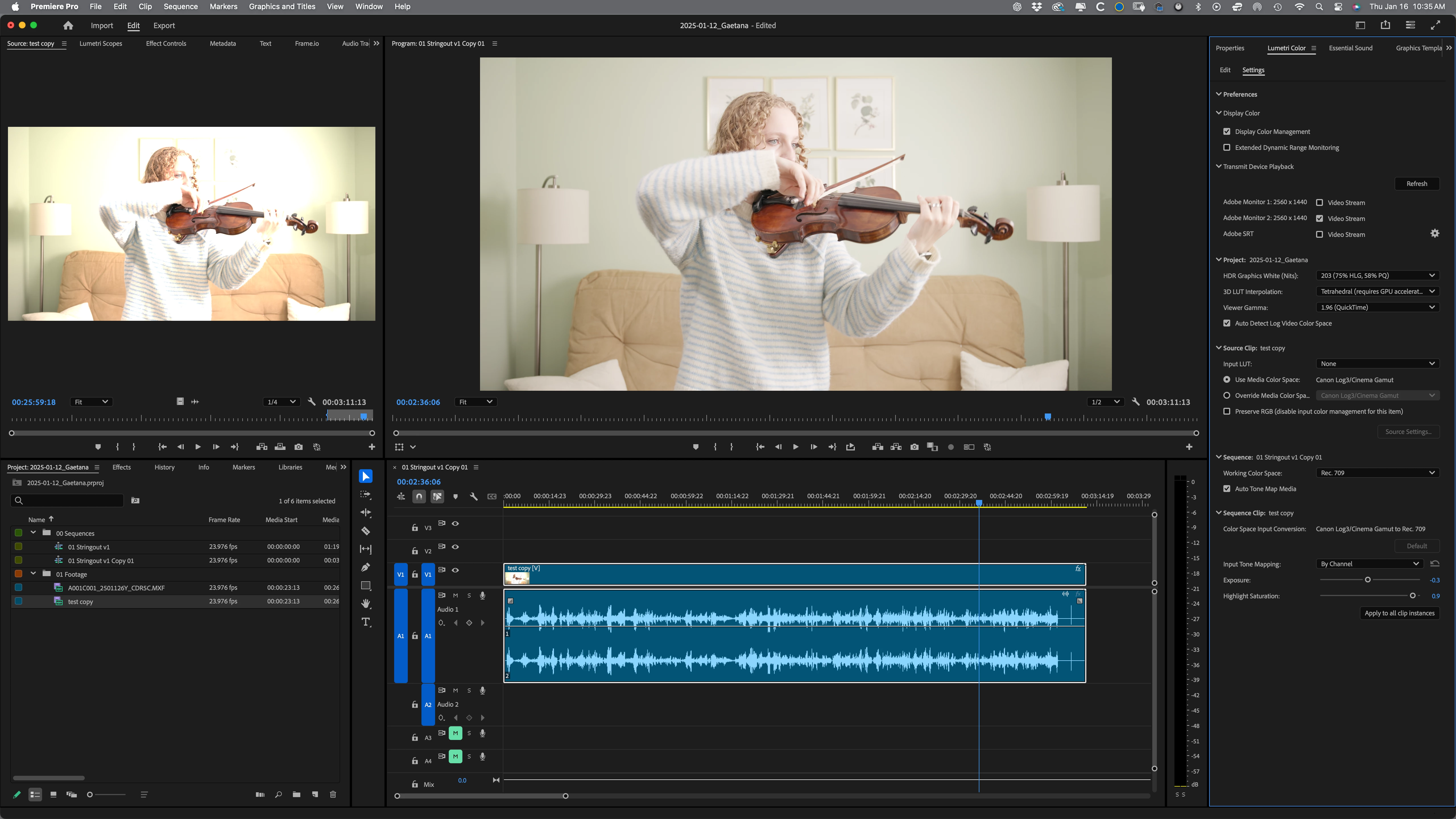
I’ve encountered an issue in Premiere Pro 2025 when working with Canon R5C footage in C-Log3/Cinema Gamut. When the Auto Detect Log Color Space feature is enabled, the footage appears overexposed and overly saturated in the Source Monitor, even though it looks correct in the timeline (Program Monitor).
Here’s a breakdown of the setup and the issue:
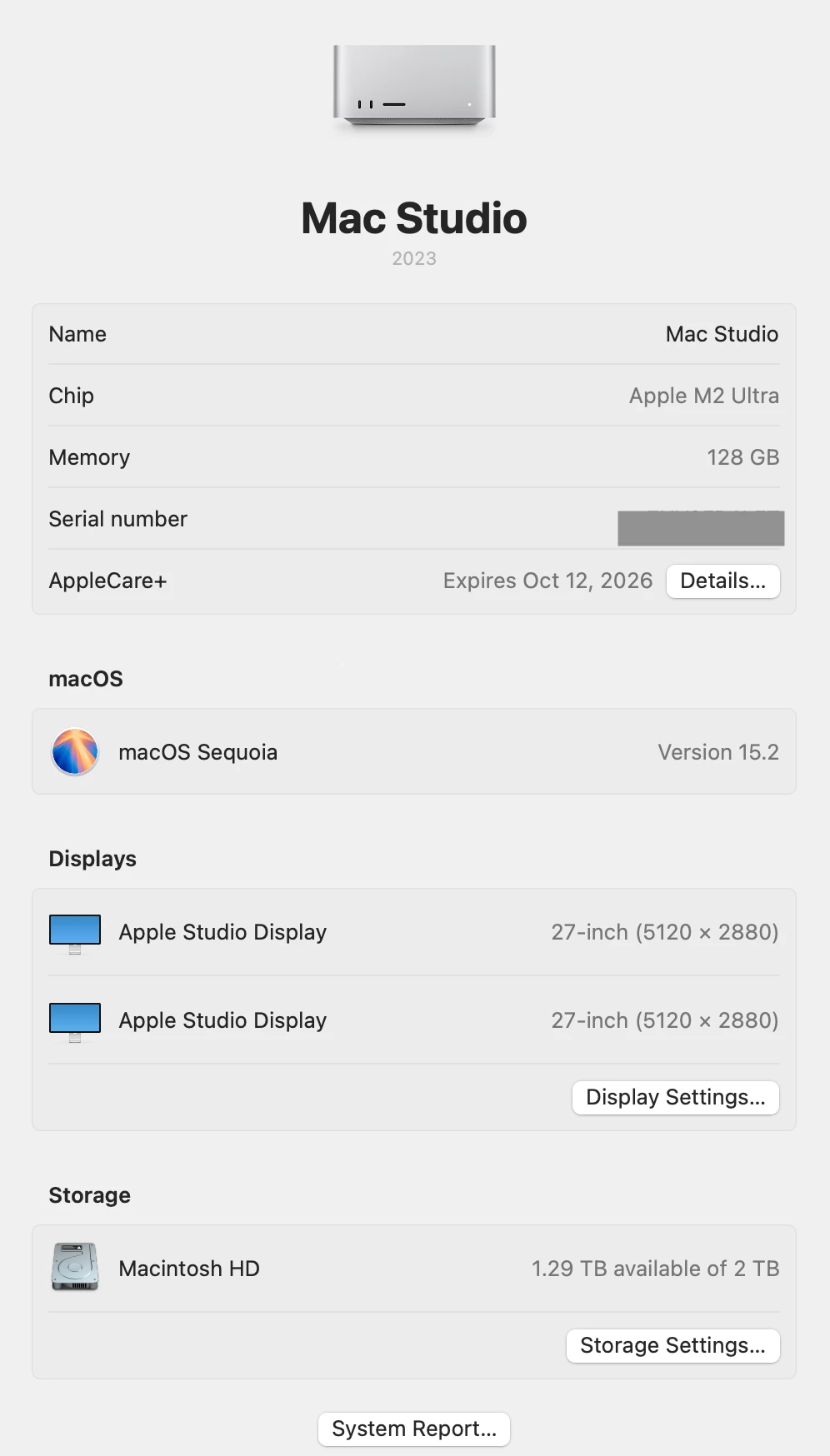
1.My Settings:
•Display Color Management: Enabled
•Auto Detect Log Color Space: Enabled
•Use Media Color Space: Checked
•Auto Tone Map Media: Checked
2.Expected Behavior:
The Source Monitor and Program Monitor should display the footage consistently, whether the transformation is auto-applied or manual LUTs are used.
3.Observed Behavior:
•The Source Monitor displays the footage as overexposed and highly saturated.
•The Program Monitor displays the footage correctly with the expected Rec.709 transformation.
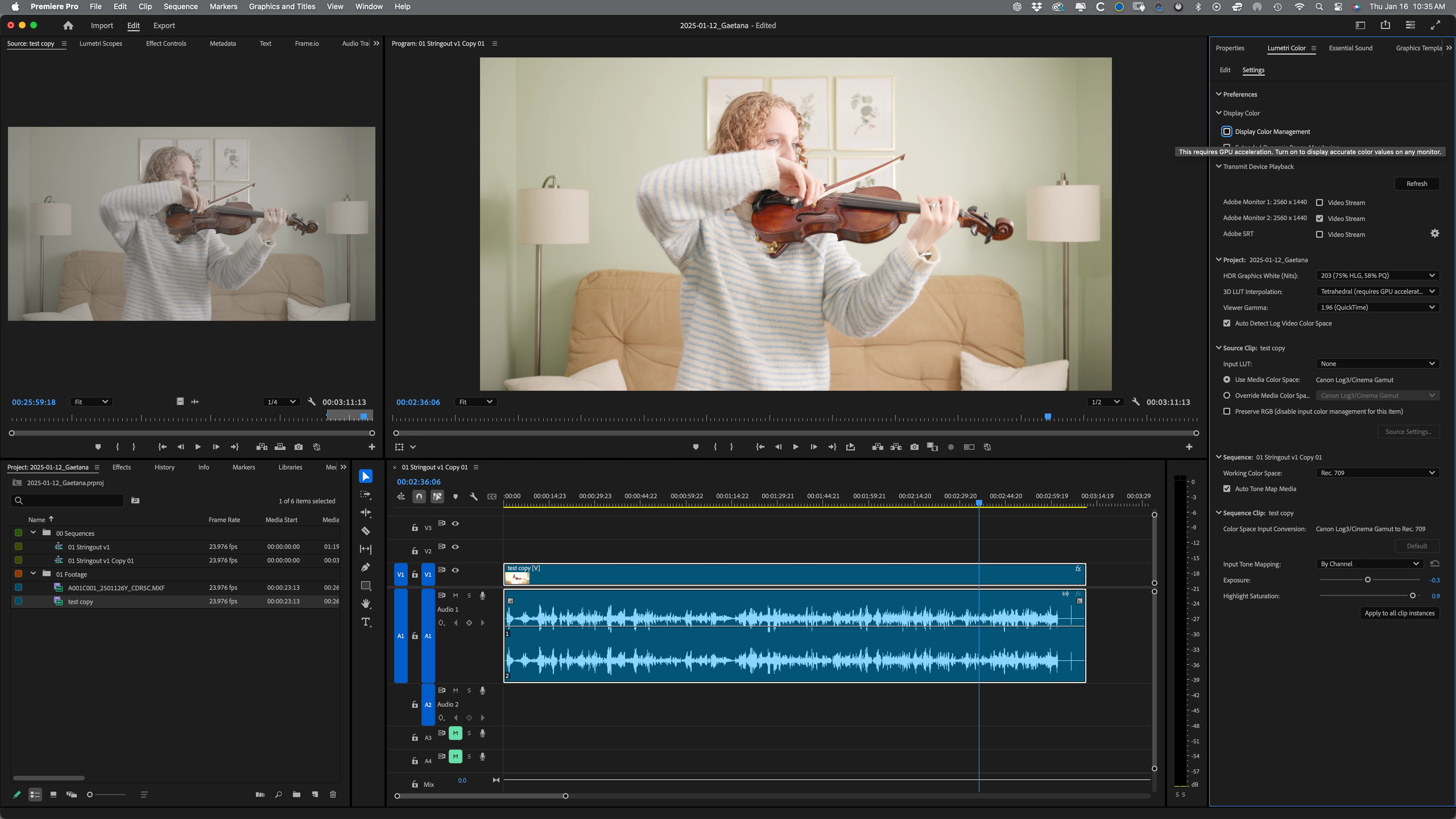
4.Testing and Workaround:
Disabling Auto Detect Log Color Space and manually applying a LUT (Canon C-Log3 to Rec.709) resolves the issue, making both the Source Monitor and Program Monitor display consistently. However, this defeats the purpose of the Auto Detect feature, which is meant to simplify this process.
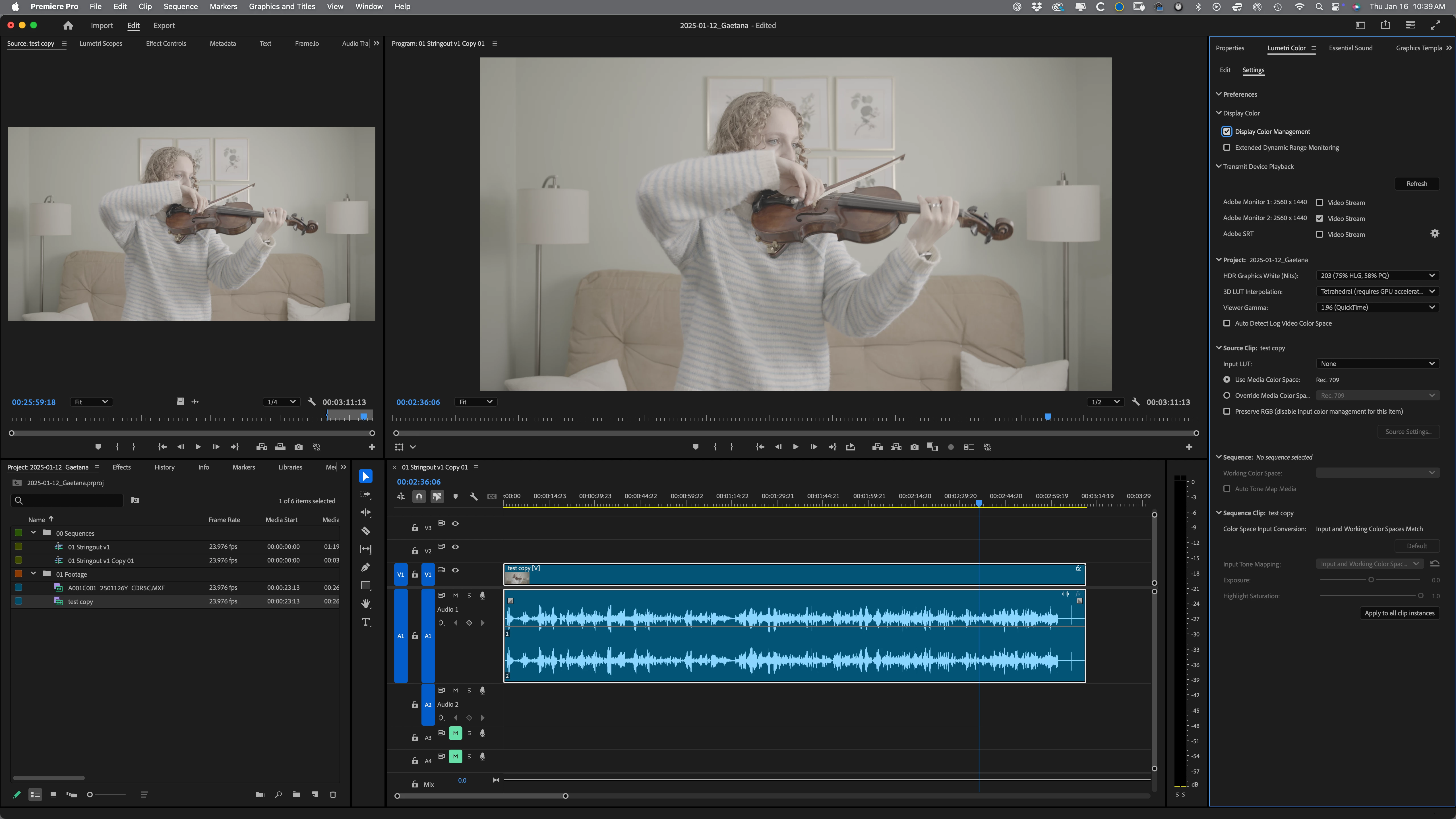
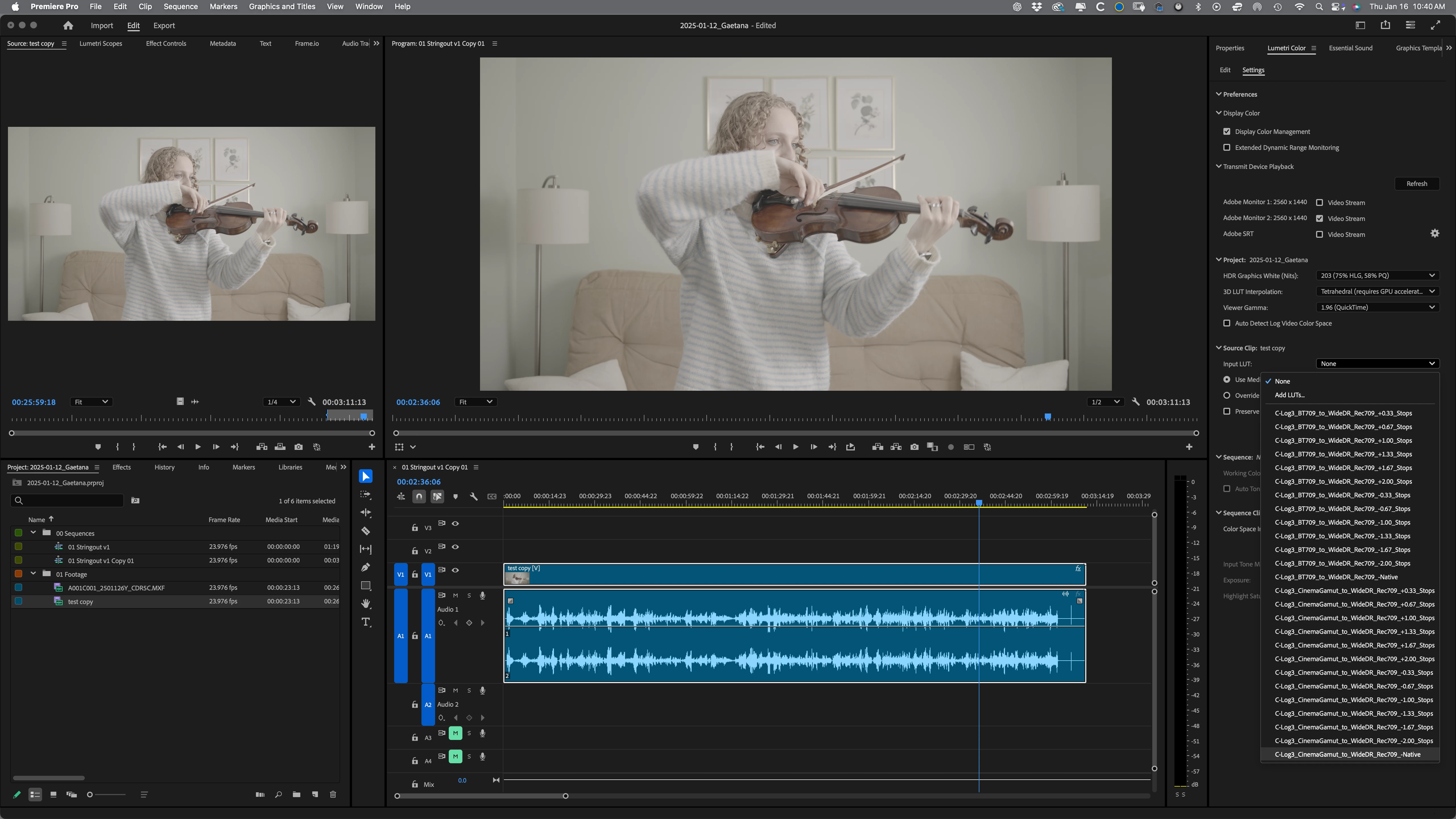
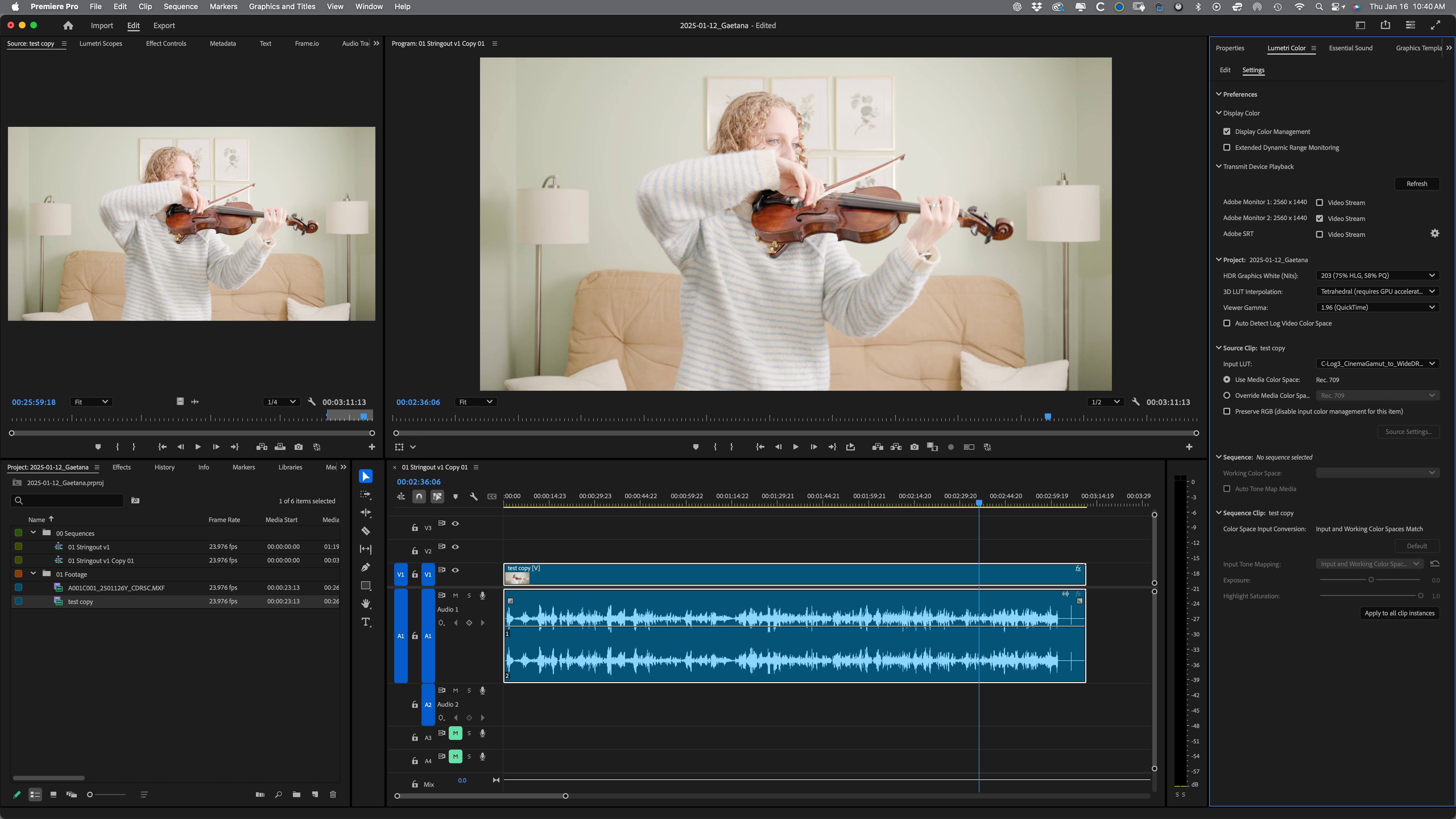
Steps to Reproduce the Issue:
1.Import Canon R5C footage recorded in C-Log3/Cinema Gamut.
2.Enable Display Color Management and Auto Detect Log Color Space in the project settings.
3.View the footage in the Source Monitor and compare it to the Program Monitor after adding the clip to a Rec.709 timeline.
4.Observe the discrepancy (overexposure in the Source Monitor, correct display in the Program Monitor).
Impact:
This issue undermines the utility of the Auto Detect Log Color Space feature, forcing manual intervention for correct color handling. It adds extra steps and confusion, particularly for workflows relying on accurate source monitoring. Further, it doesn't allow for applying an effect to the source clip to save time and effort from having to copy/paste the same effect on multiple cuts from the same clip in the timeline.
I hope I've made some sense here... I'm happy to offer clerification if it helps.


 AdChoices