
Inspiring
June 13, 2024
Answered

Automation Blocks - Copying all Cut Points from Track 1 to Track 2

  • June 13, 2024
  • 2 replies
  • 396 views

Hi There. Haven't been able to get this one started. Let's say I have one long clip in Video Track 1 that has a bunch of cuts, and one long clip in Track 2 with no cuts. Is it possible to make a script that copies all the cuts from Track 1 onto Track 2?


So here's the before...
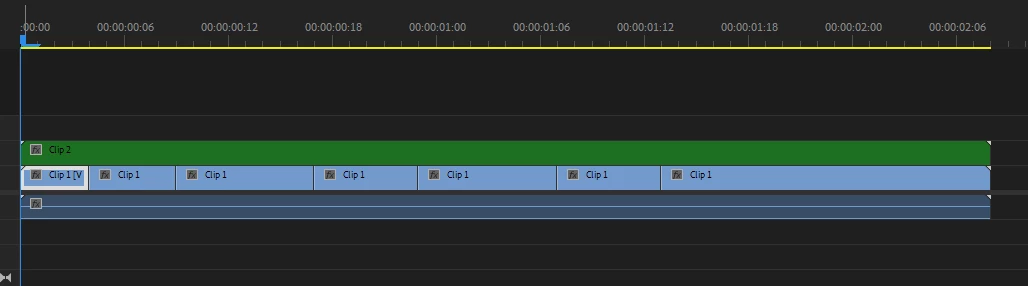
 

And here's after the script is run...

This topic has been closed for replies.
Correct answer Mathias Moehl

There are no blocks to apply a cut or to duplicate a clip in the sequence.

Therefore, the only way would be to set the out point (using the Set Attribute of Clip block) of the clip in V2 to the out point of the first clip in V1. This will trim the clip in V2 to the duration of the first clip in V1. To create all subsequent clips, you need to insert new copies of the project item into the sequence (using the Add Project Items to Sequence block) and then use again Set Attribute of Clip to set the "in point", "start time in sequence" and "end time in sequence" to obtain the same timing as you have in V1.


These videos are helpful to understand how to insert clips in a sequence and adjust their timing:


2 replies

Mathias Moehl
Community Expert
Mathias MoehlCommunity ExpertCorrect answer
Community Expert
June 13, 2024

There are no blocks to apply a cut or to duplicate a clip in the sequence.

Therefore, the only way would be to set the out point (using the Set Attribute of Clip block) of the clip in V2 to the out point of the first clip in V1. This will trim the clip in V2 to the duration of the first clip in V1. To create all subsequent clips, you need to insert new copies of the project item into the sequence (using the Add Project Items to Sequence block) and then use again Set Attribute of Clip to set the "in point", "start time in sequence" and "end time in sequence" to obtain the same timing as you have in V1.


These videos are helpful to understand how to insert clips in a sequence and adjust their timing:


Mathias Möhl - Developer of tools like BeatEdit and Automation Blocks for Premiere Pro and After Effects
Community Expert
June 13, 2024

Make use of Nesting

you can nest both clips and cut the nested sequence

you can also alt drag the cut track 1 clip to track 2, 

then alt drag clip 2 from the project panel to clip1 on track 2,

this will now replace clip 1 on track 2 with clip 2 and preserve the cuts