
Inspiring
June 13, 2024
Answered

Automation Blocks - Copying Attributes from V1 to V2 Across All Clips

  • June 13, 2024
  • 2 replies
  • 643 views

Hello!


The attached script does the following...

IF: The first clip on V1 and the first clip on V2 have a matching sequence start-time.

THEN: Copy/Paste the position and scale attributes from V1 clip to V2 clip.


I want to amend this script so EVERY clip on V2 that has a matching sequence start-time as a clip on V1 gets the position/scale attributes copied over from the matching clip.


Basically, if the timeline looked like this...
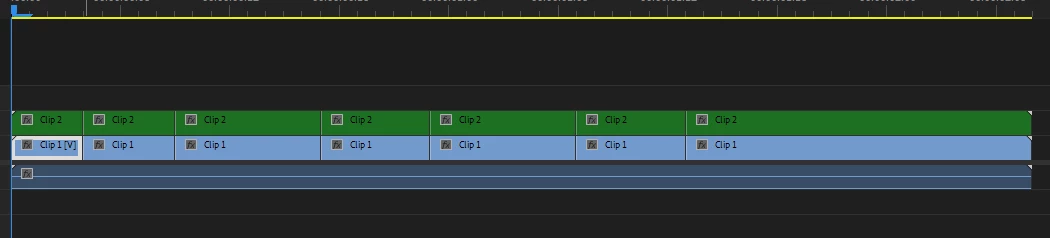
 

I'd want every clip on V2 to have the same position/scale attributes as the clip directly beneath it on V1


I also want it to copy the keyframes and keyframe values.

Any guidance on this?
This topic has been closed for replies.
Correct answer Mathias Moehl

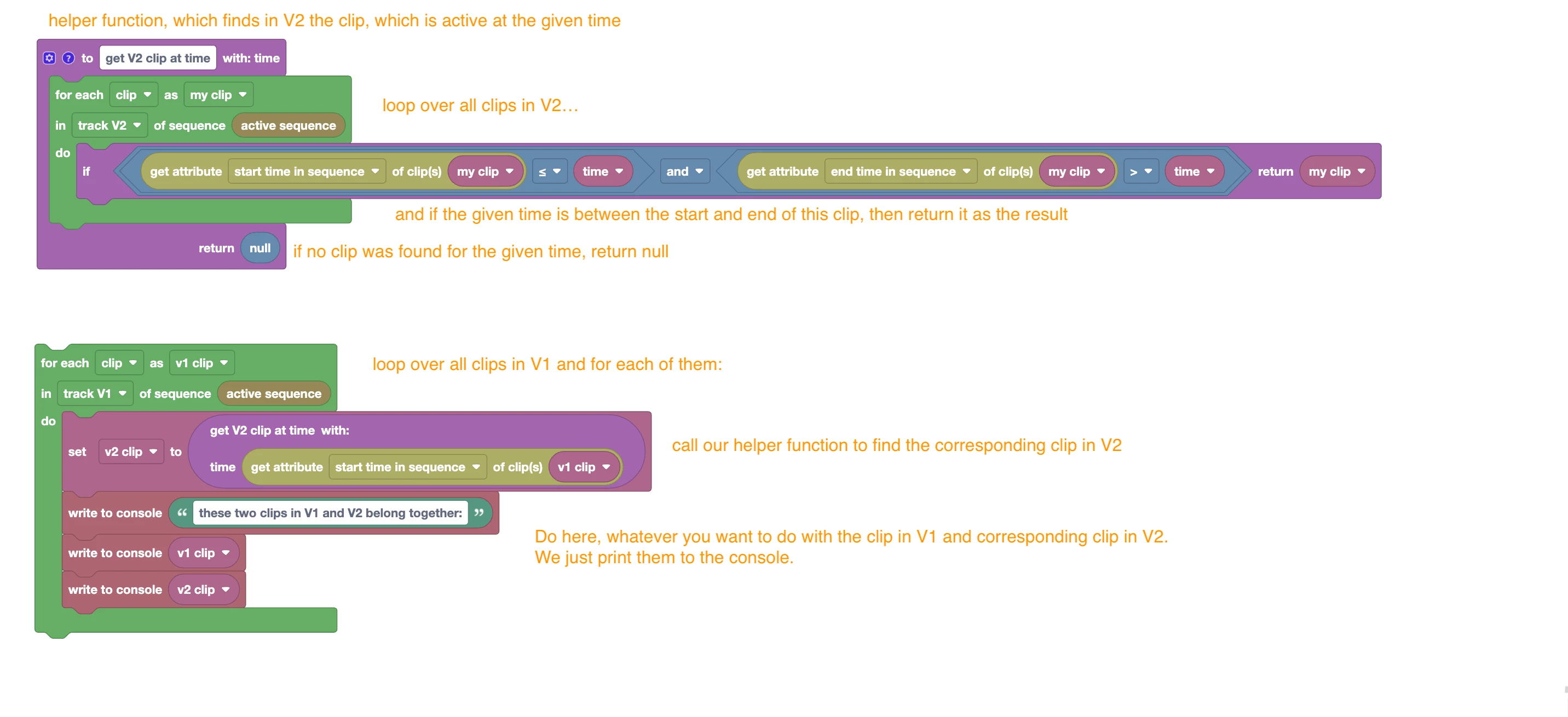
I just prepared this example script (xml attached), which finds for each clip in V1 the corresponding clip in V2:

Automation Blocks for Pr has no blocks to figure out at which times keyframes are located. You can read and write values at times, but if you don't know where the keyframes are, this will be very tricky.


2 replies

Mathias Moehl
Community Expert
Mathias MoehlCommunity ExpertCorrect answer
Community Expert
June 13, 2024

I just prepared this example script (xml attached), which finds for each clip in V1 the corresponding clip in V2:

Automation Blocks for Pr has no blocks to figure out at which times keyframes are located. You can read and write values at times, but if you don't know where the keyframes are, this will be very tricky.


Mathias Möhl - Developer of tools like BeatEdit and Automation Blocks for Premiere Pro and After Effects
Community Expert
June 13, 2024

you can save all property values from the project panel as presets,

including the keyframes associated with them... right click on Motion,

or any effect you would like to save as preset, then -> save preset

the saved preset can be applied to any clips on the timeline either

by selecting the clip and double clicking the preset, or by drag and drop...

to apply the preset to several clips at once, select all clips on the timeline,

drag and drop or double click the preset.