Known Participant
April 30, 2024
Answered

Automation Blocks - Find/Replace Text is another Column + Duplicate Columns

  • April 30, 2024
  • 2 replies
  • 920 views

I've got a two part question below.


  1. I love the Find/Replace tool for updating clip names within your Project.  Is there a way to apply this idea to other columns within the Project?  For example, the Camera Label column in my project is blank and is not accessible via the MetaData window, so I cannot batch rename a bunch of clips for this column via the MetaData window.  Is this something Automation Blocks would be able to do as a script?


2. When I get a bunch of clips, I like to duplicate the original Clip Name before I make any changes.  Is there a script that can quickly duplicate all the Clip Names into another column within the project?


This topic has been closed for replies.
Correct answer Mathias Moehl

Here is a modified version of the search and replace tool, which replaces in the "Camera Label" metadata instead of the project item name:

https://www.dropbox.com/scl/fi/a2k14fndnqky8rdkli16y/Search-Replace-in-Camera-Label-Metadata.xml?rlkey=n42km2h9v54rhari80k7ixp2p&dl=1


You find it in the Community Library now at

Project Management/Metadata/Search and Replace/Search Replace in Camera Label Metadata.XML


All I needed to do is to open the block code of the Search & Replace in Project Item Names tool and repace the blocks to get/set the name propery with a block to get/set metadata. You can custumize it easily to use any other metadata column:
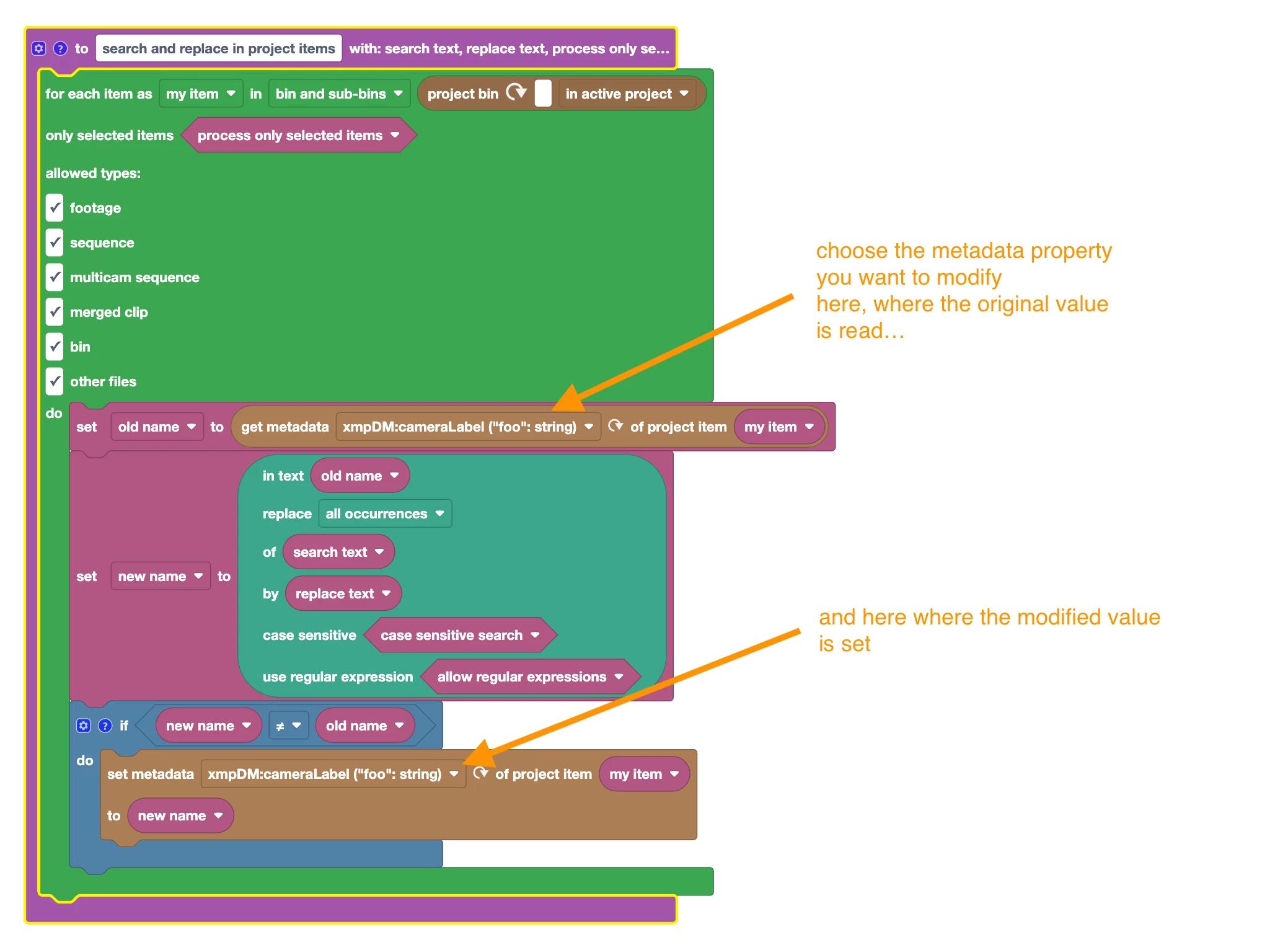
If you have issues finding particular metadata entries (i.e. they are not listed in the dropdown), see
https://docs.mamoworld.com/automation-blocks/tutorials-pr/metadata
To learn more about the block code for search & replace tools see
https://docs.mamoworld.com/automation-blocks/tutorials-pr/searchReplaceProjectItems


Concerning the second question:

There is no block to duplicate existing project entries (I think there is also no function for that in the Pr scripting API). So the only option would be to read the media path of the footage items and import the same files a second time. But this will import them with the default settings and not preserve any "interpret footate" or other changes you might have done on the project items. Probably in this case it is easier to do a manual copy/paste of the project items.

 

2 replies

Inspiring
December 6, 2024

Where's the Find/Replace tool for updating clip names within my Project? I can't find it and can't find it through a Google search.

Mathias Moehl
Community Expert
Community Expert
December 8, 2024

You find it in the library that is included in Automation Blocks for Pr at

Examples->Project Management->Project Items->Rename Items

This tutorial shows how to use it:

Mathias Möhl - Developer of tools like BeatEdit and Automation Blocks for Premiere Pro and After Effects
Inspiring
December 9, 2024

I saw some other less-expensive Plug-Ins on the Creative Cloud app / Stock & Marketplace. Was hoping that it could be integrated (for free) into a future update of Premiere.

Mathias Moehl
Community Expert
Mathias MoehlCommunity ExpertCorrect answer
Community Expert
May 1, 2024

Here is a modified version of the search and replace tool, which replaces in the "Camera Label" metadata instead of the project item name:

https://www.dropbox.com/scl/fi/a2k14fndnqky8rdkli16y/Search-Replace-in-Camera-Label-Metadata.xml?rlkey=n42km2h9v54rhari80k7ixp2p&dl=1


You find it in the Community Library now at

Project Management/Metadata/Search and Replace/Search Replace in Camera Label Metadata.XML


All I needed to do is to open the block code of the Search & Replace in Project Item Names tool and repace the blocks to get/set the name propery with a block to get/set metadata. You can custumize it easily to use any other metadata column:

If you have issues finding particular metadata entries (i.e. they are not listed in the dropdown), see
https://docs.mamoworld.com/automation-blocks/tutorials-pr/metadata
To learn more about the block code for search & replace tools see
https://docs.mamoworld.com/automation-blocks/tutorials-pr/searchReplaceProjectItems


Concerning the second question:

There is no block to duplicate existing project entries (I think there is also no function for that in the Pr scripting API). So the only option would be to read the media path of the footage items and import the same files a second time. But this will import them with the default settings and not preserve any "interpret footate" or other changes you might have done on the project items. Probably in this case it is easier to do a manual copy/paste of the project items.


Mathias Möhl - Developer of tools like BeatEdit and Automation Blocks for Premiere Pro and After Effects
a_levenAuthor
Known Participant
May 1, 2024

Thank you so much for writing that script and providing all that info. I will definitely reference this if I need to edit anymore Metadata. Thanks again!