


Participant
Mar 1, 2021 12:14 PM UTC
Question

Awful Export Quality / Washed Out Colours

Hi guys,


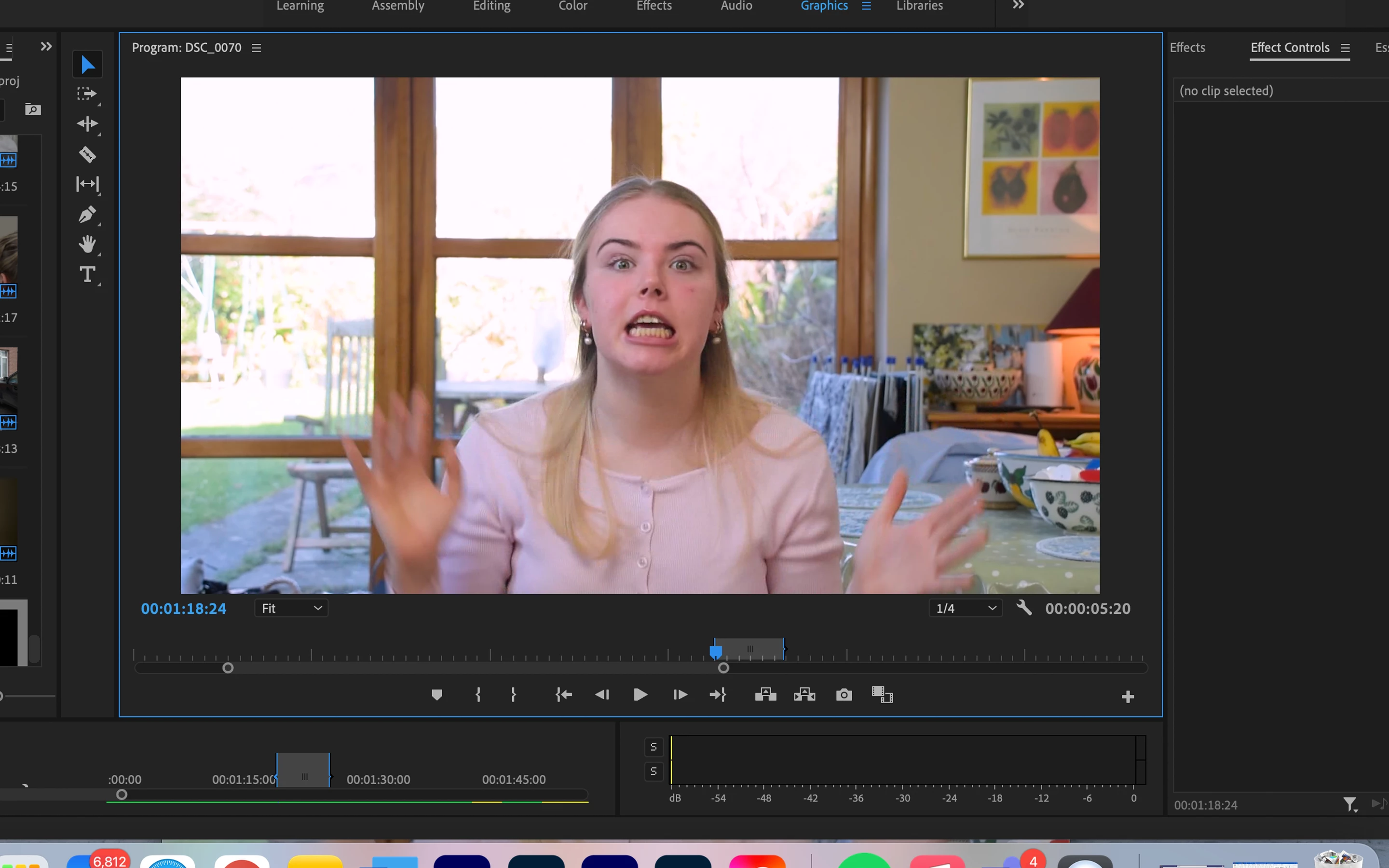
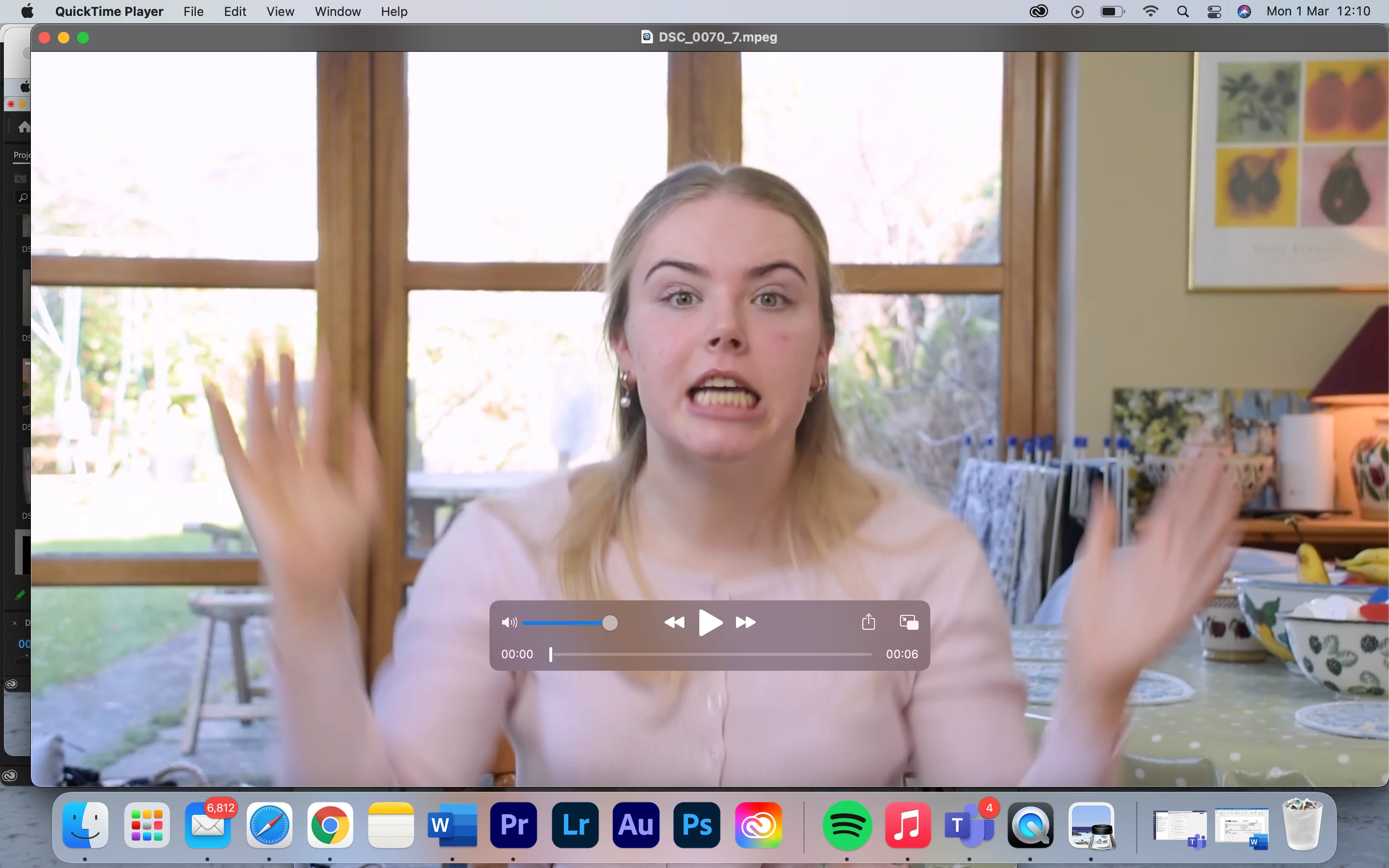
Ever since using Premiere Pro, I've had major issues with exporting videos and getting the same quality / colour saturation as in my timeline and project window. I have attached screengrabs below displaying the issue I'm having, with my export settings (I've tested countless different export settings / watched many YouTube videos, but just can't seem to find what the issue is).


I usually edit with Lumetri Colour panel directly on to clips in my timeline. 


Someone please help, I need to submit my videos for college and can't keep up with this awful export quality!
29 replies

Participating Frequently
Oct 16, 2024 10:38 PM UTC

So basically you can't use Adobe Premier Pro with videos taken from an iPhone?  I have the 14 Pro Max and shot 30 fps 4K video and exported it and it was totally washed and not usable.


vs 


I used iMovie and was able to export with the same quality as the original.  Top screenshot is iMovie export, bottom is Premier Pro.  Unreal....  It's almost 2025 and there is no fix for this?


/=ever905

Translate
MyerPj
Community Expert
Community Expert
Oct 16, 2024 10:45 PM UTC

Funny, there's a discussion on the beta thread discussing the new color management tools, and the video that started the conversation was raw footage with several people in orange safety vests.

Translate
Participating Frequently
Oct 17, 2024 12:34 PM UTC

lol I shot that yesterday.  I work in an industrial setting and we make product demonstration videos for Lubrication management products.

Translate
Inspiring
Mar 2, 2021 3:57 AM UTC

The video below might be helpful. 

Translate
Participant
Nov 20, 2024 9:39 PM UTC

This is REAL answer other than just waste of time

Translate
R Neil Haugen
Legend
Nov 20, 2024 10:16 PM UTC

Ok ... I've worked for/with/taught pro colorists for around a decade now. I work as much in Resolve as Premiere, and have been through more hours of in-person discussions and online discussions and threads on color management than most anyone not a full-time pro colorist.


The bit that Andy published? Really? You take that seriously? Using the "proc amp" to juice the image you see on your PC?


It is several years out of date for color management in general. It doesn't actually address actual current Color Management processes and issues at all. It doesn't solve squat.


At this time, to get what you expect out, you have to know whether you're dealing with HLG, PQ, Rec.709, whatever the media. And then setup and use a properl color management pipeline, for your needs, which Premiere now can do pretty decently.


AND you need to know whether or not your needs involve the odd Mac CM issues on only some Macs, those without Reference modes.


As all other screens, including Macs with Reference modes set to HDTV, most PCs, broadcast systems, and PCs will see "relatively the same as 'normal' professonally produced images" if you follow all the proper setup steps.


Nearly all CM troubles fall into one of two camps ... unfamiliarity with the now-required steps to get proper color management, or unfamliarity with the problem of Apple's odd display transform ... that is only applied on Apple screens that don't have Reference modes.


Andy's schtick won't fix either set of issues ... unless ... you jink your monitor more than a bit from proper standards. But then, it means that your stuff won't fit elsewhere.

Translate
Everyone's mileage always varies ...
R Neil Haugen
Legend
Mar 1, 2021 8:03 PM UTC

Use the Rec.709 settings if available on the OS or monitor, not sure what you can do on your specific gear as what I've been told clearly varies by OS version and monitor.


Use the Display Color Management option in PrPro. And hope you're seeing a proper image.


Use the scopes! I run with Vectorscope YUV, for hue/saturation information/feedback, Waveform (YC no chroma) for pure luma information/feedback, and RGB Parade for the combined chroma/luma information and feedback. The "Mark I Eyeball" is a great relative tool but a seriously flawed tool if you try and use it for "absolute" guesstimations. Like black point, white point, centered color balance or color cast.


And if possible, get something off your machine run through a machine with decent color controls. Like a local TV station or public broadcasting outlet perhaps. Get  some feedback on what you're producing from someone with better gear. If you can make contact with a pro colorist who'll do you a quick favor and download a file to take a peek, awesome.


As noted, I teach and deliver to pro colorists, but ... I don't have a full-on grade 1 reference monitor, the Flanders and Eizos that run $5,000USD up for SDR work, and if you want to do HDR for b-cast, that starts with the cheapo option at $17,500, but most of the (few) colorists who actually do deliver HDR use the ones around $30,000 to $35,000.


So I am always nervous about my output, and I check with my 'bosses' that my deliverables match their systems. I do run full calibrations with the i1 Display Pro puck and 'pro' software, and then I've run profiles using the free version of Lightspace color profiling software to get that all-important set of graphs to see how close I'm actually coming. My delta-E on my "reference" monitor has been well below that crucial 2.0 number, and Patrick & Robbie tell me it looks good on their Flanders rigs and their outboard scopes.


But I'm always nervous when I submit a new tutorial vid. And I would never submit for a b-cast contract without getting that Flanders and a BM/AJA i/o card or device, and getting a real calibration LUT loaded. Sigh. Not expecting that anytime soon though.


Check with the folllowing links ...


How Display Color Management in Premiere Works by Jarle Leirpoll (awesome dude and site!)

Why Master on a Calibrated Display? LightIllusion.com/ Steve Shaw (this guy runs the company makes the software that calibrates most colorist gear)

Color Management for Video Editors by Jonny Elwyn ( you may note a link he uses is to the following ... )

Finishing at the Highest Possible Quality in Premiere Pro    /mixinglight.com (an article I did that is outside their paywall so available for anyone, from a presentation I made in the Flanders/MixingLight booth at NAB 2019. With much gratitude and appreciation to the development management at Premiere Pro for hours of online and in-person time.)


Neil


Translate
Everyone's mileage always varies ...
R Neil Haugen
Legend
Mar 1, 2021 5:21 PM UTC

The problem is very simple in nature: you're using a Mac. Apple chose to mis-apply color managment for Rec.709 video in their ColorSync color management utility.


The "full" solution however is non-existent. As neither you nor anyone on the planet can do squat about it. And believe me, everyone's tried. Including BlackMagic for their Davinci Resolve. They offer a different workaround but it provides no better solution.


Your video media, like all other (except for HDR) is following the Rec709 standards. Which are detailed and specific:

-sRGB color primaries

-D65 white point

-gamma 2.4 (except in bright-room viewing when 2.2 is acceptable)

-both scene (camera) and display transform functions applied

-screen brightness 100 nits.


Apple chose not to follow that list. They do apply the sRGB primaries and D65, but then use what they call "sRGB gamma" which no one ever heard of, and from reverse-engineering is somewhere between 1.95 and 1.96 sorta mostly.


Then they compound the issue by only applying the scene or "camera" transform function, they do not apply the also required display transform.


And of course, display the result on a monitor well north of 200 nits, typically upper 300's.


What do you do?


Within Premiere Pro


Use the "Display color management" option in the PrPro preferences.This tells PrPro to check the monitor's ICC profile and remap the image internally so it appears correct on that screen. This 'fixes' the issue within PrPro nicely. You will see and be working correctly with a Rec.709 media file.


That work, then exported and viewed on a properly color managed system, will be fine.


However, the exports will look as you note on the post above on a ColorSync Mac. So you have two choices: leave as-is for overal "proper" use, or modify the export for Mac-only use.


For exports:


If it's only going to be seen on a Mac with ColorSync, and not on any correctly managed monitor, you can apply a LUT on export that Adobe can provide (or roll your own)  that will darken the image and raise saturation some. That is a "paliative" measure, and understand ... it messes the image for any proper color-managed system.


Or ... simply export as-is, and accept that you have no control over what anyone else ever uses to view that file. Which TV, computer, monitor, playback software, viewing environment, all of which affect the image and over which you never ever had control anyway.


This latter option is what colorists have to do on a daily basis. It's all you really can do. And yes, I teach and work with pro colorists daily.


Neil

Translate
Everyone's mileage always varies ...
Participant
Mar 1, 2021 5:58 PM UTC

Ugh, what an awful issue! I have "Display Color Management" turned on, and I still get the incorrect colour feedback in-project.


My video projects are intended for a college application, they will be judged / displayed on a different monitors most likely, so I have no idea how they will be viewed! 


What would my best bet be here?! Should I just exaggerate my Lumetri customisations in-project and trial my exports until I have a saturation level i'm happy with?


Translate
MyerPj
Community Expert
Community Expert
Mar 1, 2021 8:20 PM UTC

<<What would my best bet be here?! Should I just exaggerate my Lumetri customisations in-project and trial my exports until I have a saturation level i'm happy with?>>

This is the way it's always been, back in the analog days was the same, or even more so.


So, 'exaggerate' the colors so they look worse in PP, and OK for those that happen to view it with Quicktime? That's what you'd be doing, and exaggerated also for any playback software like VLC or Potplayer that display correct colors.


The answer is there's not much you can do. Make it right in PP, and then it's up to how they display it. Again, been that way forever.


Translate
Inspiring
Mar 1, 2021 12:41 PM UTC

Check if the checkbox Enable Display Color Management is on in Premiere pro  (Preferences > General)

Translate
Participant
Mar 1, 2021 12:51 PM UTC

Yep, it's checked 😕😕

Translate
Inspiring
Mar 1, 2021 1:23 PM UTC

Follow Ann Bens suggestion above, 1) try different player: VLC player  2) Open your exported file in Premiere pro and check if colors are Ok

Translate
Ann Bens
Community Expert
Community Expert
Mar 1, 2021 12:36 PM UTC

Dont use QT player has a known issue with gamma.

Use VLC instead.

What does it look like when importing the end file back into Premiere?


https://community.adobe.com/t5/premiere-pro/quot-why-does-my-footage-look-darker-in-premiere-quot-color-q-amp-a/td-p/4788414

Translate
Participant
Mar 1, 2021 5:56 PM UTC

Below I have brought the exported flat video back in to the project, over the original video, cropped 50% from the top, and as you can see, it is identical to the original project video.


So bizarre. Premiere must be displaying an incorrect colour system in the project? That seems to be the issue then? Do I have to exaggerate my Lumetri customizations and trial exports until I'm happy?


Translate
MyerPj
Community Expert
Community Expert
Mar 1, 2021 8:14 PM UTC

<<So bizarre. Premiere must be displaying an incorrect colour system in the project?>>

Wow! What a conclusion!

?


Translate