
seanallanmates
Participating Frequently
November 2, 2016
Answered

Best Practice for Synching Audio and Video Clips

  • November 2, 2016
  • 3 replies
  • 7261 views

Hi Everyone,

I'm a casual user of Adobe Premiere and have started recording my audio and video sources separately (using an external condenser mic).

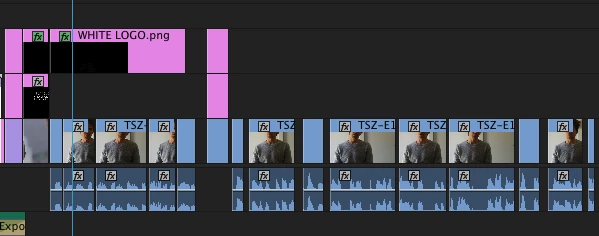
Now that I am editing the clips I am looking to get some help understanding the recommended steps to put them together. Thus far I have cut up my video files and laid them out in the timeline with the accompanying audio. I have a separate audio track that I want to use and am wondering do I need to cut this up into separate sections along the same timestamps before joining them all together?
I have referenced the following help article (Syncing audio and video with Merge Clips in Premiere Pro) but it's left me a little confused if I am thinking Premiere has too much 'smarts' in this area.

Sean.

    This topic has been closed for replies.
    Correct answer R Neil Haugen

    Just spent a week at Adobe MAX, I was a Teaching Assistant in computer labs for sessions by Dave Helmly and Karl Soule on basic PrPro editing. Dave had a process I'd missed 'catching' other places. He drops everything on the timeline, then scrubs through, and uses the Q and W keys to do fast trim editing.

    Scrub to a point on a clip ... hit the Q key ... and everything of that clip left of the playhead is cut, and the timeline closes up.

    Scrub to another point on the clip .. hit the W key ... and everything of that clip right of the playhead is cut.

    Watching him blast though a sequence this was was a delight. So I sidled over to another TA who's not only a pretty decent editor but WHIZ at AfterEffects, to say with some chagrin that in now around 5 years of working this, taking classes, lynda-dot-com tut's and all ... I didn't recall ever hearing of this.

    I was greatly relieved to hear him say he was as stunned as I was ... he'd never seen/heard this either.

    So, using the single-key shorts that Dave taught us ... yea, you'd sync video/audio on the timeline, and just go scrubbing through the timeline doing your rough-cut blasting through setting a playhead ... Q ... reset playhead ... W ... next clip ... rinse & repeat.

    Can't wait to try this next week.

    Neil

    3 replies

    samuelm25671648
    Inspiring
    November 2, 2016

    Neil's advice is spot on for one of the most basic ways to sync audio as a casual user. The "nudging" feature he mentioned makes refinement much easer. You can move clips 1 frame at a time by holding down command or control depending on your system. Find a sharp peak in the waveform of the camera audio and then line it up your external audio as close as you can below it. Depending on the clip size and processing power of your computer you can even automate this process with a degree of accuracy by highlighting both audio clips your trying to sync (only 2 at a time) and select synchronize when you right clip. Make sure that it "audio" is selected in the synchronize dialog box and then click go. If you do it that way you need to be careful about a few things. First, it isnt always right, so double check that it got the sync. Second, if its difficult to hear the audio in either channel they synchronize feature might not work. And Lastly, it can take a while to sync really large clips and it always sucks when you leave it alone for a few minutes only to find out that it didn't even nail the sync when it finishes.

    Also Jim brings up a great point. Before you do any editing sync all your footage first. You'll save yourself a ton of work by syncing 1 big clip early on as opposed to 20-30 small clips later

    seanallanmates
    Participating Frequently
    November 6, 2016

    Hi Samuel,

    Thanks for expanding on Neil's point about nudging and syncing the audio, and explaining some of the pitfalls of this process.

    Per my new response, I am also confused about the workflow I should adopt. Am I overlooking the use of sequences for example by opening and editing all source clips within the source window and then dropping them into the timeline? I was also at a loss where to find the sync all footage option within Premiere.


    Sean.

    R Neil Haugen
    R Neil HaugenCorrect answer
    Legend
    November 6, 2016

    Just spent a week at Adobe MAX, I was a Teaching Assistant in computer labs for sessions by Dave Helmly and Karl Soule on basic PrPro editing. Dave had a process I'd missed 'catching' other places. He drops everything on the timeline, then scrubs through, and uses the Q and W keys to do fast trim editing.

    Scrub to a point on a clip ... hit the Q key ... and everything of that clip left of the playhead is cut, and the timeline closes up.

    Scrub to another point on the clip .. hit the W key ... and everything of that clip right of the playhead is cut.

    Watching him blast though a sequence this was was a delight. So I sidled over to another TA who's not only a pretty decent editor but WHIZ at AfterEffects, to say with some chagrin that in now around 5 years of working this, taking classes, lynda-dot-com tut's and all ... I didn't recall ever hearing of this.

    I was greatly relieved to hear him say he was as stunned as I was ... he'd never seen/heard this either.

    So, using the single-key shorts that Dave taught us ... yea, you'd sync video/audio on the timeline, and just go scrubbing through the timeline doing your rough-cut blasting through setting a playhead ... Q ... reset playhead ... W ... next clip ... rinse & repeat.

    Can't wait to try this next week.

    Neil

    Everyone's mileage always varies ...
    Legend
    November 2, 2016

    1. Sync all media.

    2. Edit

    You've done the work out of sequence this time around.

    R Neil Haugen
    Legend
    November 2, 2016

    Handiest way to do this sort of thing is to record sound in-camera also, and use the wave-forms to nudge the external sound into place. Especially if you use a clapper or hand-clap or some other sharp loud noise that both will capture, it's pretty easy to get a general position, zoom in on the timeline, and get a frame-accurate placement.

    Then you either mute or simply de-link the camera audio and remove it.

    Neil

    Everyone's mileage always varies ...
    seanallanmates
    Participating Frequently
    November 6, 2016

    Hi Neil,

    Thanks for your response. Your explanation was easy to understand and grateful to make mention of the hand-clip or similar clue. Recording this time around I did include in-camera sound, but I forgot about the importance of creating a 'spike' I can later reference - I limited myself to verbal cues 'Take 1, 2, 3 etc.' for helping me sort my files.

    Borrowing from Jim's point about a workflow perspective, the way I interpret this then is whenever commencing a new project with audio and video, I drop these elements in the timeline and then 'sync all media' before any editing. Is this correct? The question is where do I find this action in Premiere?

    Also one other aspect to this syncing that has me confused. For my purposes the takes of my video clips are approximately 10 mins long. I open each file and edit in the source window, dropping the finished clips into the timeline. In the end I use on average 3-4 mins of that footage in the final edit.

    If I sync both a video clip and external audio clip, then go about editing the video to my liking, dropping sections into the timeline, how is it the audio that I don't wish to use is deleted?

    Sean.

    Legend
    November 6, 2016

    'sync all media' before any editing. Is this correct? The question is where do I find this action in Premiere?

    I've always found it best to just do it manually.  Move the audio till it's in sync.