


Participant
Dec 20, 2023 11:12 AM UTC
Answered
Black preview screen when moving clip within the timeline
- 3 replies
- 3159 views
- Translate
- Issue - So I was editing a video and since I happened to have purchased a second monitor i decided to use it as another "Program: Monitor" to see the changes made to the video. I had went to
"Edit -> Preferences -> Playback"
And chekced off the second monitor.
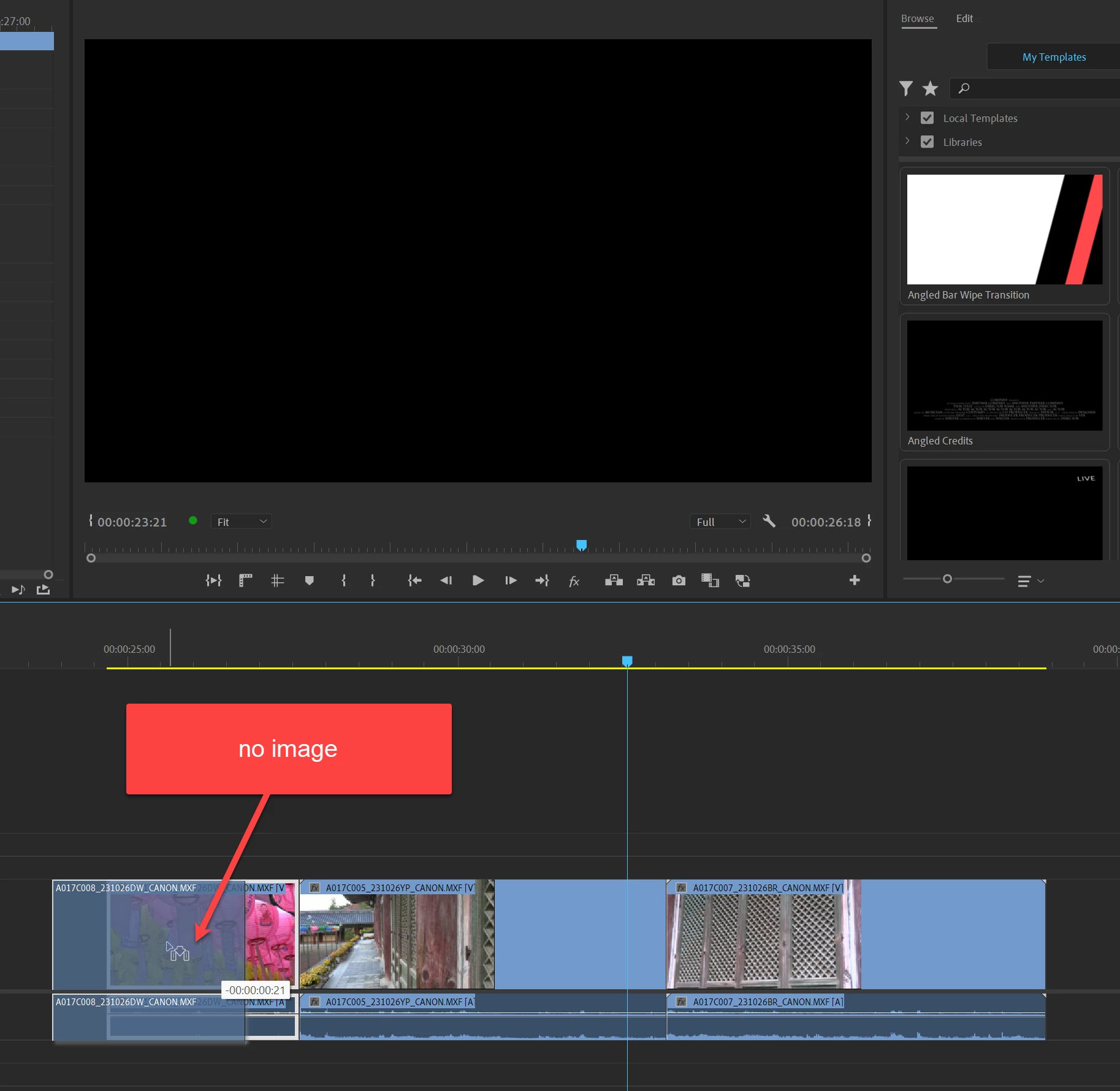
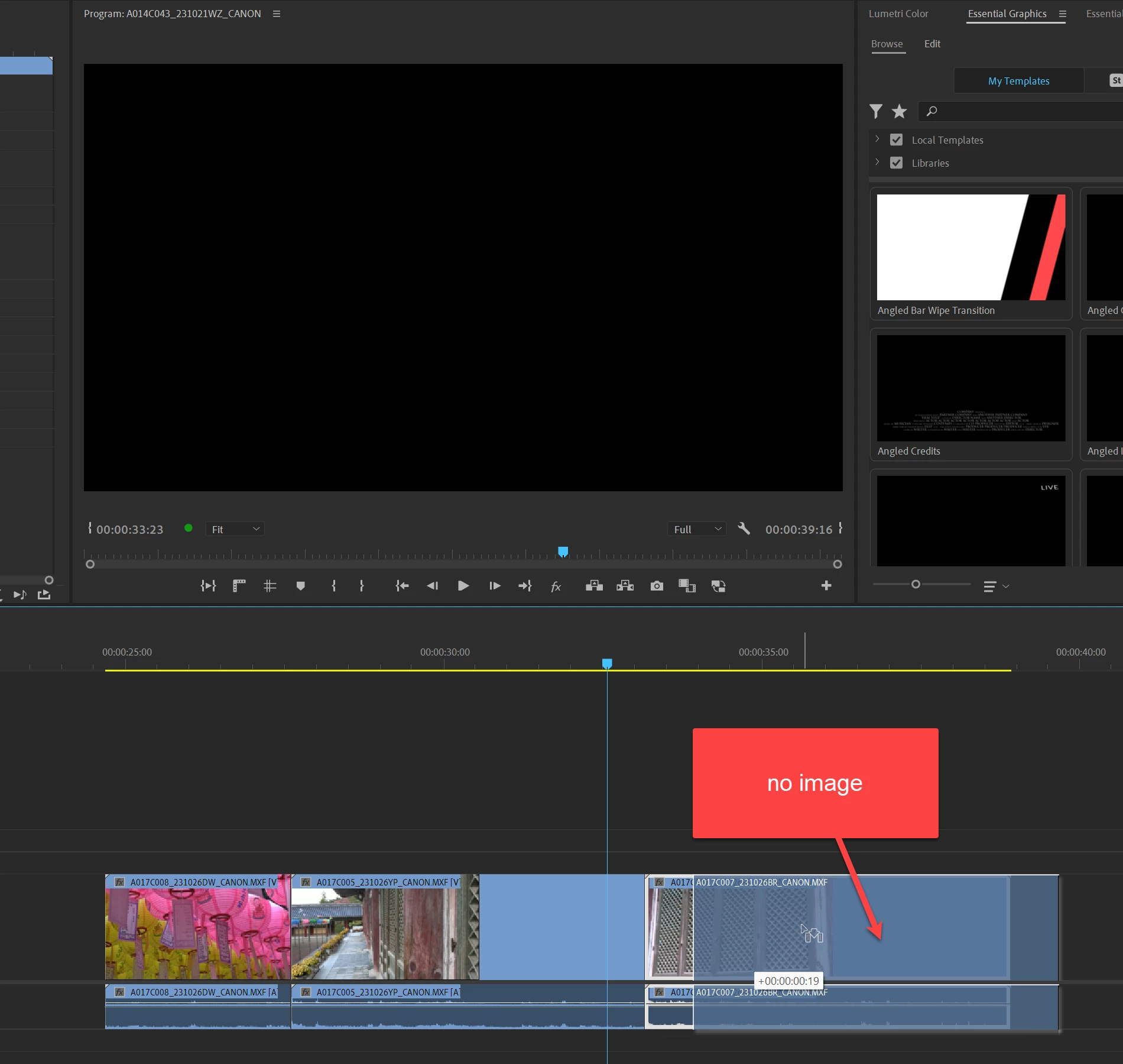
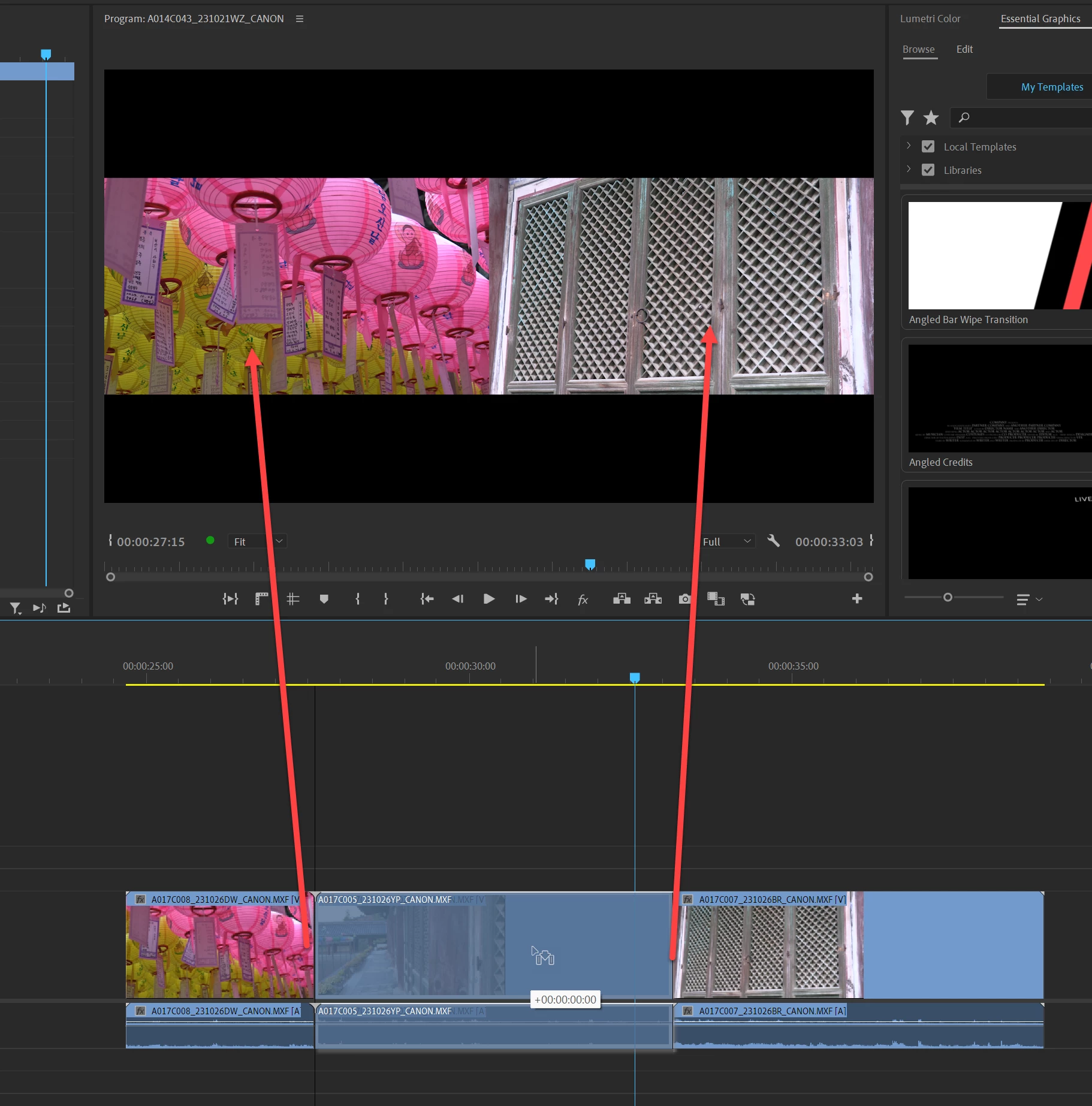
Everything was fine until a few minutes later anytime I moved any clip within the timeline, the program monitor would go black. Playback was fine in regards to playing the video regularly. But whenever I decided to trim or move a clip it would go black and not show me a preview.
(During this time I had also checked up the Reference Monitor as well)
I had went back into the playback settings and unchecked the monitor but to no avail it didn't change anything.
I closed premiere and opened it.
Updated my Drivers.
Restarted my PC.
Emptied Memory Cache.
Tested with different projects.
Changed the video and playback rednering settings from hadware to software.
Disabled & Re-enabled Hardware Acceleration
Reset Premiere Pro.
Uninstalled & Reinstalled Premiere Pro - Adobe Premiere Pro version number: Version 24.1.0 (Build 85)
- Operating system - Windows
- System Info: CPU, GPU, RAM, HD:
-
CPU - Processor 11th Gen Intel(R) Core(TM) i7-11700KF @ 3.60GHz, 3600 Mhz, 8 Core(s), 16 Logical Processor(s)
-
GPU and Driver Version - Name NVIDIA GeForce RTX 3060 - Driver Version 31.0.15.4633
-
RAM - Installed Physical Memory (RAM) 32.0 GB
-
Hard Drive - SSD M.2 NVME PCIE 1TB
-
- Video format: Using 1080p 60fps video recorded from ElGato HD60X
- Workflow details: Composite Video Sequence

 AdChoices