Participant
March 28, 2017
Answered

Blurry graphics exporting dynamic-linked After Effects comps from Premiere

  • March 28, 2017
  • 2 replies
  • 3769 views

I have been having a very frustrating issue trying to export Premiere projects with a lot of Dynamically linked AE projects within them. These projects also have live text templates, but the problem doesn't occur with them. Essentially these after effects sections are exporting in a kind of jagged, ugly looking way out of Premiere. No matter what settings I try, they always come out looking bad. Within premiere they look fine, and exporting from After Effects they look fine. It seems to be the movement that it is struggling with, so possibly some kind of frame blending issue?

Using the latest version of CC 2017 on both after effects and premiere.

Here is a clip of the AE comp as it should look, along with the export settings (you probably need to be watching on HD and full screen to see the difference):

And here is the Premiere clip of the same section:
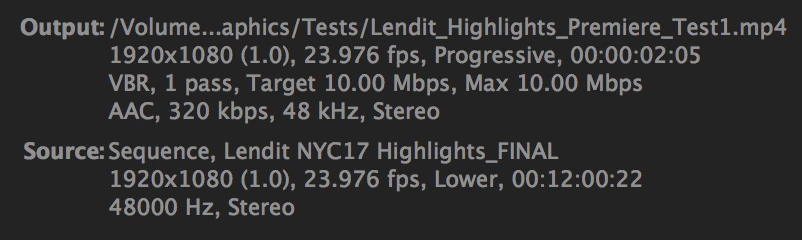
I appreciate the export settings aren't exactly the same, but I have tried this with all sorts of different export settings and the results are always the same.

If anyone could shed light on what might cause this I will be hugely grateful.

This topic has been closed for replies.
Correct answer tristanm93416296

Thanks for your suggestion Warren - have realised the problem was pretty much me being stupid. Sequence was set to lower field first and export is progressive. Still slightly mystified as to why the live text templates would be fine with this conflict and dynamic link comps not, but there you go.

2 replies

Participant
April 29, 2022

I'm fairly new to After Effects and had the same problem--something I did that fixed it for me was I double clicked the layer that was pixelated to see the source clip, and the source clip composition was the wrong dimensions (I had brought it in from a 2k 2.39:1 Premiere Timeline, and the original clip wass shot UHD). I edited composition settings for the source clip back to 3840x2160, readjusted my clip to fit the linked composition (which was kinda annoying, but using the shortcut ctrl + shift + alt + G fit it back to the width of the composition), and it appeared correctly in my Premiere Timeline again--no more pixelation.

Warren Heaton
Community Expert
Community Expert
March 28, 2017

Hmm... What results to you get if you right click the nested Comp in your PR Sequence and choose Render and Replace?

Participant
March 28, 2017

Have tried that, and unfortunately it didn't make any difference. Still not coming out as crisp as it should - a bit blurry / fuzzy around the edges.