Participant
September 7, 2017
Question

Blurry Text After Rendering

  • September 7, 2017
  • 4 replies
  • 2797 views

Hello all,

This has been troubling be for most of my night. After rendering my titles are not as clean and crisp as they should be. I have tired rendering with many different formats and presets but maybe I am doing something wrong?

I have seen this question ask many times on forums but I never see an answer.

This is the outcome I am getting:

CP Separator Animation test - YouTube

This is my export settings:
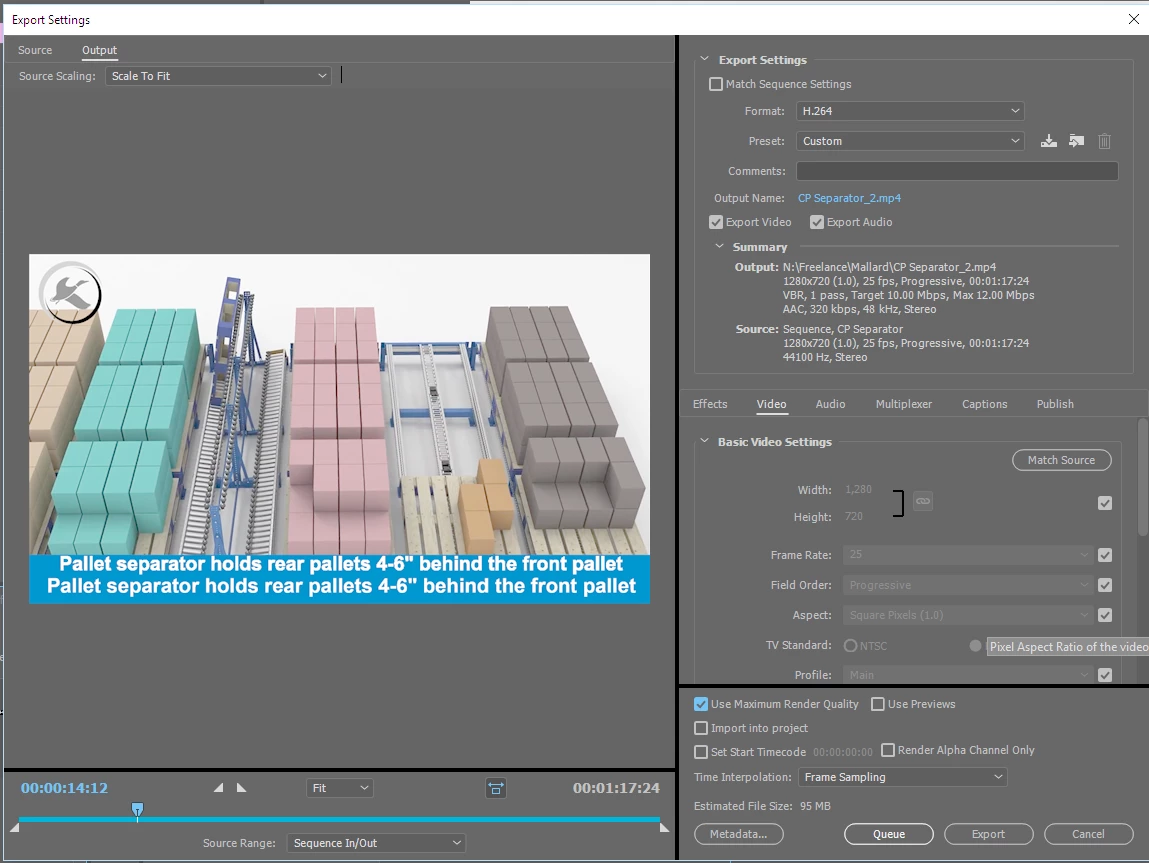
Please let me know if you need any more info

This topic has been closed for replies.

4 replies

rateb57500608
Participant
December 19, 2018

I am using Adobe AE to create text animation.  After exporting the file to media encoder, the text is blurry after importing into adobe premiere

Richard van den Boogaard
Community Expert
Community Expert
September 7, 2017

Does the animation appear fluid upon playback in PPro?

Are you sure there no Effects active on the Effect tab?

Does it make a difference if you choose to Queue it for Adobe Media Encoder versus using Export directly from PPro?

Like Ann said, you can switch off Use Maximum Render Quality if you use a dedicated GPU.

vugg11Author
Participant
September 7, 2017

Does the animation appear fluid upon playback in PPro? No its always blurry in PPro but stills look great. I don’t have max quality on playback on. Does that make a difference?

Are you sure there no Effects active on the Effect tab? Yes. I am pretty new to this version. I am still use to working with title assets so i don’t know if i am doing something wrong with the text tool.

Does it make a difference if you choose to Queue it for Adobe Media Encoder versus using Export directly from PPro? I just tried it and I don’t see much of a difference.

Like Ann said, you can switch off Use Maximum Render Quality if you use a dedicated GPU.

Yeah i don't know why i turned that on but i turned it off and i help with rendering time.

Is there anything else you can think of?

Richard van den Boogaard
Community Expert
Community Expert
September 7, 2017

As Ann said, YouTube re-encodes whatever you throw at it.

So the best strategy is to throw so much at YouTube that their encoder does minimal damage to your files. I typically use a bitrate that is equal or higher to the source footage, which means 24Mbit/s or higher. Do not use 2 pass encoding. What happens with 2-pass is that the encoder searches for frames that have bit reservoirs available so information from later frames can be stored in those (and thus already loaded in memory upon playback). However, YouTube's re-encoding will not correctly search for all this information with a lower quality output as a result. Best is to use 1-pass encoding or, if the bitrate is high enough, even CBR or Constant BitRate.

Hope this helps.

vugg11Author
Participant
September 7, 2017

Thank you for the help! I tried matching the bit rate (25) and it didn't seem to help much so I used the following settings. Honestly I cant

really tell if it made a difference. Could it just a be an issue with the imported animation?

Ann Bens
Community Expert
Community Expert
September 7, 2017

You can bump up the bitrate or export (render is making previews) to dnxhd.

Unfortunately Youtube will re-encode your file.

If you have a dedicated gpu card then there is no need to check MRQ.