Coincident
Inspiring
February 13, 2022
Answered

BUG: Extreme quality loss when export STATIC IMAGE

  • February 13, 2022
  • 3 replies
  • 5743 views

After spending countless hours editing a long 2h video, I never expected to waste OVER 72 HOURS trying to export ONE VIDEO, to no avail.


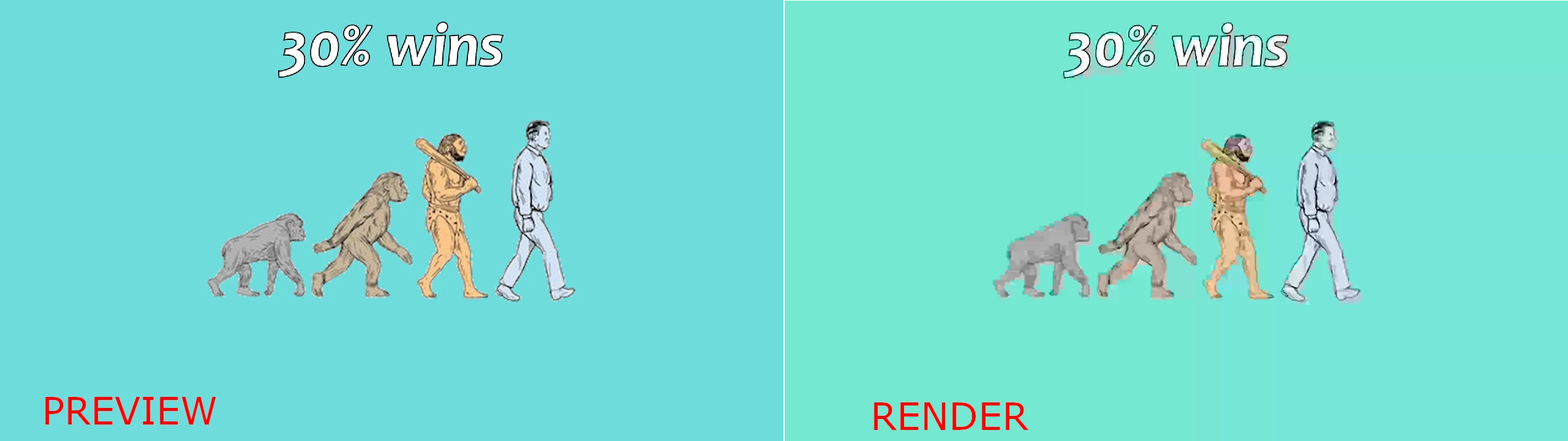
The simplest part of my timeline: a static image, created with text over images appearing without any effects, gets randomly corrupted and artifacted:
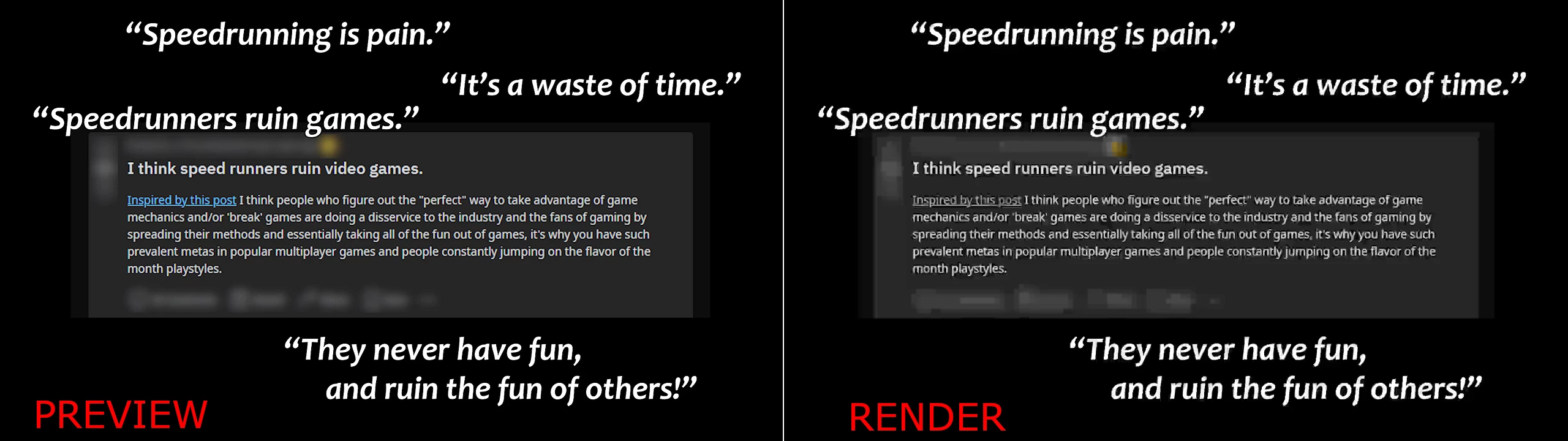

The rest of the 2h video exports fine and in high-quality without artifacting or color problems except when there's a small pause in a video (like a static image); at that point when the video resumes playing there will be color loss and artifacting again. But the 2 spots illustrated above always corrupt; EXCEPT if I move the some objects later on the timeline 1 or 2 seconds back of forward, suddenly these sections render fine! But if I got back to the timeline and change some other random object somewhere else the bug is there again an all the exports will be corrupted until I change something else; even if the changes happen AFTER this section (this is the intro of the whole video). It's random and doesn't make any sense. It can only be a another BUG from Premiere. It feels like Premiere does not know how to key-frame anymore and looses extreme video quality over a LITERAL STATIC IMAGE?!


Tried disabling hardware acceleration and exporting with CPU only. Bug persisted. Updated All of my Adobe Apps. Bug persisted. Tried using Media Encoder to export. Bug persisted.


Am I doing something extremely wrong here? Otherwise this might be the last month I renew my Abode License and migrate to DaVince Resolve for good. Way too many days of my work have been wasted on this.

Specs:

- Adobe Premiere 22.2.0 (Build 128)

- GTX 1080ti with the latest drivers from nvidia (v511.65)
- Windows 10 with latest updates
This topic has been closed for replies.
Correct answer Coincident

- I was using H.264 + VBR, 2 pass. I can now confirm that changing to VBR, 1 pass fixed the problem.
- The two scenarios I showed in the OP are constructed exclusively by using 2 PNG pictures and essential graphics (text, and a cyan square for background color); I've attached the 2 PNG images for reference a few comments above. Later in the video I do render parts of a VBR MP5 file, previously recorded with OBS, so: screen recording. But those parts later in the video render perfectly fine. Only when there's those "still" images or pauses later in the video do I get quality loss.
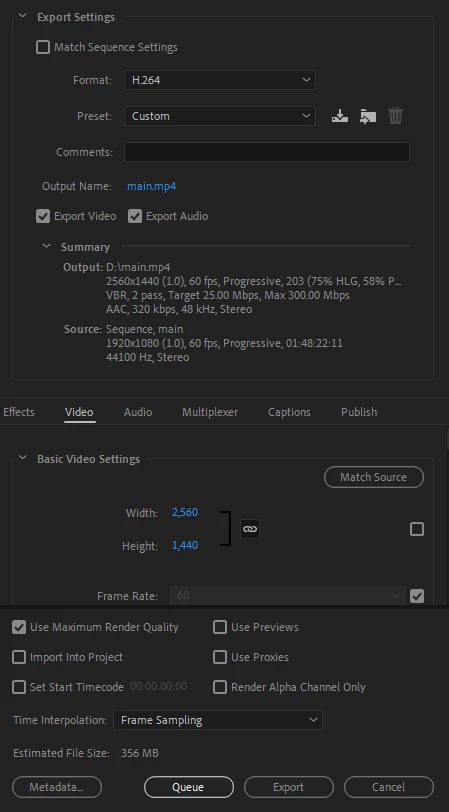
- Here's a screenshot of the export settings I used when the problem occured (with VBR, 2 pass😞

- When exporting with the Apple ProRes 422 LT preset the export is indeed very fast, and I don't get any quality loss. It doesn't surprise me since there's no "2 pass" option when using the QuickTime format.

After a succesful export I can confirm the problem was only the VBR, 2 pass. I'm using 1 pass from now on.
Let me know if you need more information to help solve this bug, so that people can VBR, 2 pass again.

3 replies

Inspiring
February 14, 2022

Me too. Until now i can not figure out what the problem is. Everytime i used JPG image high quality, the result really poor resolution.

I always used CBR and h264. Still waiting for solution from other PP user.

######Raizen 7, 40Gb Ram, RTX 3060, Win 11 -- All of Software in the world are just tools. Buy it if it works for you :)
Ann Bens
Community Expert
Community Expert
February 14, 2022
quote

. Everytime i used JPG image high quality, the result really poor resolution.


By @Eko Wardoyo

What do you consider high quality.

Premiere is not interested in Dpi, only in pixels in height and width. So if there is no scaling, make image same a sequence.

Averdahl
Community Expert
Community Expert
February 13, 2022
quote

Tried disabling hardware acceleration and exporting with CPU only. Bug persisted. Updated All of my Adobe Apps. Bug persisted. Tried using Media Encoder to export. Bug persisted.


By @Coincident


- Which codec do you export to, H.264, MPEG2, AVI DV,  or? 

- Where are the source footage from, video camera, cell phone, screen recording, or?

- Post a screen dump of your Export Settings here.


How does it look if you export using the setting below? The export is fast, the file will be large but it is an easy way to  rule out a codec/exporter issue.


Coincident
CoincidentAuthorCorrect answer
Inspiring
February 14, 2022

- I was using H.264 + VBR, 2 pass. I can now confirm that changing to VBR, 1 pass fixed the problem.
- The two scenarios I showed in the OP are constructed exclusively by using 2 PNG pictures and essential graphics (text, and a cyan square for background color); I've attached the 2 PNG images for reference a few comments above. Later in the video I do render parts of a VBR MP5 file, previously recorded with OBS, so: screen recording. But those parts later in the video render perfectly fine. Only when there's those "still" images or pauses later in the video do I get quality loss.
- Here's a screenshot of the export settings I used when the problem occured (with VBR, 2 pass😞

- When exporting with the Apple ProRes 422 LT preset the export is indeed very fast, and I don't get any quality loss. It doesn't surprise me since there's no "2 pass" option when using the QuickTime format.

After a succesful export I can confirm the problem was only the VBR, 2 pass. I'm using 1 pass from now on.
Let me know if you need more information to help solve this bug, so that people can VBR, 2 pass again.

Ann Bens
Community Expert
Community Expert
February 14, 2022

No wonder the outcome is bad.

You are using very low res images in a HD sequence.

Then you are upscaling from 1920x1080 to 2560x1440.


Coincident
Inspiring
February 13, 2022

Apparently this is tied to one rendering option: VBR, 2 pass.

I changed this setting to VBR, 1 pass, and the export seemed to work fine, without corruptions or artifacts.

I changed no other setting other than that; I'm still using the Software Encoder.


I'm not sure this fully solved this issue and I'm still running some more tests.

Is there knowledge of VBR, 2 pass being broken in Adobe Premiere?

R Neil Haugen
Legend
February 13, 2022

VBR 2-pass used to be a very needed thing, but now it's ... not so much for most workflows. Some editors say the only practical effect of using it is a vastly slower encoding process.


I'm curious what the 'static images' are ... file type, frame-size, color space?


Neil

Everyone's mileage always varies ...
Coincident
Inspiring
February 13, 2022

Both of the screenshots I shared in the OP only have 1 image each:
- The top screenshot has an image that was edited (blur effect) and saved with GIMP. The rest is native text essential graphics from Premiere. There's nothing in the background, so it looks black.
- The bottom screenshot has an image that was edited (transparency) and saved with GIMP. There's one piece of native text essential graphics on top. The background is just a cyan-colored square from essential graphics also made with Premiere.

I left both images as attachments.

I would leave a sample .prproj file too if I could. Unfortunately there's many other elements in the total project (2 hours), and if I strip down the project of the other elements to create a simpler sample project to more easily reproduce the bug, the randomly bug stops happening and seems to render fine. I have no idea why this happens.