
Participant
November 8, 2018
Answered

Can't change opacity for text color of open captions (Premiere Pro 14.9 and earlier)

  • November 8, 2018
  • 3 replies
  • 12033 views

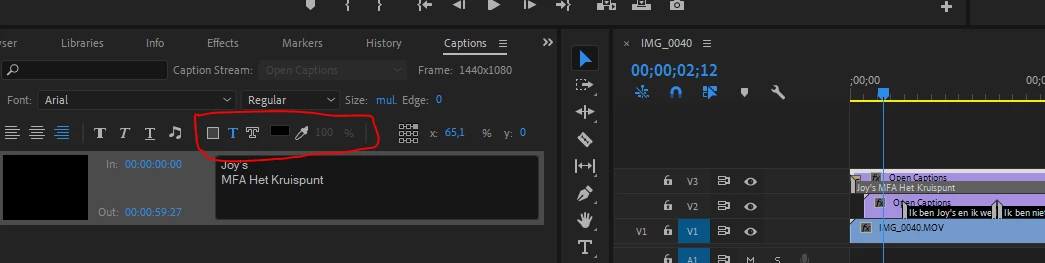
I want to change the opacity of the text (open captions) but the option to change opacity is greyed out. I can do it for background color and the edge color, but not for the text color. Am I doing something wrong? I can't imagine it's not possible....

See attached screenshot. Thanks id advance for your help, I've found some posts on opacity/text edit issues, but not this specific problem. But please let me know if there's already another topic discussing this issue.


Correct answer Stan Jones

I don't believe there is any option to set the opacity of the text in the caption panel.

Select the caption stream in the timeline, then in the Effects panel, reduce the opacity there. It affects the entire caption stream.

I set the opacity of the background to zero for my test. And yes, if not zero, the effect control will reduce the opacity of the background as well as the text.

You might be able to fake reduced opacity by setting the text color (in the caption panel) to something less than full color, for example, rather than white, use a grey.

3 replies

Participant
January 1, 2022

Hey hey I discovered a little work around. It doesn't have all the blending options you normally get with opacity, but it's a workaround. 


Go to the text fill and open it so that you see the color picker. Change the default solid color menu to the linear color menu. You can choose the opacity on the two top color slider so just make sure they are on opposite ends of the gradient line and then reduce the opacity to what ever you want on each of the sliders.


I hope that one day, this helps someone. If it did gimme a lil thumbs up this is my first post ever in this forum.

small_snap
Participant
May 12, 2022

This was it. Thank you!


Astonished_Dolphin5C73
Participant
January 27, 2019

change Blend mode in effect tab to normal will fix everything

Stan Jones
Community Expert
Stan JonesCommunity ExpertCorrect answer
Community Expert
November 8, 2018

I don't believe there is any option to set the opacity of the text in the caption panel.

Select the caption stream in the timeline, then in the Effects panel, reduce the opacity there. It affects the entire caption stream.

I set the opacity of the background to zero for my test. And yes, if not zero, the effect control will reduce the opacity of the background as well as the text.

You might be able to fake reduced opacity by setting the text color (in the caption panel) to something less than full color, for example, rather than white, use a grey.

BEFTEXAuthor
Participant
November 16, 2018

Hi Stan,

Thanks so much for the advice, changing opacity in the effects panel fixed it!

btw. Changing the color and thus 'faking' opacity change doesn't work for me in this particular project, as I needed actual opacity change in order to have the video shine through.

Either way, once again: thanks! ^_^

Stan Jones
Community Expert
Community Expert
November 16, 2018

Excellent!