Participant
March 6, 2014
Answered

can't drag video into timeline premiere cc

  • March 6, 2014
  • 23 replies
  • 879375 views

Been working with PP CC since it came out and have had almost no problems. Now I have a head scratcher. I can't drag a video clip from the project panel to the sequence. The audio comes but the video won't. All I get is the close hand with a line through it when I hover over any of the video tracks. The clips play fine in the source monitor but still cant drag it from source to sequence either. Tried this with clips from several projects and cameras but no go. Started a new project, different name, folder and footage, still have the problem.


[Text formatting corrected.]


Message was edited by: Jim Simon

Correct answer Kevin-Monahan

Hi,
You're here because you can't drag either audio or video to the Timeline. Sorry for the frustration!

SOLUTION: Make sure Source Patching is set up correctly in the Timeline. The video below explains it visually.


Video tutorial


HOW TO:

  1. SELECT: Select the Clip in the Project panel. Blue Boxes should "light up" in the far left of the timeline. If they don't, go to Step 2.
  2. PATCH: Click the V1 & A1 "blue boxes" to enable them in the far left of the Timeline. (see the image). 
  3. EDIT: Drag the clip to the Timeline (or click a button or use a keyboard shortcut for an Insert or Overwrite edit in the Source Monitor).
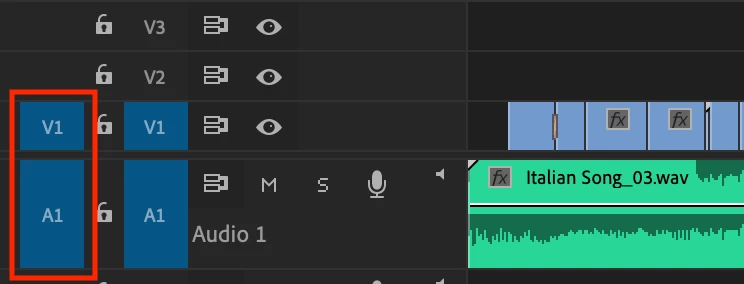


Notes:

1. Source patching is where most errors are made when you cannot drag an A/V clip into the timeline. 

  • If one Source Patcher and the other is not enabled, when you drag your clip in, your edit will only include audio or video.
  • If no Source Patchers are selected, when you drag a clip, no clip can be edited to the timeline.


2. Source Patching should be automatic:

  • Once a clip is selected in the Project panel. 
  • Once a clip is double-clicked in the Project panel and loaded into the Source Monitor.


3. If Source Patching is not working automatically when selecting a clip or when loading into the Source Monitor:

  • Try clicking the buttons in the timeline manually.
  • If a clip is not supported for automatic patching, you may not be able to click either A1 or V1 (or both). In that case, you may need to transcode the file in non-Adobe product, such as, Handbrake.


4. Track Targeting: The other two blue boxes that say V1 and A1 are for track targeting, which come into play after you edit clips into the timeline. Don't let those confuse you. You don't need to be concerned with them when simply dragging clips to the timeline. The ones on the far left are the important ones in solving this problem. The boxes to the right do not come into play until you start editing for things like copy and pasting to another track, etc.


5. Source Patching issues happen most frequently with screen captured video that has variable frame rates, which is a very popular format editors use these days. That is why it is more important than ever to be focused on source patching when editing such footage. The issue doesn't commonly happen with footage coming from camcorders, etc.


This is a very common, yet crucial, bit of info that gets by a lot of editors when they are starting out, so you wouldn't be alone. 


Let me know if you have any questions.


Thanks,
Kevin

23 replies

petecalgaro
Participating Frequently
February 3, 2016

I had this same problem and had to built my entire project from scratch, which fixed the problem. Now my older QT movies won't be recognized as media without running them through the media encoder with a different QT codec.

Kevin-Monahan
Community Manager
Community Manager
April 30, 2020

Good point. Sometimes you can't click "V1," and that's probably going to indicate a problem with your source footage. Usually transcoding the clip in something like Handbrake (as Media Encoder will also probably have the same issue as Premiere, no working importer) can work to get the project finished.

Kevin

Kevin Monahan - Sr. Community & Engagement Strategist – Pro Video and Audio
Participant
May 19, 2020

hey i am trying to import my 6 gig footage file into premiere and it froze and replied its not respnding multiple times and now it worked but it only shows the media pending and i cant use it plz i need help

Participant
May 9, 2015

Worked many years with PP without problems. I'm in the same situation as @SweetPeaO'Toole. It can't be right at nobody can't find  solution for that.

Ann Bens
Community Expert
Community Expert
May 9, 2015

Maybe this will explain it a bit better.

masoncyoung
Participant
June 25, 2015

Ann Bens explained it perfectly! You can't forget there are two boxes to highlight in the V1 track. Thanks

Ann Bens
Community Expert
Community Expert
March 6, 2014

Make sure you highlight V1 the one on the left side of the track header.

Check the help on source patching and track targeting.

eddiemg21Author
Participant
March 7, 2014

Worked like a charm thanks! Not sure how they became unselected but it works now!

Kevin-Monahan
Community Manager
Community Manager
April 30, 2020

Hi Eddie,

It is the editor's responsibility to make sure tracks are patched correctly with every edit. That said, it should be more persistent. I think the "automatic" source patching may be the thing that needs fixing. Thanks for bringing this up. Please create a bug report here: https://adobe-video.uservoice.com/forums/911233-premiere-pro


Thanks,
Kevin

Kevin Monahan - Sr. Community & Engagement Strategist – Pro Video and Audio



