aleer96419646
Participant
January 9, 2018
Answered

Can't get edits made in video "clip" to carry over to the "sequence from clip"

  • January 9, 2018
  • 2 replies
  • 437 views

Hey everyone, I have a question about making edits in the actual video clip instead of in a sequence.

In my premiere project, there are video clips with two video tracks (set up for multi-cam). I right click and select "load clip in timeline" and from that I was making edits on the clips, cutting out specific parts of the clip to shorten the overall clip.

Now that the clips have been cut down, I want to convert them to a sequence in order to use the multi-cam editing feature. However, when I convert the clip to a sequence, the edits I made to the clip (as a "clip" in the timeline), do not carry over. As a sequence, the clip is the full length again and does not reflect any of the edits I've made.

Is there any way to get the edits made on the clip to carry over into a sequence? Or any other way around this issue?

Thanks!
This topic has been closed for replies.
Correct answer Meg The Dog

Edits you make on a clip in a timeline do not modify, change or in anyway effect the source clip for that clip in the sequence.

If you are placing a clip on the timeline and editing it, then dragging the source clip into a new sequence, none of the edits that you made in the earlier sequence will appear.

If you want to take the contents of your edited sequence and place it in another sequence, you can either:

1) Create a new, empty sequence with the sequence settings you want, then return to your clip cutup sequence, select all the edited portions there, and once selected Copy them (Command (Control) + C) then switch to the new, empty sequence, click anywhere and Paste the clips into it (Command (Control) + V.

or

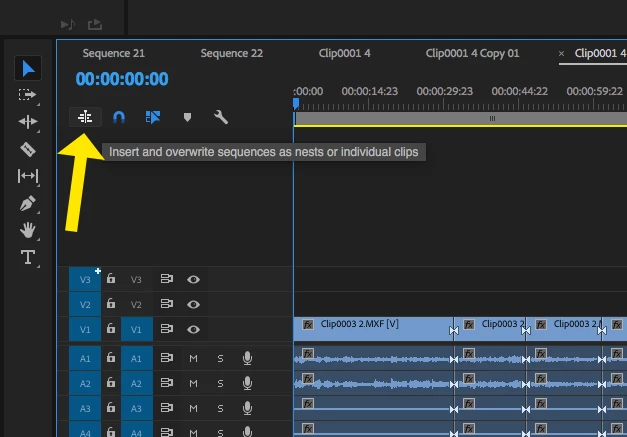
2) Create a new, empty sequence with the sequence settings you want, make sure "Insert and overwrite sequences as nests or individual clips" is toggled gray - for individual clips:

then go the program panel and drag the previous sequence you made with the cuts into the new empty sequence.

MtD

2 replies

Legend
January 9, 2018

You need to understand how sequences and multicam work.  Premiere Pro is the kind of software that really requires reading the manual.  Towards that end:

Adobe Premiere Pro Learn & Support

The following is unfortunately missing from the official Guide.

Manual Multi-Camera Method

R Neil Haugen
Legend
January 9, 2018

Edits of a clip in one sequence do not carry over to the same clip in other sequences.

You might find creating subclips to do what you wish ... right-click/make subclip.

Neil

Everyone's mileage always varies ...
aleer96419646
Participant
January 9, 2018

Let me specify:

These clips are of interviews and certain parts of the interview have been edited out. Let's say I have CLIP1 and it's 20 minutes long. I load this clip into the timeline and edit the clip down to 15 minutes. There are multiple edits throughout CLIP1 that have shortened it to 15 minutes (i.e. I've removed certain parts of the interview). Now, when I try to make a sequence from this clip, those edits are not reflected when the clip is loaded in the timeline as a sequence. In short, how do I get a sequence to reflect the edits that have been made in a clip?

Meg The DogCorrect answer
Inspiring
January 9, 2018

Edits you make on a clip in a timeline do not modify, change or in anyway effect the source clip for that clip in the sequence.

If you are placing a clip on the timeline and editing it, then dragging the source clip into a new sequence, none of the edits that you made in the earlier sequence will appear.

If you want to take the contents of your edited sequence and place it in another sequence, you can either:

1) Create a new, empty sequence with the sequence settings you want, then return to your clip cutup sequence, select all the edited portions there, and once selected Copy them (Command (Control) + C) then switch to the new, empty sequence, click anywhere and Paste the clips into it (Command (Control) + V.

or

2) Create a new, empty sequence with the sequence settings you want, make sure "Insert and overwrite sequences as nests or individual clips" is toggled gray - for individual clips:

then go the program panel and drag the previous sequence you made with the cuts into the new empty sequence.

MtD