
Participant
October 17, 2018
Answered

CAN'T HIGHLIGHT TEXT OR ADJUST SIZE PREMIERE CC19 PROBLEM

  • October 17, 2018
  • 12 replies
  • 13386 views

Hello everyone,

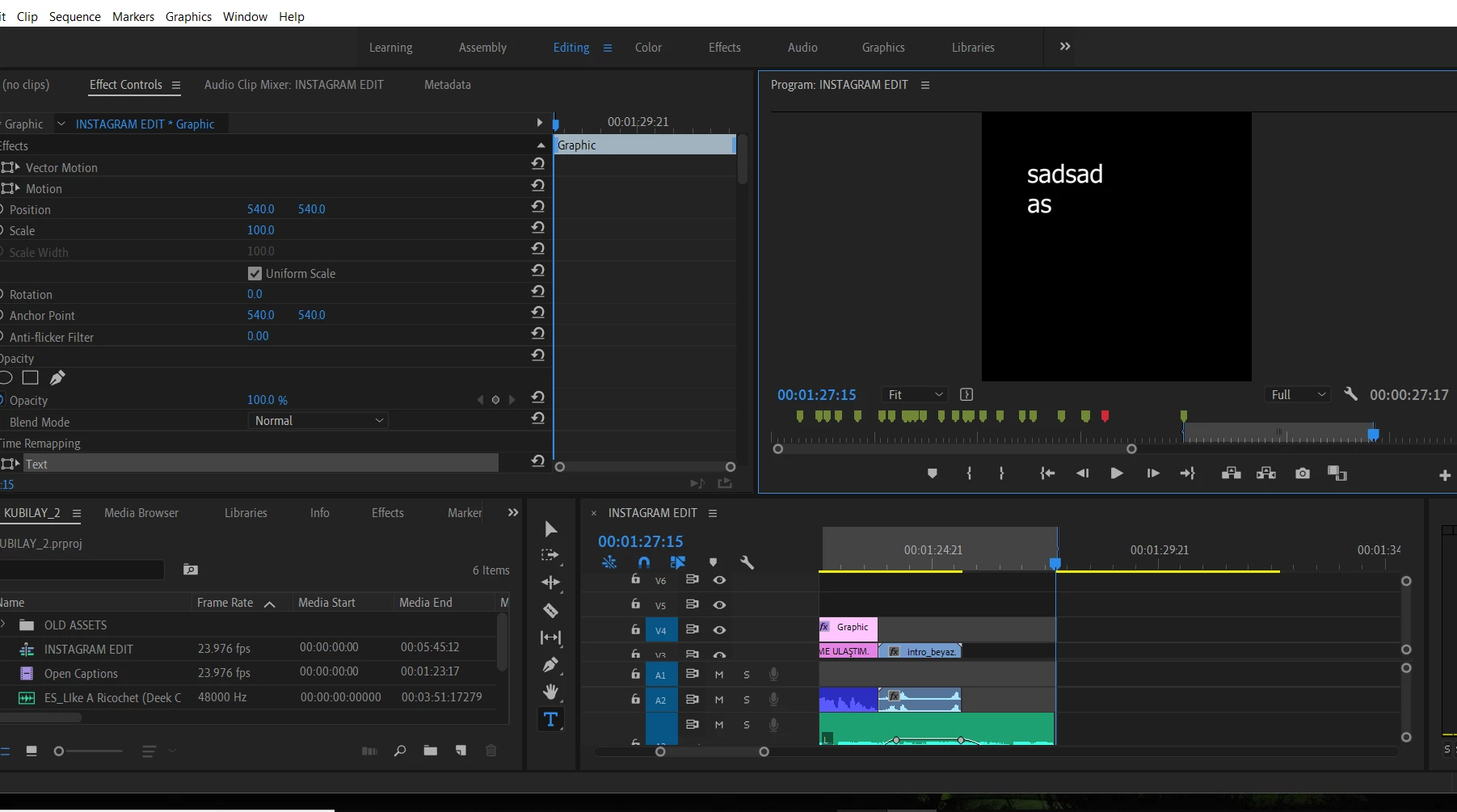
After I did the 2019 update whenever I write a text the red box around to make adjusments it disappears away,

Also now I can't highlight anything from that text to change color or size of it. I highlights yet can't see what I am highlighting.

Adobe Customer Service on phone did many things related to CPU and re installing the nvidia driver yet couldn't solve the problem.

I did uninstall 2019 and reinstall 12.1 but that one was crashing on me all the time.

Does anyone has a solution to this?

My computer is Gigabyte Aero 15x

16 GB DDR-2666

i7-8750H
Nvidia Geforce GTX

This topic has been closed for replies.
Correct answer egebabaoglu

I actually just found a new solution that works for me,

The resolution change %150/125  did not help yet going to settings button on your program monitor (small wrench icon, right side of your screen) and enabling SHOW RULERS and SHOW GUIDES  did turn on my guides when writing a text. Hope it helps someone, this change was made after v13.01 update!

Best

Ege

12 replies

neonfr
Known Participant
August 11, 2021

The correct answer by @egebabaoglu  helped me to fix this problem. Just enabled "show rulers" on the menu he mentioned. Thanks my friend! 

Participant
August 12, 2019

I'm having this issue too, I also noticed that this applies to all highlight-related stuff (noticed it when I was trying to adjust a mask I made, the blue circle around it wasn't there at all but I could still make changes) Might be a different issue than yours though, It happened to me after hooking up a second monitor to my setup.

Participant
July 30, 2019

I found a workaround that seems to work. Open a new project, and instantiate the text tool via the essential graphic pallette. This should give you back editing capabilities including the bounding box for the text object. Then open the project you were working on in the same session, and copy/paste the text object over to the project you were having problems with. Close the "new" project and save the old project.

Participant
May 9, 2019

I'm so happy I found this thread and that I'm not the only one pulling my hair out over this! All my settings appeared to be right. The trick of scaling from 125% to 100% (on windows) did the trick for me. Gooooood ole' Adobe...

egebabaogluAuthorCorrect answer
Participant
April 4, 2019

I actually just found a new solution that works for me,

The resolution change %150/125  did not help yet going to settings button on your program monitor (small wrench icon, right side of your screen) and enabling SHOW RULERS and SHOW GUIDES  did turn on my guides when writing a text. Hope it helps someone, this change was made after v13.01 update!

Best

Ege

Stan Jones
Community Expert
Community Expert
April 5, 2019

Interesting. Good that helps! I am also now on 13.1.

If I set Windows advanced scaling to 125%, then I see the problem of bounding boxes not appearing. I can temporarily overcome this by slightly changing the size of the Program panel, or, as you describe, setting "Show Rulers" on. I do not see an effect to "Show Guides."

With Windows advanced scaling set back to 100%, there is no loss of bounding boxes.

e.reed.rogers
Inspiring
April 1, 2019

I just had the same exact problem but "fixed" it. Try expanding your preview/monitor window to a larger size i.e. detach it from the main UI and place it on your second monitor. It worked for me and is repeatable. Needless to say this shouldn't happen but then again it's Adobe.

It's frustrating believe me I know. In a 2hr multi cam project I'm just finishing up I crashed 7 times in a row just performing the simplest of tasks such as switching from one mode to another yesterday.

Hope that helps someone who's pulling their hair out too...

Stan Jones
Community Expert
Community Expert
April 1, 2019

Changing the panel size is a further way of demonstrating the problem with 125% scaling. I believe that is what is probably affecting you.

egparson@gmail.com
Participant
April 1, 2019

Same problem here. Why are there so many problems with this crappy software?

Adobe Employee
February 26, 2019

I also had the same issue as the original poster that resetting preferences didn't resolve. It wasn't until I changed the scale and layout (Windows) from 125% to 100% that I could finally see the red bounding box around the text. This is also what R Neil Haugen recommended yesterday.

Rick

Inspiring
June 2, 2019

Thanks did the trick, wish they fix this soon as i  have trouble working at 100%

Stan Jones
Community Expert
Community Expert
June 2, 2019

Curious. Go back to 125% and turn rulers on. (Post 15.) Does that work?

saraa77037039
Participant
February 25, 2019

Hi all, I was facing the same issue. Resetting my preferences didnt seem to work. Only after clicking different panels did the box and highlighter finally reappear. Currently they only show up in the Color and Effects panels, nothing else! This has to be some weird bug... right?

R Neil Haugen
Legend
February 25, 2019

First of course, go to the Menu system  ... Workspaces/Reset to saved layout, see if that helps.

And a question  ... do you have any monitor scaling involved? Pr can get wonky like this especially if say monitor scaling is at 125%.

Neil

Everyone's mileage always varies ...
Participating Frequently
March 4, 2019

Thanks...that was the issue for me...resizing windows display resolution from `125% back to 100% fixed the issue.

Participant
February 15, 2019

Did you ever get a fix for this as I am getting the same issue. It is possible to work without the highlight and adjustment box but it is a total pain.

joshuah30716855
Participant
February 23, 2019

Agreed.  Glad to see it’s a known issue.  On Mac here, lastest version and cannot see selected text.  A few days ago when I first noticed, after I created a few new text boxes, the problem seemed to go away in it’s own.  But now as I edit, I’m having to guess what I have selected.