christinar74518775
Participating Frequently
May 23, 2017
Answered

Can't view audio waveforms

  • May 23, 2017
  • 2 replies
  • 8549 views

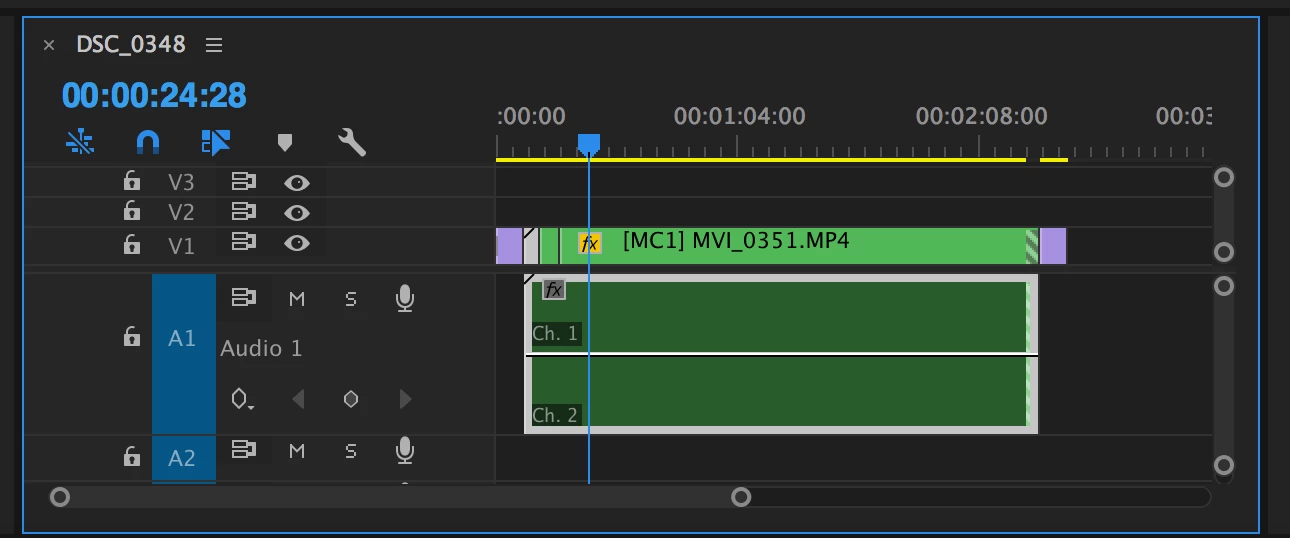
I am working in a multi-cam sequence for the first time and I am unable to view the audio waveforms in my project. I tried selecting "Generate Audiowave form" but I was unsuccessful. What should I do?

This topic has been closed for replies.
Correct answer Ann Bens

Hit Render Audio which is under Sequence.

2 replies

mattmattmayer
Inspiring
May 10, 2019

I have a better "solution" to this. tl;dr below. I find this to be better simply because you don't have to wait to render, or re-render over and over. It will do it in the background, and the files can be edited over and over, gain changed, etc, without needing to re-render.

I believe this issue is caused by there being confusion over whether there is an associated .pek file, or maybe an association with a corrupt or incomplete .pek file. So I have found that you can trick Premiere into make a new one.

  1. Make sure this checkbox is checked: "Premiere Pro > Preferences > Audio > Automatic audio waveform generation"
  2. In the Premiere timeline, on the clip in question, right-click > Reveal In Finder
  3. In Finder, move the audio clip up in the Finder folder hierarchy
  4. Return to Premiere
  5. The clip should have lost its link to the file and the Link Media dialog box should automatically appear (if it doesn't, right-click > Link Media)
  6. Relink the clip to where it is in its new location

That should be it. Look at the bottom right of your Premiere windows to see if it's automatically generating new waveforms (generally a blue status bar). Wait till that bar is complete and tada: waveforms. They should show up immediately and automatically. I think what's happening is that this process disrupts Premiere's link between that file and any previously generated waveform information. So the incomplete or corrupt waveforms are ignored, and new ones are generated for the file in its new location. Moving the files up (as opposed to down or into a new folder in the same place) seems essential to confusing Premiere's automatic relinking process. If you've moved it sideways or down, when you click back over to Premiere from Finder, Premiere seems to be able to find it, and so nothing really happens. A couple notes from experimentation:

  1. Seems okay to make a new folder, just has to be higher up
  2. This can be done in batches (batch move in Finder, batch relink in Premiere)
  3. Seems also to solve the problem of not being able to see Waveform information up through Multicams

tl;dr

Move the associated audio files in Finder to a higher folder in the hierarchy, then relink in Premiere.

Participating Frequently
March 26, 2020

I tried multiples tricks and renders unsuccessfully and as I am working on huge rushes like 5 hours long, that trick really saved me by being the only working one for my case. Thank you so much !

mattmattmayer
Inspiring
December 11, 2020

Very happy it worked for you!

R Neil Haugen
Legend
May 23, 2017

Right click the "hamburger" menu (circled in red) to the right of the Sequence name on your timeline. The Sequence Display options are on the pop-up menu that then appears ... note the audio section:

Neil

Everyone's mileage always varies ...
christinar74518775
Participating Frequently
May 23, 2017

Hi Neil,

I have those items selected but I still can't see the audio wave forms.


Ann Bens
Community Expert
Ann BensCommunity ExpertCorrect answer
Community Expert
May 23, 2017

Hit Render Audio which is under Sequence.