
mikecox_
Inspiring
July 1, 2024
Answered

Change clip view in timeline
  • July 1, 2024
  • 2 replies
  • 542 views

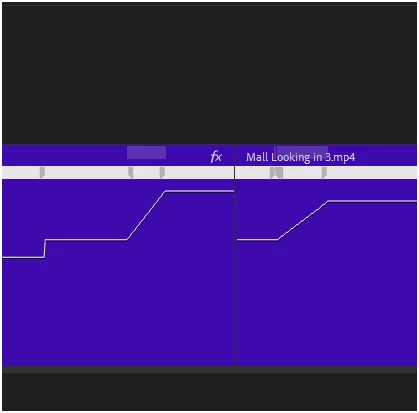
I clicked the Fx icon to get here but how do I get back to seeing the clop image from here?

Correct answer PaulMurphy

Hi Mike,

If you don't want to see your Time Remapping keyframes, you can change the view back to normal. Right-click the FX badge in the top right of the clip and choose Opacity > Opacity to return it to its default view.

You can also hide all keyframes by clicking the Timeline Display Settings wrench (the small wrench icon in the Timeline) and deselecting Show Video Keyframes.

Cheers,
Paul

2 replies

PaulMurphyCommunity ExpertCorrect answer
Community Expert
July 2, 2024

Hi Mike,

If you don't want to see your Time Remapping keyframes, you can change the view back to normal. Right-click the FX badge in the top right of the clip and choose Opacity > Opacity to return it to its default view.

You can also hide all keyframes by clicking the Timeline Display Settings wrench (the small wrench icon in the Timeline) and deselecting Show Video Keyframes.

Cheers,
Paul

mikecox_
mikecox_Author
Inspiring
July 2, 2024

Hmmm, not very intuitive, but it worked! Thanks

Using Win 11
MyerPj
Community Expert
Community Expert
July 1, 2024

Are you referring to the 'Show Video Thumbnails' from the Wrench menu in the Timeline panel?

mikecox_
mikecox_Author
Inspiring
July 2, 2024

No, but I checked the wrench icon to see the listed options, and just about everything is checked; including "videa thumbnail " option.


My problem is that after I ckicked the Fx icon in the clip, to set the Time remaping option, I couldnt get back into "video thumbnail" mode when I was finished..

Using Win 11