That sounds like it could certainly be the issue. What would be some standard settings to export videos such as screen recordings as? I still have a lot to learn about file sizes/frame rates etc. to use when editing. I typically just always use default settings when importing things into a project, so whatever comes off the camera (Canon G7X II) or the screen recordings from quicktime as I did here.
Also, here are my sequence settings. 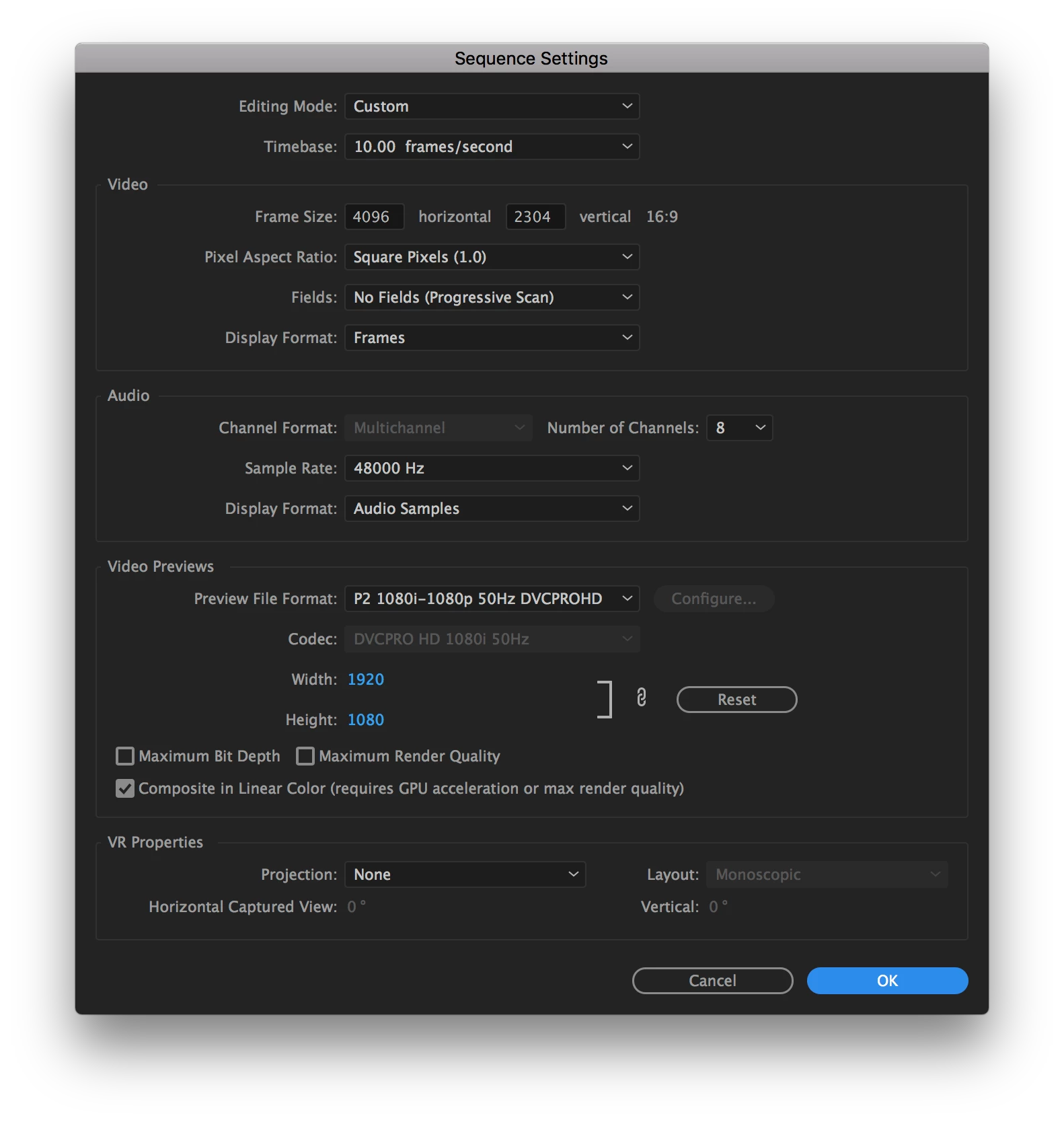
Thanks a lot
patrickfreehill wrote I typically just always use default settings when importing things into a project, so whatever comes off the camera (Canon G7X II) or the screen recordings from quicktime as I did here. |
Good method for working with the Canon, as it records in standard formats, not so good when working with the screen recordings, as they are being recorded in a non-standard video format.
If your end use is posting these screen recordings on the web, or distributing them to viewers, I would suggest:
1920 x 1080 frame size, with a 29.97 frame rate -
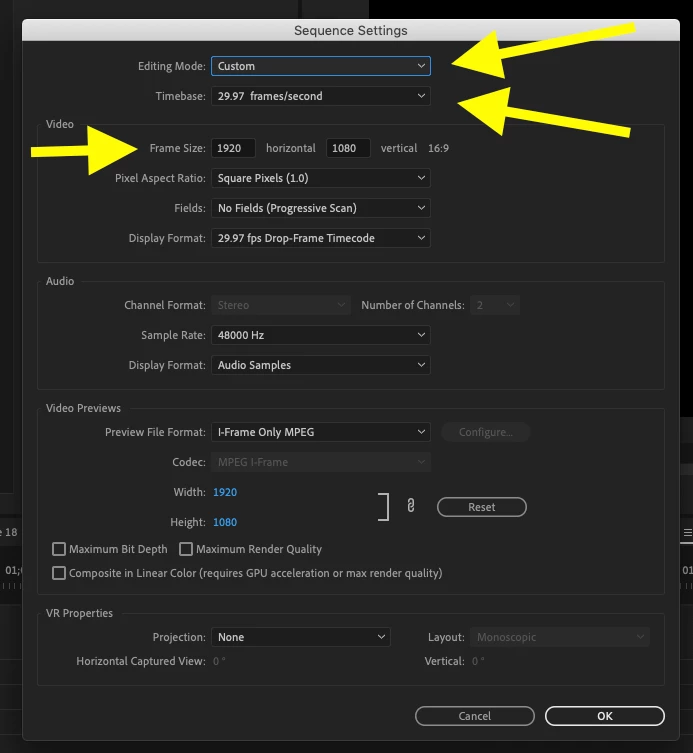
Note that Composite in Linear Color is unchecked.
I would also set my Preference for Default Media Scaling to Set to Frame Size:
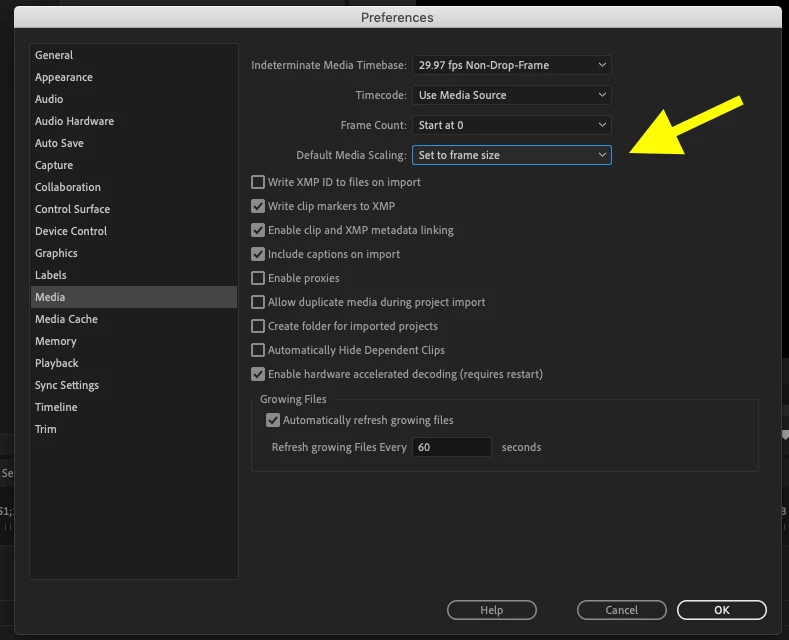
Now when you drop your source footage on to that timeline, the clip will be automatically scaled to fit the widest dimension of the source to fit in the frame. This may result in either letterboxing or pillar boxing as your source is not in a 16:9 aspect ratio.
Note: because the Sequence Settings are different from your source material, Premiere may require you to render your timeline to get smooth/high quality playback. This depends on the horsepower of your computer.
When you go to export, choose Format: H264 Preset: Match Source - High Bitrate
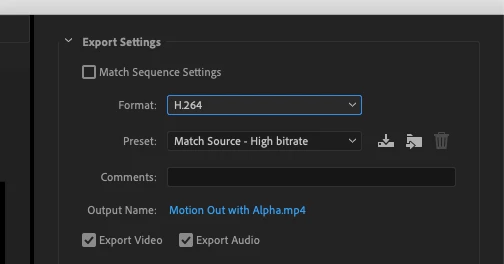
This should create a deliverable file that should work for most purposes.
MtD
 AdChoices