

PolkaFever
Inspiring
November 23, 2018
Question

Choppy playback in source preview! Premiere Pro 2019 software issue!

  • November 23, 2018
  • 16 replies
  • 19233 views

When I double click a drone 4K.mov source clip in Premiere Pro 2019 project bin, they always appear choppy during playback previews (Source window).

When I preview same clip in ANY other video application it plays just fine. This is and has been a software problem with Premiere Pro for quite some time. Specially when I use codecs with highly compressed videos (GoPro, Drone etc. recordings).

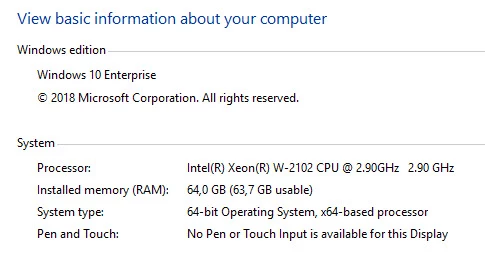
Its not a hardware issue, its not the codec, its not a cache settings, its not the timeline/sequence/render, its not CUDA, its not my latest Graphic card driver for Nividia Quadra P2000 or a proxy issue.

It has to be a Premiere software issue? Its about how Premiere is set and capable to utilize the computer's power for different videos and codecs. Don't make me convert this Quicktime, MOV -file. That should not be the solution for a Pro editing suite.

VLC and any other video players and editing suites has no problem previewing these files and Premiere Pro shouldn't be any different?

General

Complete name                            : D:\DJI_0010.MOV

Format                                   : MPEG-4

Format profile                           : QuickTime

Codec ID                                 : qt   2011.07 (qt  )

File size                                : 3.81 GiB

Duration                                 : 5 min 28 s

Overall bit rate mode                    : Variable

Overall bit rate                         : 99.9 Mb/s

Encoded date                             : UTC 2018-04-17 15:44:49

Tagged date                              : UTC 2018-04-17 15:44:49

Comment                                  : DE=None, Mode=P, DSW=0001

xyz                                      : +69.850745+18.819847+1.600

xsp                                      : +0.00

ysp                                      : +0.00

zsp                                      : +0.00

fpt                                      : -1.30

fyw                                      : +15.30

frl                                      : +0.20

gpt                                      : -8.70

gyw                                      : +15.90

grl                                      : +0.00

Video

ID                                       : 1

Format                                   : AVC

Format/Info                              : Advanced Video Codec

Format profile                           : High@L5.1

Format settings                          : CABAC / 1 Ref Frames

Format settings, CABAC                   : Yes

Format settings, RefFrames               : 1 frame

Format settings, GOP                     : M=1, N=30

Codec ID                                 : avc1

Codec ID/Info                            : Advanced Video Coding

Duration                                 : 5 min 27 s

Bit rate mode                            : Variable

Bit rate                                 : 100.0 Mb/s

Width                                    : 3 840 pixels

Height                                   : 2 160 pixels

Display aspect ratio                     : 16:9

Frame rate mode                          : Constant

Frame rate                               : 29.970 (30000/1001) FPS

Color space                              : YUV

Chroma subsampling                       : 4:2:0

Bit depth                                : 8 bits

Scan type                                : Progressive

Bits/(Pixel*Frame)                       : 0.402

Stream size                              : 3.81 GiB (100%)

Title                                    : DJI.AVC

Language                                 : English

Encoded date                             : UTC 2018-04-17 15:44:49

Tagged date                              : UTC 2018-04-17 15:44:49

Color range                              : Limited

Color primaries                          : BT.709

Transfer characteristics                 : BT.709

Matrix coefficients                      : BT.709

Codec configuration box                  : avcC

Text

ID                                       : 3

Duration                                 : 5 min 27 s

Bit rate mode                            : Constant

Bit rate                                 : 2 048 b/s

Stream size                              : 81.8 KiB (0%)

Title                                    : DJI.Subtitle

Language                                 : English

Forced                                   : No

Encoded date                             : UTC 2018-04-17 15:44:49

Tagged date                              : UTC 2018-04-17 15:44:49

Other

Type                                     : meta

Duration                                 : 5 min 28 s

Default                                  : No

Bit rate mode                            : VBR
   Please help me find a solution!

This topic has been closed for replies.

16 replies

Inspiring
March 28, 2024

I found  a solution that applies to all PP versions: do not fill your computer monitor with the playback picture, leave some empty room around the edges. The latest PP does not seem to have this problem.

Participant
February 7, 2023

Hello, was their ever a solution to this issue? 
I having this same issue and it's a nigthmare. 

isadurni
Participant
July 28, 2021

Hi!


I just had a stuttery playback video issue in PP2021 on a fresh install.


Luckily, in this forum topic, someone mentioned disconnecting their microphone input solved their issue.


I don't have any microhpone connected to my system, but dug around in the audio hardware settings and set my microphone input to "no input". Lone and behold, that solved the issue.


In digging deeper, it turned out that my system was configured for a 32-bit depth sample on both the input and output. My system isn't capable of 32-bit depth input. Changing the audio in/out to 2 ch 24-bit 48kHz solved the issue all around.


So seems like Premiere defaulted to a setting that my hardware was incapable of which inherently caused my stuttering video playback issue across any video codec.


Posted a feedback here:

https://adobe-video.uservoice.com/forums/911233-premiere-pro/suggestions/43871565-playback-issue-with-mic-set-to-audio-input

December 22, 2019

I have replicated this issue on numerous computers with DJI footage and other Long GOP footage that contains a large number of consecutive P frames. I have done so on unlike systems such as older Xeon, newer Xeon, and new Core processors. The lag observed is an increase in the prefetch latency, that is resolved for a short time by clearing the media cache. 

Inspiring
December 21, 2019

Problem solved: buy the new Mac Pro.

I had the same issues with the trashcan. They have gone away with the base model of Mac Pro, 8 core, Radeon 580 card, 32 gb ram.  All smooth now.

Participant
July 20, 2019

Hi all, had the same issue and when found this thread, while i had no mic attached i got the audio hardware settings and there was my usb mic as input , had changed it to No Input and voila no choppy playback anymore. Thanks

Participant
August 22, 2021

Glad I kept reading through the thread. This was my fix too!

Participant
June 16, 2019

I'm still having an issue with this.

Preview is rendering images and text fine..but when it comes to clips...it seems to just slow down and not even play (clip is only 13.2 mb)

Participant
June 16, 2019

cant delete my comment..anyways I had fixed my issue (bad clip file)

ncysneros
Participant
January 31, 2019

Same fix for me.  My device was the Vive pro which has an integrated mic.  Unplugged it and Premiere works fine now.

Thanks for the help

Wes Howell
Adobe Employee
Adobe Employee
January 31, 2019

Thanks for the update on this.

michaelw63967489
Participant
January 25, 2019

I found the problem with my choppy audio & video preview when using Adobe Premiere Pro CC in edit mode.

I had tried everything I could think of.

1. I adjusted the memory and cache settings.

2. I created custom cache files on an alternate hard drive.

3. I installed updated video drivers from NVIDIA.

4. I tinkered with the other odd options that I found via the web that had to do with the sequence settings and rendering the selected vid and audio on the timeline.

5. I began uninstalling other alternate Microsoft programs.

6. I installed older versions of Premiere Pro CC, with suspicions that the latest update caused the issues.

7. I ran msconfig and disabled background programs.

8. I ran the task manager to end task on background programs.

9. I observed and edited the running programs in the Services option located in Administrative Tools.

But none of these options solved my problem!

Then I noticed that I had an external microphone connected to my mic input. This microphone has no on and off switch, so when it is connected it is running.

While running Premiere Pro CC in edit mode I unplugged the external microphone and all the choppy audio and video issues instantly stopped, and Premiere Pro CC was running like a dream. I couldn't believe it!

I assume the audio and static coming in on that open mic was somehow totally screwing up Premiere Pro CC's preview abilities during edit mode.

Un-freakin believable!

**This discovery fixed my choppy audio and video issues when editing in Adobe Premiere Pro CC! Hope it helps more frustrated users out there.

Just for the record. My pc's system information is the following:

OS Name Microsoft Windows 8.1 Pro
Version 6.3.9600 Build 9600
System Manufacturer Hewlett-Packard
System Model 810-370st
System Type x64-based PC
Processor Intel(R) Core(TM) i7-4820K CPU @ 3.70GHz, 3701 Mhz, 4 Core(s), 8 Logical Processor(s)
Platform Role Desktop
Installed Physical Memory (RAM) 24.0 GB
Total Physical Memory 23.9 GB
Available Physical Memory 20.9 GB
Total Virtual Memory 27.4 GB
Available Virtual Memory 23.7 GB
Name NVIDIA GeForce GTX 745
Resolution 1920 x 1080 x 60 hertz
Name NVIDIA High Definition Audio

**Don't believe those folks out there saying that you need a 16 processor computer to edit video. My pc is only an 8 core pc. And I am not even using any SSD drives. All of my hard drives are SATA old-school spinning platter drives. But on the other hand, I am not editing 4K.mov source clip.

PolkaFever
Inspiring
January 30, 2019

Thanks michaelw63967489​ for your insights. Strange solution, but I'm in the same category (Mic without on/off switch). Open minded and full of optimism I tried your method. I unplugged my Audient iD14 and my Audio Technica AT2020 USB mic. Unfortunately there was no difference to my setup. Playback is just as choppy as before.

Happy if someone else find your fix helpful, but in my case I'm still in the dark

michaelw63967489
Participant
January 30, 2019

My mic wasn't a usb mic. It was an old Labtec mic with a 0.25" stereo rca jack that just plugged into the mic input on the back of the pc tower. Are you sure you don't have any other mic inputs connected to your computer. I think some folks have a mic on their monitor or webcam. Here is a link to a pic of my microphone: [link]

Just a thought, maybe you ought to check for the latest drivers for your mic's, and install them. Or just go to Computer Management, then Device Manager, then Audio Inputs and Outputs, and right click your audio devices and disable them. You can easily go right back and re-enable them after testing Adobe Premiere CC.

Hope you find the cure to your issue.

PolkaFever
Inspiring
January 8, 2019

Here is my video to show this playback problem: Adobe Premiere Pro CC19 playback failure - YouTube
Upvote these improvement requests to get Adobe to acknowledge and put a bug fix on the roadmap:

  1. better scrubbing and playback performance - 4k avchd/h264 long gop – Adobe video & audio apps
  2. Better Support For LongGOP – Adobe video & audio apps

Thanks