
robine26242374
Known Participant
April 14, 2017
Question

Clip is silent after cutting but audio still appears to be there??

  • April 14, 2017
  • 8 replies
  • 8266 views

So I'm having a really strange problem, and I've googled around but haven't found ANYTHING close to my issue anywhere, so..

I have a clip - video is fine, audio is playing, everything is good!
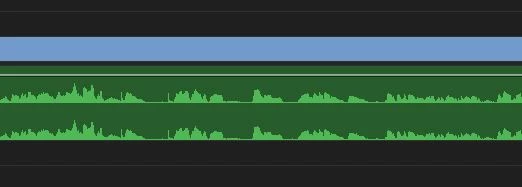
But when the clip is cut, everything is fine BEFORE the cut, but everything is silent AFTER the cut.
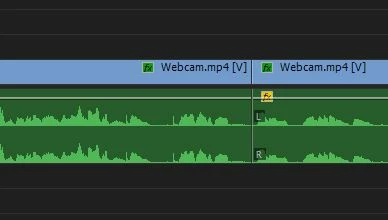
It looks EXACTLY the same - the audio track is still there, it's not muted, and the audio is still fine BEFORE the cut. But for some reason there is no sound after the cut. I have NO IDEA why this is happening and am desperate for answers.

Thank you!

This topic has been closed for replies.

8 replies

Participant
August 23, 2024

So I just had this issue on a first cut. Audio on the second segment is fine until I delete the first segment and then boom! it's gone. After just one cut. My only work around was take the first segment, drag it to another timeline and mute it. Crazy.

Teodor Grozev
Participant
June 19, 2024

This issues still persists. It is pathetic that such a breaking bug still exists in this software. In a non-multicam sequence, my macbook m1 max restarted while I was gone, when I came back a couple clips don't have their audio playing in the master sequence and further down at random timecodes audio doesnt play in the timeline although when I preview the audio file in Premiere the sound IS there. When exporting the audio is present, it's just that it doesnt play in the program and nesting the affected cuts doesn't fix it every time either. Please, pay attention Adobe.

Participant
April 25, 2023

Ive been having the same issue for like two weeks now and i think i found the solution.
It happened to me when I was working at a multicam sequence so maybe this solution does not apply to everyone, or maybe the issue itself has something to do with the multicam sequence only. Just go to the audio track that is "muted">right click>Multi-Camera>Enable and Voilá! I hope it helps.


Participant
August 3, 2023

THANK YOU for this! This was my exact problem with a multicam sequence, and this solved the problem for me!

Inspiring
December 20, 2022

I'm having this exact same issue in version 23.1 ... I'm using the nesting workaround (thank you!) but I've never had something like this happen before. My video is about an hour long with ample cuts, but I've done this exact same editing process time and time again with no issues. Just bringing awareness that this issue persists. 

Participating Frequently
June 24, 2022

I'm suddenly having the exact same problem in Version 22.5.0. Making one more cut mutes everything after that cut while everything before it is still audible, the loudness meter doesn't indicate any sound after the cut.


Nesting everything after the cut into a sequence helped as a workaround but this is hardly a viable permanent solution - really annoying! I've had many projects with many more cuts so I don't think it's a cut limit. 

Peru Bob
Community Expert
Community Expert
June 24, 2022

Delete the Media Cache and Media Cache files:
https://community.adobe.com/t5/premiere-pro/faq-how-to-clear-your-media-cache-in-30-seconds-in-premiere-pro-2020/m-p/11017257/thread-id/260446?page=1

If that doesn't work, try resetting the preferences:
https://community.adobe.com/t5/premiere-pro/faq-how-to-reset-trash-preferences-in-premiere-pro/td-p/8236158?page=1

If that doesn't work, try resetting the Workspaces:
Reset a workspace
Reset the current workspace to return to its original, saved layout of panels.
1. Do one of the following:
• Click the Workspace menu icon and select Reset to Saved Layout.
• Choose Window > Workspace > Reset to Saved Layout.
from here:
https://helpx.adobe.com/premiere-pro/using/workspaces.html

If that doesn't work, try Preferences > Audio Hardware and set Input to None.

If that doesn’t work, try updating or rolling back your graphics driver directly from the video card manufacturer’s site. If NVIDIA, do a clean installation of the latest Studio Driver (NOT the Game Driver)

If that doesn't work, try creating a new project and import the old one into it.

Also, please help us help you:
https://community.adobe.com/t5/premiere-pro/faq-what-information-should-i-provide-when-asking-a-question-on-this-forum/td-p/3929027?page=1

Ann Bens
Community Expert
Community Expert
May 16, 2022

Does this clip have variable framerate?

Post clip parameters and sequence settings.

SimonasVS
Participant
February 20, 2021

Hello,


I think I found a fix to this. So I was working with a nested sequence and I nested it once again and it fixed the problem. Hope this helps!


Participant
November 20, 2023

omg thank you so much! this fixed it for me instantly. this bug has been driving me insane for the last hour. i hope they fix it asap.

Participant
December 31, 2023

Bro, this also fixed the issue wtf was that bug lol I think it's a bug occuring on nested sequences

R Neil Haugen
Legend
April 14, 2017

Looking at that clip, there's some effect applied to it ... see the yellow fx box? What effect is used on the clip?

Neil

Everyone's mileage always varies ...
robine26242374
Known Participant
April 14, 2017

Yes, that's just because I have raised the clip volume which you can see in the image. The effect was applied to the entire clip ​before​ cutting it.