
Participant
November 2, 2013
Answered

Clip turns into red and white checkers after grading in Speedgrade CC Direct Link

  • November 2, 2013
  • 8 replies
  • 21509 views

I have updated to the latest Premiere Pro CC and Speedgrade CC to use Direct Link. I opened the project in Premiere Pro CC and then used Direct Link to open it in Speedgrade CC.  I then graded a couple of clips to test, saved the project in Speedgrade CC and was automatically taken back to the file in Premiere Pro CC.  However, when I got transfered back into Premiere Pro CC  the clips that were graded turned into red and white chequers and I am no longer able to view the 2 graded clips.

Also, I can't find where the new Speedgrade CC files are saved to?

Any help would be much appreciated.

Thanks,

Nelson

http://www.lookingglassphotography.com.au/photos/i-HgTdzNc/0/L/i-HgTdzNc-L.png

Specs below:

Premiere Pro CC v 7.1.0 (141) and Speedgrade CC with Direct Link

Running OSX v 10.8.5

iMac 16GB 1333MHz DDR3
This topic has been closed for replies.
Correct answer HeyBishop

My .cube file is saved to: C:\Program Files\Adobe\Adobe SpeedGrade CC\Lumetri\LUTs\

Please note: the problem is not present LUTs pre-installed with SpeedGrade. The problem is only present with my LUT from Technicolor.

A history of my LUT:

  • It was downloaded from: http://www.technicolor.com/en/solutions-services/cinestyle
  • Using Magic Bullet's LUT Buddy in Premiere Pro (repeated in After Effects) I imported "S-curve_for_CineStyle.mga" then exported to a .cube file
  • Copied the resulting .cube file into the directory mentioned above
  • Applied the LUT
  • It appears fine in SpeedGrade
  • back in Premiere, the clips with the applied LUT is remains on the "Media Pending" screen or the checkboard, or freezes on the out frame of the previous clip without grading.

I'm starting to panic now, as my deadline is looming.


EURIKA!

I think I've solved it.

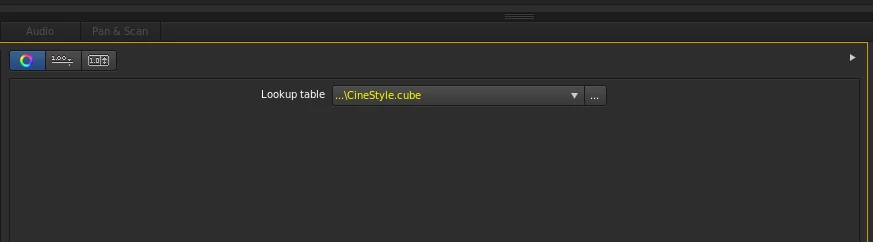
On a whim, I used the "..." button next to the Lookup table drop box. I navigated to another directory, where my LUT file is located.

The file appears yellow. Went back into Premiere, and voila. It worked!

I don't know why the same file in a different directory worked, yet it does.

8 replies

andrewnoel
Participating Frequently
October 26, 2017

you're a legend, thank you!

jeffcsharpe
Participant
December 16, 2015

Using Mac, by the way...

Hello everyone.  I have not been able to solve the issue of the white and red checkered screen as mentioned by nelslau, however I have figured out how you can make your 3rd party LUTs appear in the Creative dropdown under Lumetri within Premiere.

I'm new to the LUT game, but there appear to be 3 different suffixes used for LUTs: .itx/.cube/.look


What I did was I took my .cube LUTs and changed the suffix to ".look" (therefor it also changed my icon for each LUT to have a Speedgrade icon) and you must put them here:

Adobe Premiere Pro CC 2015/Contents (you access this by right clicking Adobe Premiere and selecting "show package contents")/Lumetri/Looks/Cine Looks

Then restart Premiere.

Once those files are renamed to .look they appear within Premiere just fine.

However, I am still lost as to how to relink those previously used LUTs so that the red and white checkers are gone.  You can go in and browse manually one by one but that's an absolute pain.  Has anyone figured this out yet?

Participant
May 13, 2015

I am now having the same problem. There is no indication that the luts aren't linked as they are standard in house luts. Nothing is red in speedgrade to suggest they are not linked. Just the checkered screen on premiere. The luts appear in both premiere and speedgrade lut folders and have tried making the premiere pro folder the first place to look for luts in speedgrade but no change. This is only a short so if the worst comes to the worst I could just export it from premiere and import it with speedgrade and start again, but it's a work around I'd rather not have to suffer

Participant
November 3, 2014

I had the excact same problem.

The LUTs where all in the speedgrade folder, so I copied them to the Lumetri/LUTs in premiere and that made it work.

Participant
September 11, 2014

There is an issue with opening the CineStyle LUT (S-curve_for_CineStyle.cube) from the Lumetri folder.

To keep things clean, I added a Technicolor folder to the SpeedGrade folder, browsed to it, selected the CineStyle LUT, and then back to Premiere... problem solved!

Click here for full how-to details: Installing Technicolor CineStyle on Canon EOS and S-Curve LUT in Adobe Speedgrade CC

Participant
November 22, 2013

I have the same problem. What media are you working with? 5K R3Ds here. I can't find what the problem is, as other LUTs load in just fine...

Dennis Weinmann
Adobe Employee
Adobe Employee
November 25, 2013

Can you share the OS path where the LUT was saved to ?

Thanks

Inspiring
November 30, 2013

My .cube file is saved to: C:\Program Files\Adobe\Adobe SpeedGrade CC\Lumetri\LUTs\

Please note: the problem is not present LUTs pre-installed with SpeedGrade. The problem is only present with my LUT from Technicolor.

A history of my LUT:

  • It was downloaded from: http://www.technicolor.com/en/solutions-services/cinestyle
  • Using Magic Bullet's LUT Buddy in Premiere Pro (repeated in After Effects) I imported "S-curve_for_CineStyle.mga" then exported to a .cube file
  • Copied the resulting .cube file into the directory mentioned above
  • Applied the LUT
  • It appears fine in SpeedGrade
  • back in Premiere, the clips with the applied LUT is remains on the "Media Pending" screen or the checkboard, or freezes on the out frame of the previous clip without grading.

I'm starting to panic now, as my deadline is looming.

Inspiring
November 20, 2013

I'm having the exact same issue.

In my case, I do have an LUT applied, in additoin to a Primary correction.

This is the LUT I'm using: http://www.technicolor.com/en/solutions-services/cinestyle

When I turn off the LUT layer in SpeedGrade, the effect works. However, my colour grading requires this LUT to be engaged.

Adobe Employee
November 20, 2013

Could you try to relink the LUT file to the correct path? Are you seeing this red alert?

Inspiring
November 20, 2013

My LUT appears fine within Speedgrade. It loads and looks correct.

Only in Premiere does the checkboard pattern (illustrated above) occur.

Adobe Employee
November 4, 2013

Hi,

Did you apply any kind of LUT? Which kind of Color Correction did you apply?

If you have used Direct Link, SpeedGrade is not generating new files. It will directly save on the PremierePro Project. Is that what you meant?