
Participant
November 22, 2023
Answered

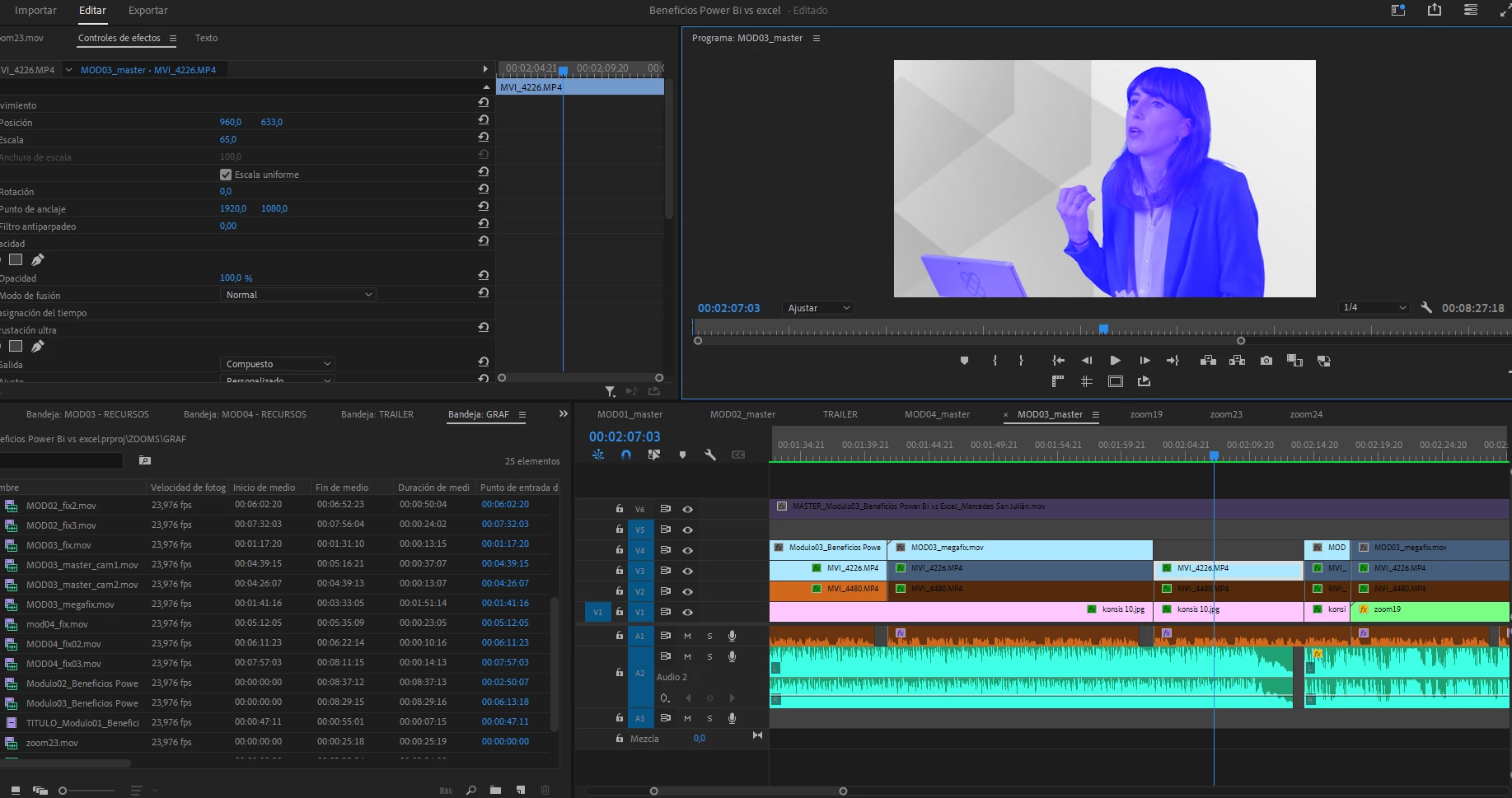
Clip turns random blue
  • November 22, 2023
  • 2 replies
  • 332 views

WHY IS BLUE, I HAVEN'T DONE ANYTHING NEW, completely random

WHY ADOBE YOU LAUNCH ALWAYS YOUR PROGRAMS WITH SO MANY BUGS, PLEASE, is 2023 and you are already launching 2024 full with mistakes and errors, WHY YOU DO THIS KIND OF STUFF, a thousand of issues, crashing and else, WHY 

This topic has been closed for replies.
Correct answer Peru Bob

Delete the Media Cache and Media Cache files:
https://community.adobe.com/t5/premiere-pro/faq-how-to-clear-your-media-cache-in-30-seconds-in-premiere-pro-2020/m-p/11017257/thread-id/260446?page=1

If that doesn't work, try resetting the preferences:
https://community.adobe.com/t5/premiere-pro/faq-how-to-reset-trash-preferences-in-premiere-pro/td-p/8236158?page=1

If that doesn't work, try resetting the Workspaces:
Reset a workspace
Reset the current workspace to return to its original, saved layout of panels.
1. Do one of the following:
• Click the Workspace menu icon and select Reset to Saved Layout.
• Choose Window > Workspace > Reset to Saved Layout.
from here:
https://helpx.adobe.com/premiere-pro/using/workspaces.html

If that doesn't work, try Preferences > Audio Hardware and set Input to None.

If that doesn’t work, try updating or rolling back your graphics driver directly from the video card manufacturer’s site. If NVIDIA, do a clean installation of the latest Studio Driver (NOT the Game Driver).

If that doesn't work, try creating a new project and import the old one into it.

2 replies

Ann Bens
Community Expert
Community Expert
November 22, 2023

Post screenshot sequence settings.

Peru Bob
Community Expert
Peru BobCommunity ExpertCorrect answer
Community Expert
November 22, 2023

Delete the Media Cache and Media Cache files:
https://community.adobe.com/t5/premiere-pro/faq-how-to-clear-your-media-cache-in-30-seconds-in-premiere-pro-2020/m-p/11017257/thread-id/260446?page=1

If that doesn't work, try resetting the preferences:
https://community.adobe.com/t5/premiere-pro/faq-how-to-reset-trash-preferences-in-premiere-pro/td-p/8236158?page=1

If that doesn't work, try resetting the Workspaces:
Reset a workspace
Reset the current workspace to return to its original, saved layout of panels.
1. Do one of the following:
• Click the Workspace menu icon and select Reset to Saved Layout.
• Choose Window > Workspace > Reset to Saved Layout.
from here:
https://helpx.adobe.com/premiere-pro/using/workspaces.html

If that doesn't work, try Preferences > Audio Hardware and set Input to None.

If that doesn’t work, try updating or rolling back your graphics driver directly from the video card manufacturer’s site. If NVIDIA, do a clean installation of the latest Studio Driver (NOT the Game Driver).

If that doesn't work, try creating a new project and import the old one into it.

VicenteFAuthor
Participant
November 22, 2023

Finally I closed everything and started over and that blue screen went off. 

Thank you!