Participating Frequently
July 24, 2024
Answered

Color Issue on Premiere pro (not able to achieve RED color code)

  • July 24, 2024
  • 10 replies
  • 1077 views

Hi!

For the past week, I have been working on a project with my team and we have a certain brand guide to follow and a red-colored background for all our captions subs. After I exported I was told by my team, that the red on my final export looked completely different and saturated as compared to their final export, even tho we have the exactly same setting! This is really frustrating because we still have not figured out what is causing this issue on my Premiere Pro.


I have go through a ton of tutorials on YouTube and Adobe community forums and tried all the suggested methods but none works. Today my team told me that multiple people using Adobe had the same issue as me, they had to switch to Resolve to do their final export to make sure the final export followed the brand guide. I am considering switching to Resolve if I cannot find a solution to this problem... this is extremely upsetting.


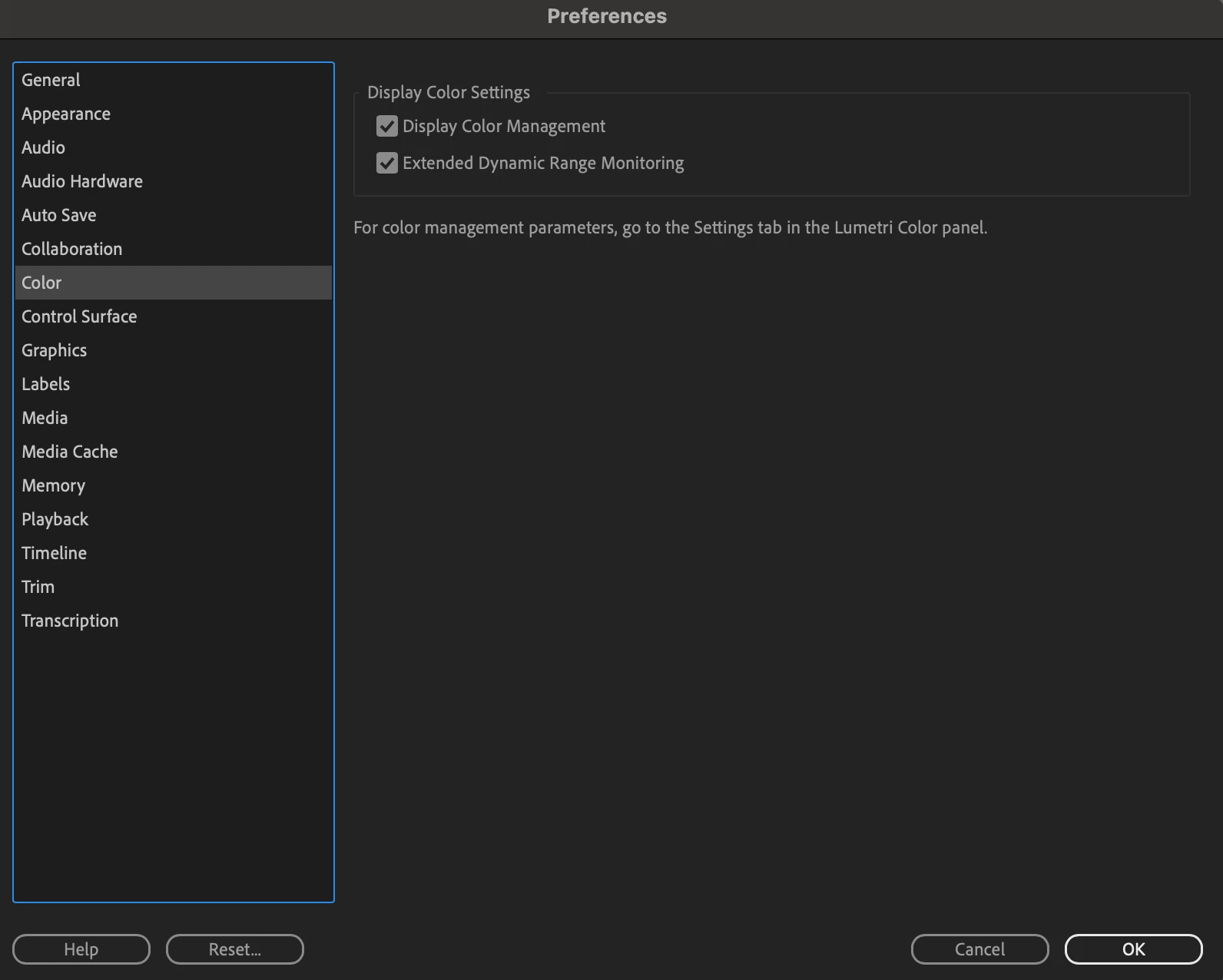
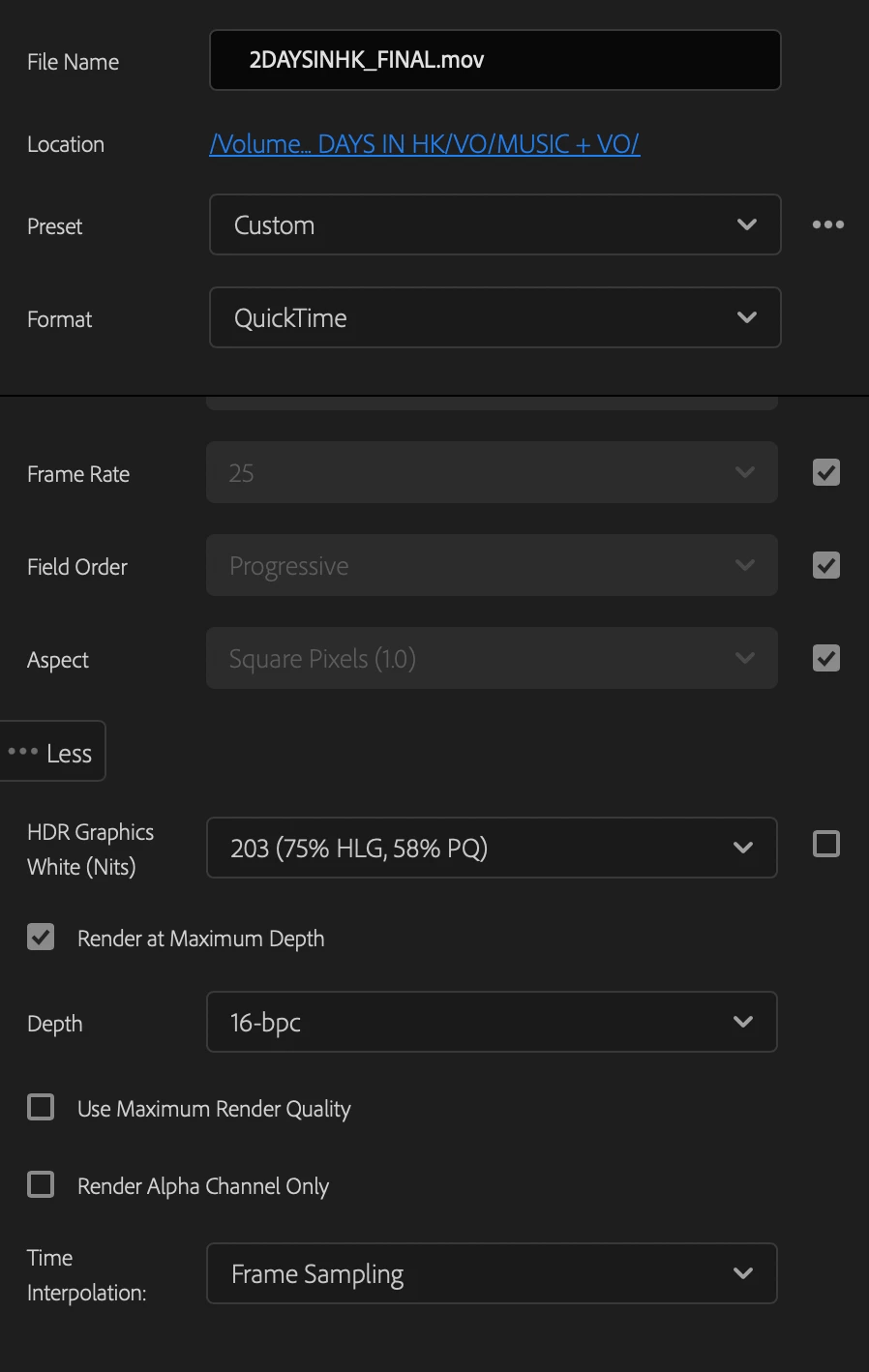
My export of the red + footage color (saturated) even tho I have the same setting as my team. We have verified and aligned on this:




My team's final export of the red and overall color of video: 
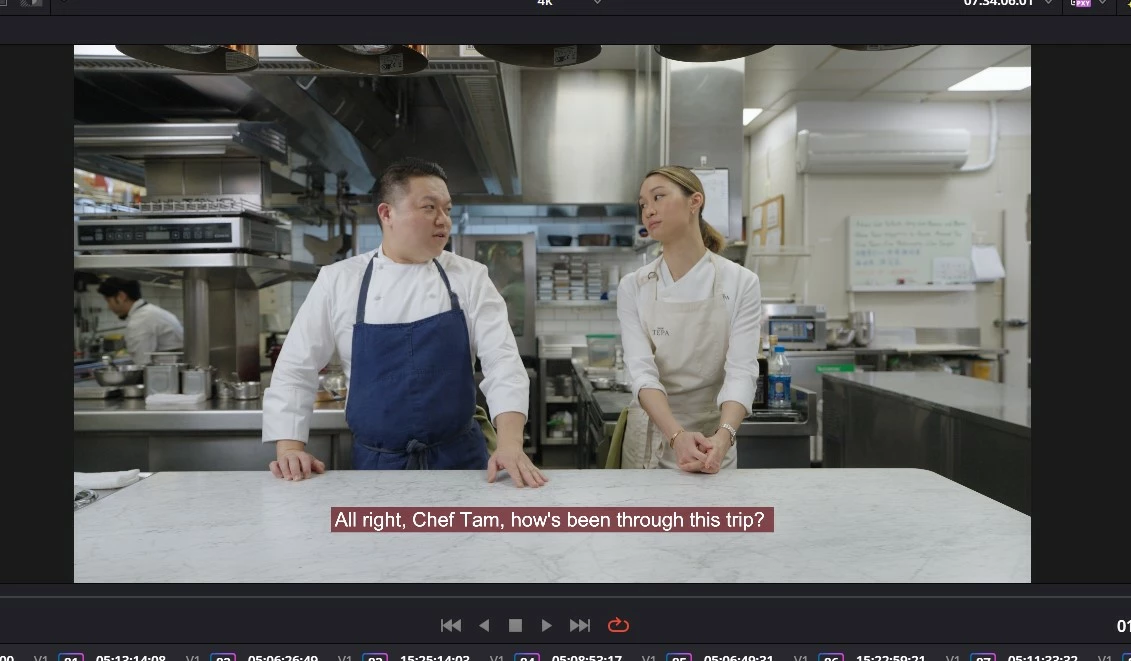


There's a really huge contrast and difference in terms of the color as my team's final export is a lot brighter and less saturated compared to mine even tho we have the same color setting!


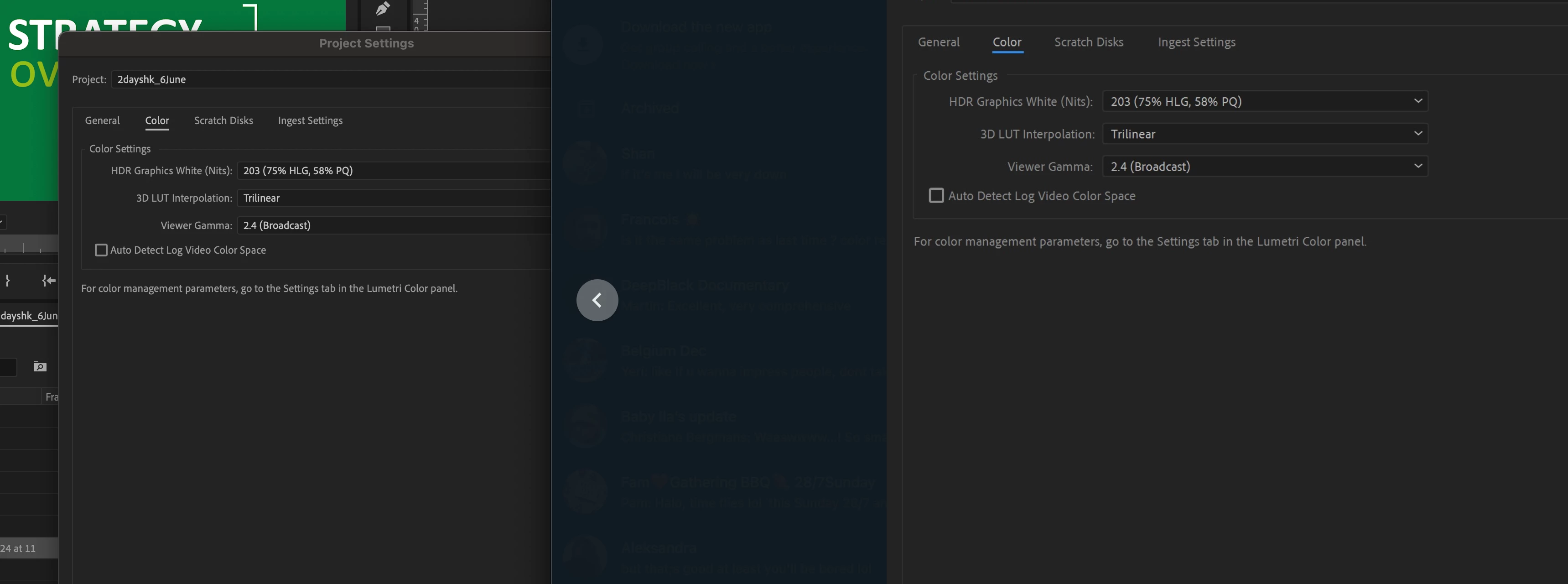
Just verified with my team again and make sure we are on the same settings, and yes we are aligned this is screenshots to our project setting
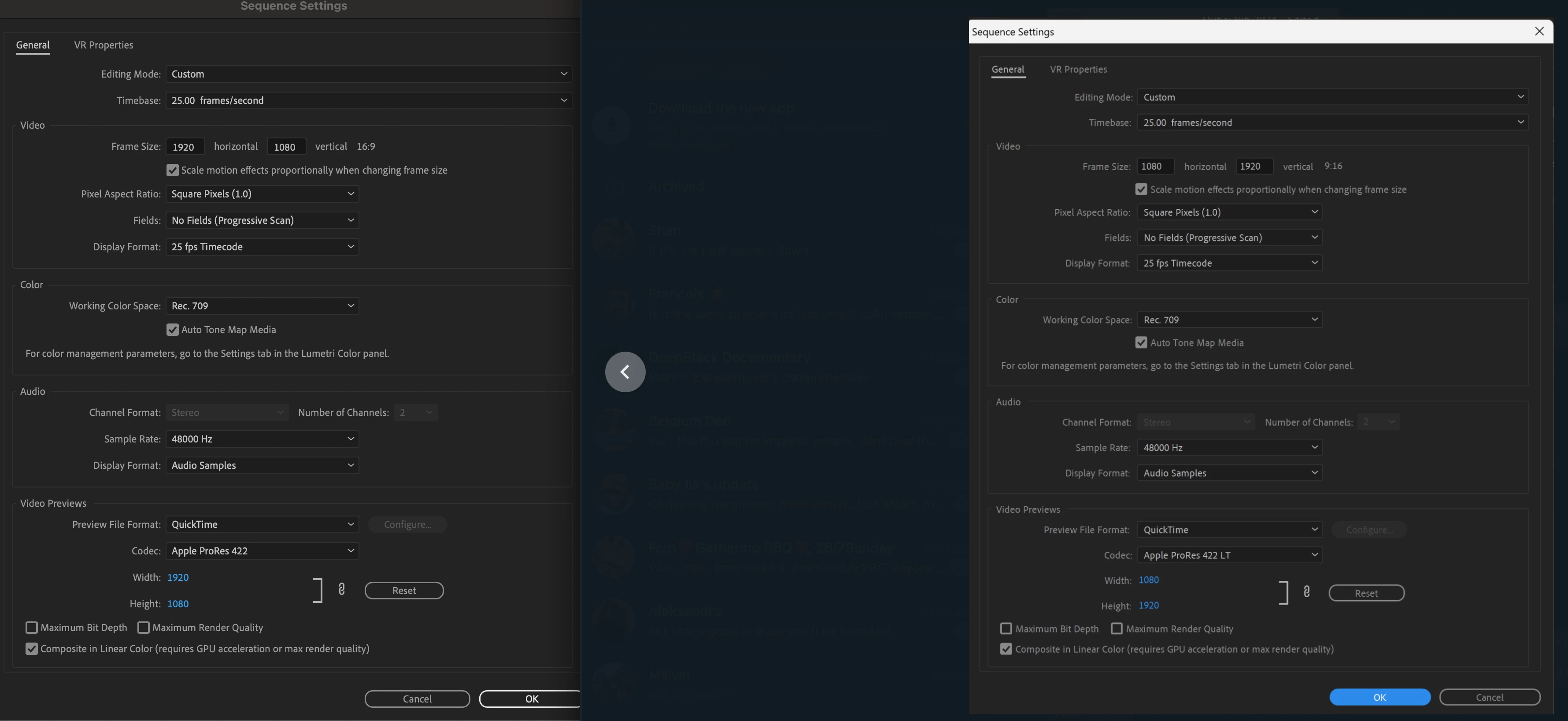


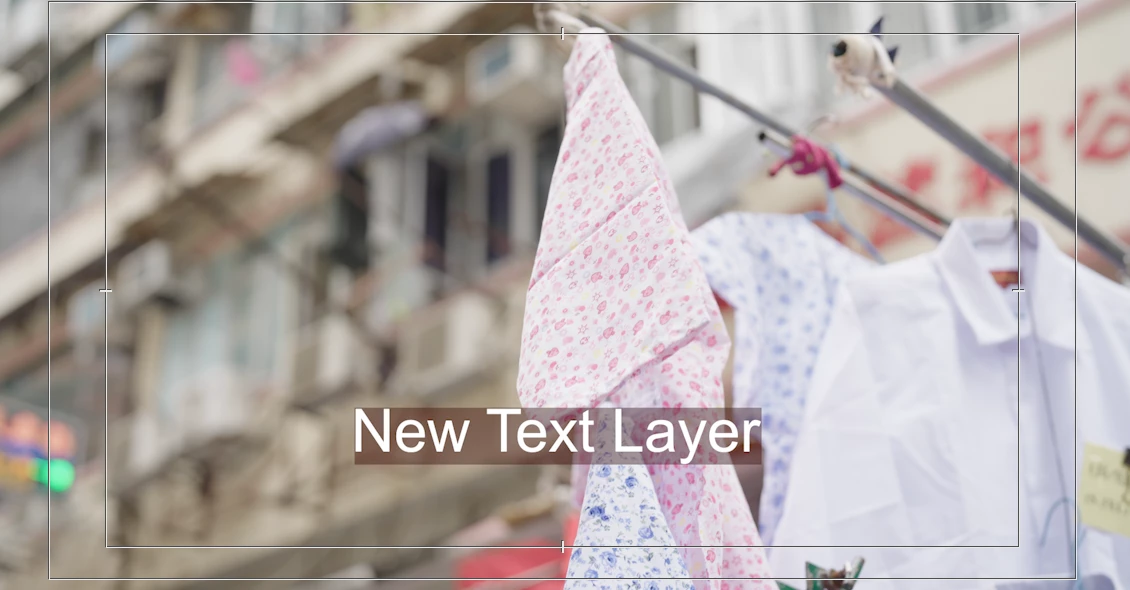
I even added a GAMMA lut in my export setting, but my RED color is nowhere close to their RED on 65% opacity, mine looks way darker washed out + transparent with no RED on 65% opacity

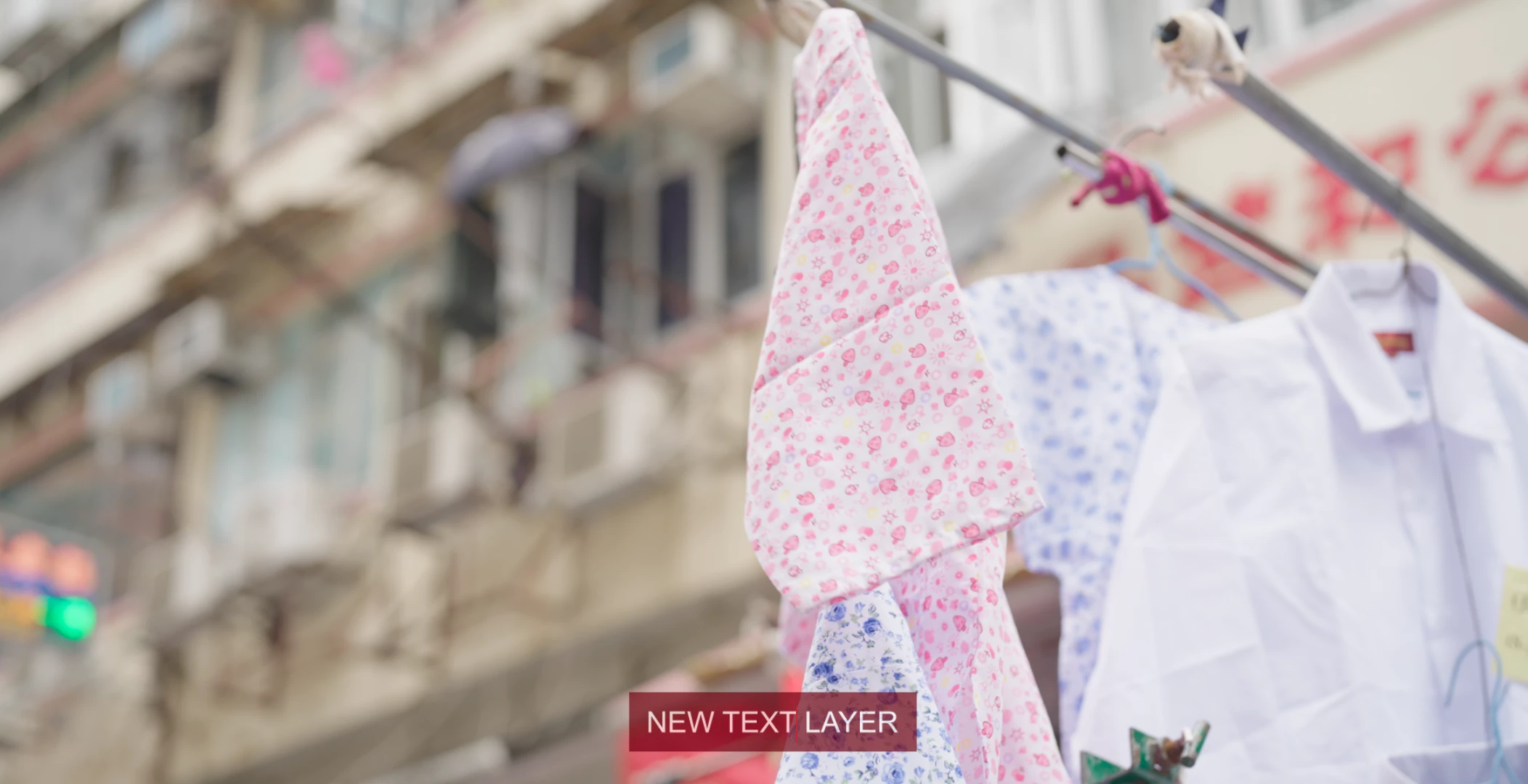
I even went to test out color code 5F010A on other Adobe programs like After Effects and Photoshop, they both look much brighter even on 65% opacity, which is the same color as my team's export.


ON AE: 5F010A and 65% Opacity:


ON PP: 5F010A and 65% Opacity:


This is driving me crazy hahaha! Is anyone kind enough to try this setting on their premiere and attached a screenshot to see if this is happening on their premiere as well because I really can't figure out what's wrong! and I am not the only one with this issue...



Correct answer jamieclarke

While discussing this issue over email, the solution was identified: in the Sequence Settings window, uncheck the "Composite in Linear Color" option at the bottom.

10 replies

Participating Frequently
January 22, 2025

Hi Jamie,


I have sent you an email with the files, thank you

jamieclarke
Community Manager
jamieclarkeCommunity ManagerCorrect answer
Community Manager
January 27, 2025

While discussing this issue over email, the solution was identified: in the Sequence Settings window, uncheck the "Composite in Linear Color" option at the bottom.

R Neil Haugen
Legend
January 27, 2025

@Kevin-Monahan @Ann Bens or some other mod, please mark Jamie's answer about composite in linear color correct for the forum.

Everyone's mileage always varies ...
jamieclarke
Community Manager
Community Manager
January 16, 2025

Can you send me a project to jamiec@adobe.com 

jamieclarke
Community Manager
Community Manager
January 16, 2025

Hi @Li Yun24892278rq7h - Are you still experiencing this issue in version 25.1?

Participating Frequently
January 16, 2025
Yes unfortunately, and even worse. I have not resolved it and is really
unhappy.
Kevin J. Monahan Jr.
Community Manager
Community Manager
November 1, 2024

Hi @Li Yun24892278rq7h,

It's nice to hear from you. I'm sorry, but I haven't heard about a solution yet. Please contact us and ask for the video queue. The chat pod is in the lower right corner. Let us know what they say. I apologize for the problem.


Thanks,
Kevin (please use "@Kevin-Monahan" to call me to the post).


Kevin Monahan - Sr. Community and Engagement Strategist – Adobe Pro Video and Audio
Participating Frequently
July 29, 2024

It's definitely not a MAC issue but more of an Adobe issue, because when I open up my colleague's project file, there's no issue, the red on his Caption bar was displayed accurately on my screen but not when I created my own captions. The more I investigate the stranger it gets.

R Neil Haugen
Legend
July 24, 2024

The view of the file and of any exports are very dependent on the color management settings involved. And as you're on a Mac, on the Mac's ... unique ... video display transform usage. As noted in my post.


So what are the CM settings on the various computers running Premiere? As if they are not identical, the image cannot be identical.

Everyone's mileage always varies ...
Participating Frequently
July 24, 2024

Hi Kevin!


Thanks for the prompt reply, I am editing on:


What do you mean by source media? 


I did a few trials and errors with my team. 

I downloaded my team's working project file (with red subs caption) and opened it on my laptop,

and the Red color was displaying accurately on my laptop, but not when I was creating it on my own project file.


The screenshots below are from his project file when I opened it on my laptop.


Kevin J. Monahan Jr.
Community Manager
Community Manager
July 24, 2024

Thanks for your bug report, @Li Yun24892278rq7h. I am Kevin from Adobe Support, one of the moderators here.


Please give details about your system and source media so the team can quickly help you.


Sorry for the frustration.


Thanks,
Kevin

Kevin Monahan - Sr. Community and Engagement Strategist – Adobe Pro Video and Audio
Participating Frequently
July 29, 2024
Hi Kevin!

Do you have any follow-up on this issue?
I have not found a proper solution to this problem. It has disrupted my
work and my workflow as a freelance video editor. I can now only use
another working file of my colleague to start my project to stay consistent
with the RED brand guidelines color. Opening up my colleague's existing
working file, my premiere is able to read the RED but not when I start my
own caption.

It's not a proper solution to this problem at all. Please assist me and
advice the next step! Thanks!

I am also on the latest version of Adobe

[image: Screenshot 2024-07-25 at 12.10.02 AM.png]

Thanks
R Neil Haugen
Legend
July 24, 2024

If you are comparing within/without Premiere on various Macs, you have all my sympathy, as Apple applies an improper display transform compared to the proper Rec.709 standards.


From some of the amazing sleuthing I've seen from some high-end colorists and color management experts, there are two parts to the issue:


  • an improper gamma (a tonal issue especially affecting shadow values) and
  • a poorly executed color transform from the sRGB of Rec.709 to the P3 Mac Retina screen display space.


I work for/with/teach pro colorists, who are mostly Mac based, and deal with this all the time. I've been through hours of discussions on this in person, at events, and online. As well  as I've made online tutorials and presentations at professional events dealing with this issue, for paid professional colorist usage. Not YouTube.


And this whole mess is even hinkier than it first seems, because on Macs with Reference modes, set to HDTV, those will use the correct display transform! So not even all Macs will show the same thing.


Macs with Reference modes set to HDTV, will use the same display transform as all other  non-Mac systems.


As to using Resolve to "fix" the issue ... it can't in reality, as that simply applies a different NCLC tag which on some systems will work as you hope, but on others will not. And as I both work in Resolve daily myself, and most of the colorists I work with are both Resolve folks and Mac geeks ... I have been around a ton of discussions on this issue.


In Premiere 24.x and forward ... there is an option in the Lumetri Settings tab, called "Viewing gamma" ... with an option for gamma 1.96/QuickTime.


This may help your team ... however ... what it does is match the view within Premiere to the odd/improper QuickTime Player view outside Premiere on similar Macs. Working with that setting on might seem to be a 'fix'.


However ... on all broadcast spec systems, and most PCs, TVs, and Android devices, the image will probably be too dark and oversaturated.


So ... what you are viewing this on during the comparison effort matters ... and there really isn't any possible complete fix. You simply can't use different display transforms and see the same image.

Everyone's mileage always varies ...
Participating Frequently
July 24, 2024

I checked if this is only affecting my RED caption color or it's affecting my overall video. I did a quick export and compared it side by side with my team's graded version, there's not much difference in terms of footage color after export just that I am not able to achieve the red color on my work brand guide.


Every time I lowered the RED CAPTION OPACITY TO 65% it just looks totally transparent as compared to my team's, it doesn't even look like there's any color if it's on a white background.


My export on the right, and left is my team's export

(to show there's not much difference in terms of footage color)