
benjaminb89919636
Inspiring
January 2, 2021
Answered

Color Picker in Premiere Pro selects the wrong color

  • January 2, 2021
  • 4 replies
  • 8733 views

I have been experiencing an error with the color picker inside Premiere Pro ever since updating to the latest version v.14.7.0.  When I use the color picker it selects the wrong color.


To troubleshoot the problem I placed a SMPTE color chart in my timeline and increased its scale to fill the frame.  Then I used the color picker to select colors.  I determined that the color picker's selection was off by about 200 x 200 pixels in the Northwest direction.


This behavior with the color picker was found in multiple effects:  Lumetri Color, Ultra Key, Red Giant Colorista IV, and Red Giant Cosmo II.


I reset the Preferences and Plug-in Cache (hold down Shift-Alt while opening PP app) and this seemed to fix the problem.  However, when I moved a few window panes (Project, Effects, Source, and Effect Controls) onto my other monitor (a dual monitor setup) then the error reappeared.  So I returned to a single monitor arrangement (Window -> Workspaces -> Editing) which placed all the PP window panes back onto my main monitor and the error disappeared.


So the error seems to be related to my using a dual monitor arrangement.  I can work around this for now, but I would really like to utilize both my monitors with PP.


Does anyone have any suggestions for fixing this problem?
This topic has been closed for replies.
Correct answer MyerPj

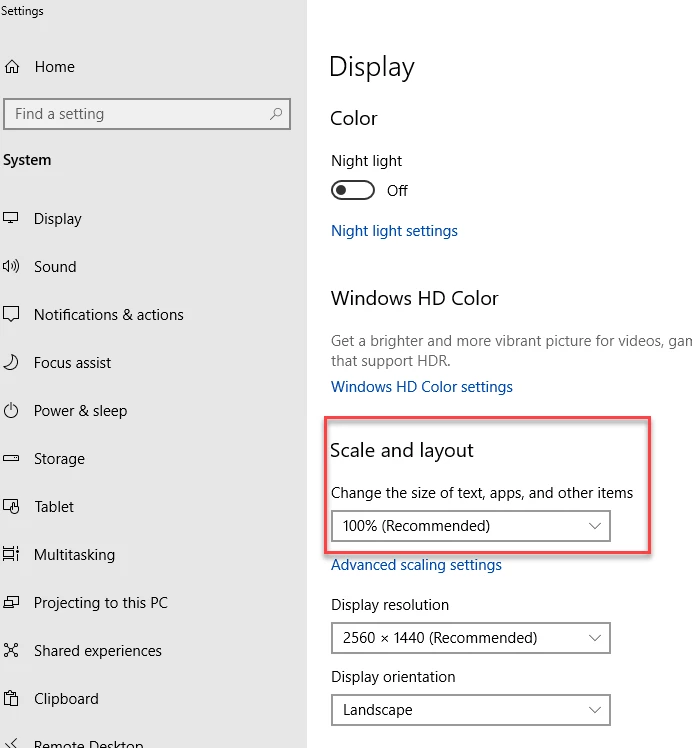
You have alot of information to help isolate the problem so do share it over there. AFAIK having the project panel on the second monitor has caused problems. The scaling I'm mentioning is in Windows. When right-clicking the Windows desktop there should be a 'Display Settings' option, open that and see if you have any system scaling.


4 replies

Participant
June 24, 2021

Has there been a non "multiple monitors is the problem" solution to this? Sometimes (there seems to be no rhyme or reason, and I've tried so many things) my color picker in Lumetri decides that every color I choose is an orange-ish red (picking color squares on an X-Rite Video Passport). the footage is (I think always) 10 bit 4:2:2 XAVC-SI from a Sony a7siii. Using a calibrated 2020 27" iMac with the AMD Radeon Pro 5700 XT 16 GB graphics. It doesn't do it all the time, and I can't figure out what triggers it.

DrTc
Inspiring
March 2, 2023

What is bugging me lately is when trying to color match title graphics with other elements.
Apart from the color picker which almost never works, even the fact that i can choose colors from the hexadecimal window and copy - paste them to match exactly on both graphic elements, they never visually look the same, but have a discrepancy. And this is not related to other elements, compositing modes etc.
Is there any solution?

edit58989569
Inspiring
August 9, 2023

@DrTc Yes, this is happening to me too! I've been noticing it over the last year and thought I was doing something wrong. Did you solve this issue? 

benjaminb89919636
Inspiring
January 4, 2021

I went to the Adobe Bug Reporting page and I found a post that describes a similar error with the color picker.  So I upvoted that post and added a comment to it.  Here's the link in case anyone else would like to upvote or comment.


https://adobe-video.uservoice.com/forums/911233-premiere-pro/suggestions/38473498-eye-dropper-color-picker-hasn-t-worked-on-4k-displ#comments


Inspiring
April 30, 2021

FINALLY!  I thought this problem as I'd seen it in regard to the WB Selector eyedropper was related to 4K monitor issues or possibly a mixed configruation, but as more testing seem to rule that out and a better set of search terms in Google led to this thread, the comment regarding the NVIDIA Control Panel settings for program control of color seems to have been the solution...

While not finding the option of "use program to control color", I kept looking for something that might be similar and  thatw as the "3D Settings/Adjust image settings with preview" option for "Let the 3D application decide".  Choosing that option seems to have resolved the problems I'd seen! 

Inspiring
January 3, 2021

boy, that's weird. Don't really undertand exact circumstances, but I can go by my own experience maybe. maybe that will help you too,

I have 2 computer monitors ( primary is eizo color calibrated to rec 709 hd, secondary is junk hp computer monitor for scopes and other panels besides edit timeline etc. ) and a 3rd is sdi out to edit hero monitor via card in desktop.

Whatever I do in eizo is shown on video, and it's pretty close ( video monitor can generate it's own color bars ).

If your 2nd monitor is different than primary you're gonna have big differences... and what crazy programming is on your system to make color picker change when both are hooked up is very weird.

If using nvidia try "use program to control color' ( turn off everything you can to nvidia stuff, as it's mainly for games ).

interesting post, thanks.

good luck


benjaminb89919636
Inspiring
January 4, 2021

Thank you for suggesting the Nvidia GPU troubleshoot.  I have a 2080Ti.  How/Where do I find the option to "use program to control color"?


I have a BenQ monitor and a Dell monitor.  I've been using them both with PP for years without any issues until now.

MyerPj
Community Expert
Community Expert
January 2, 2021

Interesting.


https://adobe-video.uservoice.com/forums/911233-premiere-pro
User Voice is where the Adobe engineers look for bug reports, enhancement requests, etc. The urgency for bug reports or new features can be judged by how many of us users upvote the requests. You can search for similar requests using the search feature at the lower right. It's best to upvote a request that has some traction (votes) already, and you can upvote and reply to that thread. If you don't find one the matches your request, then enter a new one. Regardless, post a link back here so those seeing this thread can upvote also.


Post your findings over there. Also, I'm wondering about screen scaling. Do you have it set to anything but 100%?

benjaminb89919636
Inspiring
January 4, 2021

Thank you for sharing that link to report bugs.  I will do so.


The error occurs with any scaling:  100%, 50%, or Fit.


The error occurs when any panel is placed on the second monitor.  For example, when just the Project window pane is placed on the second monitor, with all the other window panes / panels still on the main monitor, the error occurs.  Returning the single window pane / panel back to the main monitor fixes the error.

MyerPj
Community Expert
MyerPjCommunity ExpertCorrect answer
Community Expert
January 4, 2021

You have alot of information to help isolate the problem so do share it over there. AFAIK having the project panel on the second monitor has caused problems. The scaling I'm mentioning is in Windows. When right-clicking the Windows desktop there should be a 'Display Settings' option, open that and see if you have any system scaling.