
Participant
February 19, 2020
Question

Colour problems but only in the preview window

  • February 19, 2020
  • 1 reply
  • 4558 views

Hi everyone,


I've just updated my Adobe Premiere pro to v14.0.1 and started editing a project. My problem that a few of my clips, recorded on a different camera, are showing the wrong colour. I primarily used a GH5 and a few shots are on a cheap camcorder, these ones are showing the false colour - not the GH5. 


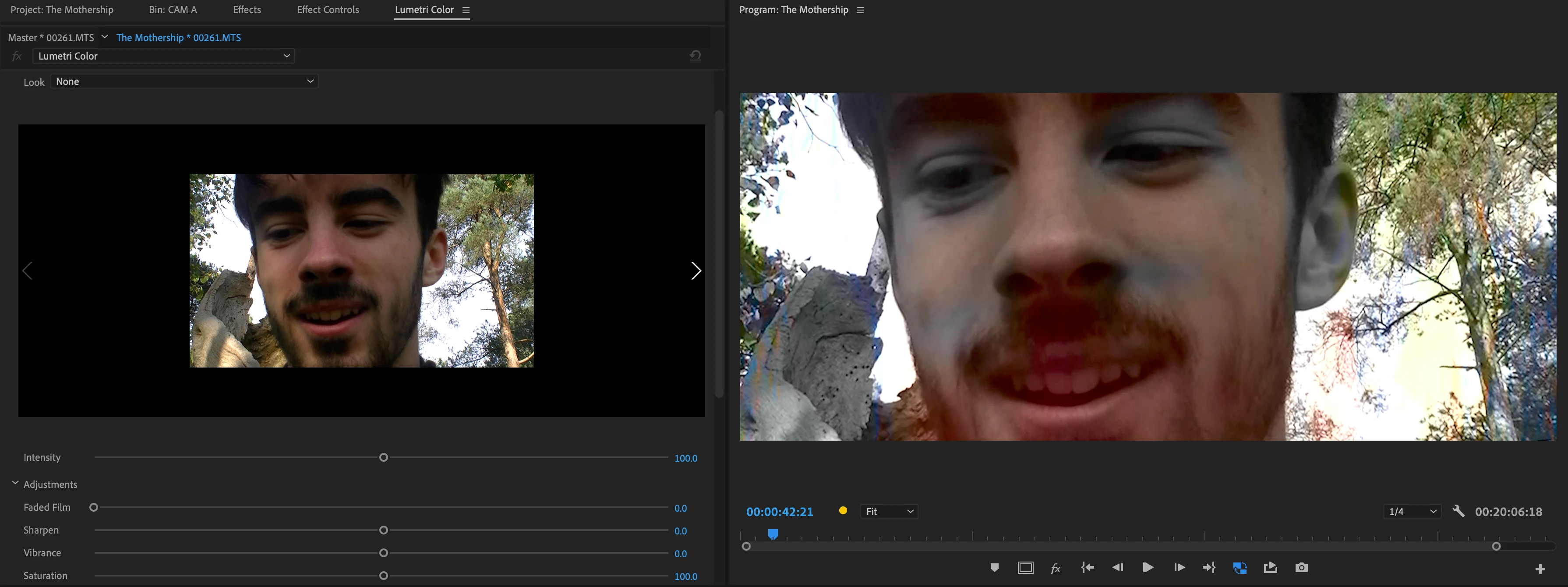
When previewing the video files on my mac, they are fine, as well as in the Lumetri Color prewiew window which is the strangest part (photo attached)


My computer is:

MacBook Pro 16"

2.6ghz 6-core intel core i7

32gb 2667 MHz DDR4 RAM

AMD Radeon Pro 5500M 8 GB

Intel UHD Graphics 630 1536 MB


Thank you!
This topic has been closed for replies.

1 reply

R Neil Haugen
Legend
February 19, 2020

First, there isn't a "Lumetri" preview window ... that's the Program monitor. Which shows media as it exists on a sequence/timeline with whatever effects have been applied on that clip on that sequence/timeline.


The Source monitor (some think of it as Premiere's preview monitor) ... shows the original unmodified clip in the bin. Without any changes/effects applied on a timeline.


So the two monitors present quite different views much of the time.


Second ... Macs present some unique problems. Especially for viewing video within and outside Premiere.


First, the monitors that are "Retina" and fairly new are using the P3 primaries rather than the video sRGB that are the standard for video media. Plus ... apparently, they run on an assumed brightness of near or up to 500 nits, way above the 100 nits standard for pro video media.


Then ... there's the odd "interpretation" of video media from the Mac OS's "ColorSync" color management utility. To illustrate ...


All pro media (non-HDR) is built around the Bt.(Rec) 709 standards: video sRGB primaries, Bt.(Rec) 709 including both the camera and display transform functions, gamma of 2.4, and 100 nits screen brightness.


The Mac ColorSync uses some sort of scaling within the P3 primaries, only the first part of the Bt.(Rec) 709 standard (only applying the camera transform function), "sRGB Gamma" ... which whatever that supposedly is combined with the lack of the Display transform function results in an effective gamma something similar but not exactly like 1.96, and ... at apparently up to 500 nits brightness.


Premiere is built for use on systems complying with the full pro Rec.709 standards. All internal monitors ... Source, Program, Reference, and Transmit out ... assume use on monitors set for that system. So using it on something with completely different color management is a bit of a struggle to set up.


There are two options that the engineers have added for use on Mac systems with the Retina monitors.


  • "Display Color Management" (DCM) ... this tells Premiere to look at the ICC profiles of the monitor in use, and re-map the internal display data to more closely approximate how the image would look on a proper Rec.709 monitor when displayed on the current monitor.
  • "Extended Dynamic Range monitoring (when available)" ... this tells Premiere that the monitor used may be exceeding 'normal' SDR 100 nits standards, and allows the user to use up to 500 nits monitor brightness with the data scaled to fit.


One or both of those may help your work within Premiere. With a major caveat.


Outside of Premiere on that Mac ... who knows what the ColorSync utility and other apps are showing. You certainly don't. And comparing the image as it's seen on other Macs isn't of any probably help.


All colorists build extensive calibration capabilities into their setup including the use of high-end devices and software that take the $5,000 plus "Grade 1" reference monitors and build 3D LUTs for individual screens that are then embedded in either the monitor or an external LUT box between the computer and the monitor. These use signals taken directly from the program (whether Premiere, Resolve, Avid, Baselight, whatever) without being affected by color management from the OS.


They have that set for full Rec.709 compliance. And grade in dimmed light-controlled rooms, with all light-sources at D65, so that the material they produce is both 'correct' on the scopes and to the eye on such a system.


Why? Because this way, all professionally produced media looks equivalent to all other professionally produced media on any one viewing device "out in the wild". As I've heard stated, "You have no control over Gramma's green TV." But if you handle color/tonal work on a properly calibrated system, on Gramma's green TV, your material looks just like all the network/cable produced media. Therefore, your media looks "professional" in a relative manner, and that is ALL you can do.


Neil

Everyone's mileage always varies ...
Participant
February 28, 2022

Hello Neil,


Thanks for writing this, this explains a lot. The thing is, when I insert a clip into premiere pro it automatically shows another color for the clip in the preview which makes it hard for me to adjust the color because when I export it, the clip comes out in the "normal" color as it was taken on the camera. It doesn't get exported in the color as it shows in the preview window. Do you have any solution for this? 


Kind regards

Kristina 

R Neil Haugen
Legend
February 28, 2022

What are you calling the preview window? The little one in the Creative tab of Lumetri?


Or the Program monitor, the main viewer for timelines in Premiere?


In your image up top, the Lumetri Creative tab's preview window is on the left, the Program monitor on the right. The preview window is there to get an idea of what a LUT/Look chosen in the Creative tab's Look dropdown slot would do to the image. That's all.


On that Mac, make sure that the Display Color Management option is checked in the Preferences. That gets the best representation of the actual Rec.709 image in the Program monitor you can get inside Premiere.


And to check what you're getting on export, please check the 'reimport into project' option in the Export dialog. Check the export within Premiere.


If the exported file is the same within Premiere that the exported sequence is, then ... the problem is the color management and display of video files outside Premiere on that Mac. As noted in my first reply.


Also, VLC player quite often gives a correct (or close to it) Rec.709 presentation of Rec.709 media on a Mac.


Neil


Everyone's mileage always varies ...