


Participating Frequently
September 30, 2021
Question

Consolidate duplicates does not work

  • September 30, 2021
  • 14 replies
  • 10518 views

I have big project with some dupes in it. So when I try to use "Edit > Consolidate Duplicates" it does nothing.


So I ended up cleaning all project to three clips that are linked to exact same raw footage, no proxies attached and I nothing else in project panel, just those three clips:
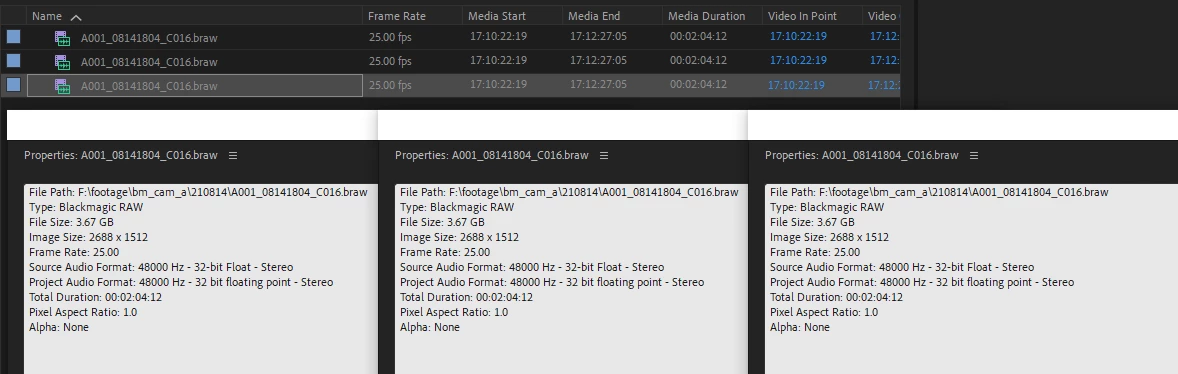
Still "Consolidate Duplicates" does nothing. Maybe I should look for some other places where Premiere thinks that those are different clips? Any ideas?

14 replies

Inspiring
May 10, 2022

This is a very weird discovery I just came across... At least it works on my Premiere version which is 22.3.1, and maybe it's helpful for you:


I have two exact duplicates, and no matter if they're in root bin of project, or if I select both of them before clicking Consolidate Duplicates, it won't work... BUT if I right click and check "Modify -> Audio channels", and accept, on both clips, without applying any changes to the clips; and then click CD (while these two clips are selected), they will automatically consolidate. Weird, but it works! It's like a way of reminding Premiere "hey... can't you see these are the SAME file?"

Inspiring
March 2, 2022

Yes, I wish we had preferences for the behaviour of "consolidate duplicates", as for relinking.

I don't know if it's a help to you, but this is my checklist for getting CD to work. At least it may help others that browses for this question:


-Make absolutly sure the clip names are identical with the file names on disk. I use Proxy->Reconnect Full Resolution Media to be sure, reconnecting to the same original media. Observe: Premiere interprets the old path as the new proxy.

-Detatch all proxies, even if you don't think you got them, premiere sometimes believe you do...

-Interpret footage must be identical (wish they could add a warning for this, with override possibility)

-Audio mapping must be identical (wish they could add a warning for this, with override possibility)

-Check with one file first and observe where files gets deleted. I used to believe that it deleted the instance high in the hierarchy, as premiere would presume an instance deeper in the hierarchy was more organized. But it doesn't seem to always be the case. I suspect it prioritizes to keep instances linked to sequences, or if there are logged metadata, for instance. This is where it woul've been very valuable to have som options in the interface. 

Inspiring
March 2, 2022

Last point got wrong: not "where files gets deleted" but "where instances gets deleted"

R Neil Haugen
Legend
October 8, 2021

I can get this with RED r3d files on import at times. The file will show up three times. I have to manually delete the additional "clips". A bit of a pita ...


Neil

Everyone's mileage always varies ...
Inspiring
February 19, 2026

When importing, just search for “*001.r3d” and import only the first part of each clip :)

Community Manager
October 1, 2021

Hi there,


We're sorry about the poor experience. Let us know the version of Premiere Pro that you are using. Is this happening specifically with braw clips or is it also happening with other formats? Also, please try resetting app preferences to isolate any preference corruption issue that might be causing the app to misbehave.


Thanks,

Sumeet

shakespitAuthor
Participating Frequently
October 8, 2021

Hi,


my premiere version is 15.4.1


I don't know about other types of files, just had a case with blackmagic files.


Resetting preferences did nothing.


I can send you prproj for examination if you wish.


Tair