


Inspiring
August 22, 2018
Answered

Copy Paste Attributes Not Working

  • August 22, 2018
  • 3 replies
  • 7140 views

Hi Forum.

I'm doing some research in the forum, but I cannot find a suitable answer regarding my problem. I'm trying to copy and paste the attributes to my audio clips

and they are not pasting. I have lowered the decibel level of one audio files, and trying to paste the volume attributes, but Premiere wont apply this attribute.
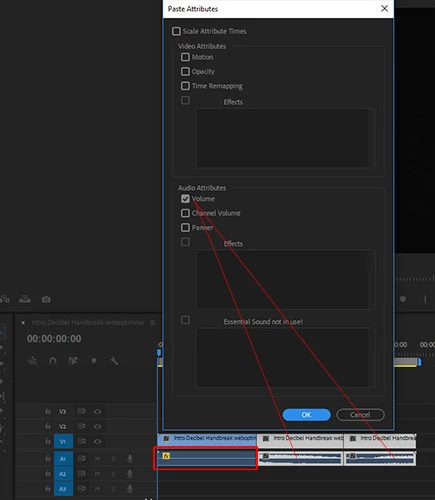
PS: I can apply effects, to my motion footage, and stills. Only Audio is not doing anything.

    This topic is closed to new replies. Start a new post to keep the conversation going.
    Correct answer davids99384760

    I konw this is old but just in case anyone else finds it I wanted to give an answer. For some reason you can't paste attributes from a Stereo channel audio clip to a mono clip or vice versa. If there are any discrepencies with the channel setup between the two clips, it won't paste audio attributes. 

    3 replies

    davids99384760Correct answer
    Participant
    June 1, 2020

    I konw this is old but just in case anyone else finds it I wanted to give an answer. For some reason you can't paste attributes from a Stereo channel audio clip to a mono clip or vice versa. If there are any discrepencies with the channel setup between the two clips, it won't paste audio attributes. 

    Ronald Pronk
    Inspiring
    April 4, 2023

    I am noticing a more complex matter. I have a number of clips recorderd with a stereo audio clip. I have altered all these clios to be mono with two audio channels. All clips where alterted in one go. Now with these clips i can't copy and paste audio attributes anymore. I was in support with adobe for 1 hour, someboady takeinhg over my screen but not finding anu solution. 

    Anyone with a solution to this?

    Thanks

    Peru Bob
    Community Expert
    Community Expert
    April 4, 2023

    Try resetting the preferences:
    https://community.adobe.com/t5/premiere-pro/faq-how-to-reset-trash-preferences-in-premiere-pro/td-p/8236158?page=1

    If that doesn't work, try resetting the Workspaces:
    Reset a workspace
    Reset the current workspace to return to its original, saved layout of panels.
    1. Do one of the following:
    • Click the Workspace menu icon and select Reset to Saved Layout.
    • Choose Window > Workspace > Reset to Saved Layout.
    from here:
    https://helpx.adobe.com/premiere-pro/using/workspaces.html

    If that doesn't work, try creating a new project and import the old one into it.