
Participant
March 7, 2019
Question

Corrupt Timeline/Sequence

  • March 7, 2019
  • 2 replies
  • 2133 views

Hello all,

I have been having a lot of issues this week with Adobe Premiere 13.0.3, and have been able to fix most of them up until this point. However; I have project that has a timeline sequence that seems to be corrupt. I can't alter the timeline sequence in anyway by duplicating it, or copying the assets from it or playing it back, or anything else.

If I try to do any of these things, it brings up this box -
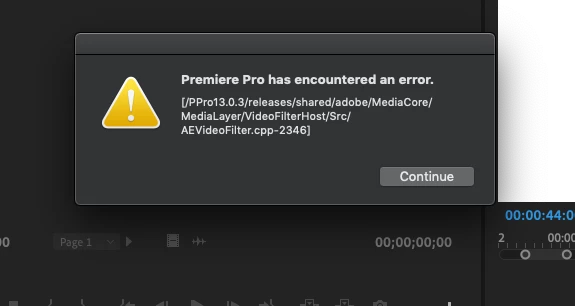
Everything else within premiere seems to work fine. I've tried many things. I've tried exporting the timeline as an xml, uninstalling and reinstalling the software, going back to an old version of the software, tried using a different computer with a different OS, but have had no luck.

I'm currently running on a 2015 15" Macbook Pro with MacOS Mojave.

Any advice or tips and tricks would be much appreciated. At this point it seems I might have to start from scratch which would be a big bummer and a loss of over 50 hours of work.

P.S. It is only a problem with this one project.

This topic has been closed for replies.

2 replies

Participating Frequently
August 6, 2021

I experienced a similar problem with just ONE single timeline kept crashing.
I'm running Premiere 15.4 on a late 2013 MacPro (trashcan) running Big Sur 11.5.1.
My crash reports ranged from various "LowLevel Exceptions" RedSourceSettings (AEFilter 6), to compliler errors on exports, to frame subsitution recursion.

Here's what my trouble shooting workflow:


-Checked Write Permissions on Disk
-Changing Media Cache Files to different SSD
-Deleting Media Database

-Deleting Video Preview Files

-Reimporting Project into a New Project

-To trashing all preferences

-Turning off GPU Acceleration to "Software Only"

-To uninstalling and reinstalling Premiere (I had 2 versions)


The one timeline I was working on in my project kept crashing.

I had it simplified down to about 5 tracks of video and 7 tracks of audio.

If an effort to salvage to project I began exporting out each track of video and audio to see if they would export properly.
I was able to export all video tracks without audio but only some audio track would export.

So I figured it had something to do with the audio, which I had experimented with "Normalizing all Peaks" to a certain DB level, I used this on most of the talking tracks as it seem to speed up workflow.

After removing the "Normalize All Peaks" and setting gain to 0 on all tracks the same timeline has been working fine, (so far, fingers crossed).

Thankfully my edit was only 1 minute long and resetting audio levels didn't take too much time.
I hope this helps anyone out there that is having trouble with a specific timeline in a project.


Kevin J. Monahan Jr.
Legend
August 6, 2021

Thanks for reporting on this!


Kevin

Kevin Monahan - Sr. Community and Engagement Strategist – Adobe Pro Video and Audio
Participating Frequently
June 19, 2022

Similar issue. I'm working in PP Productions. I have our latest cut/sequence that seems to behave fine until I open our root project that houses the footage. Having these two projects open at the same time crashes PP right away with similar error message mentioned at the top of this thread or stalls out upon saving. Requiring a force quit. There seems to be one corrupt clip in the sequence in particular. The audio gets the blue and white stripes as soon as the raw footage project is opened. I've tried relinking, replacing, or deleting all clips from that particular file but nothing works.  Even rebuilt the production and reimported the file/clip in question. Not possible to drop the sequence into the "footage" project as has been suggested elsewhere. PP won't allow it. Any suggestions would be appreciated. Recutting this sequence would be a nightmare. It's a 90min film at this point. 

Vishu_Aggarwal
Participating Frequently
March 7, 2019

Try resetting the preferences of the Premiere Pro (sometimes reinstalling the software does not clear the preferences).


Here is how you can reset the preferences: -

Press Alt (Windows) or Option (Mac OS) while launching Premiere Pro. You can release the Alt key or Option key when the splash screen appears.

If preferences reset does not work then try following -

1. Change the Playback setting from Project Settings to use "Software Only mode for the Mercury Playback Engine".

2. Try opening the project in some other system

Vishu AggarwalAdobe Certified Instructor, Professional and Expert