
Inspiring
December 1, 2025
Answered

Creating Acceleration with East In/Ease Out

  • December 1, 2025
  • 1 reply
  • 311 views

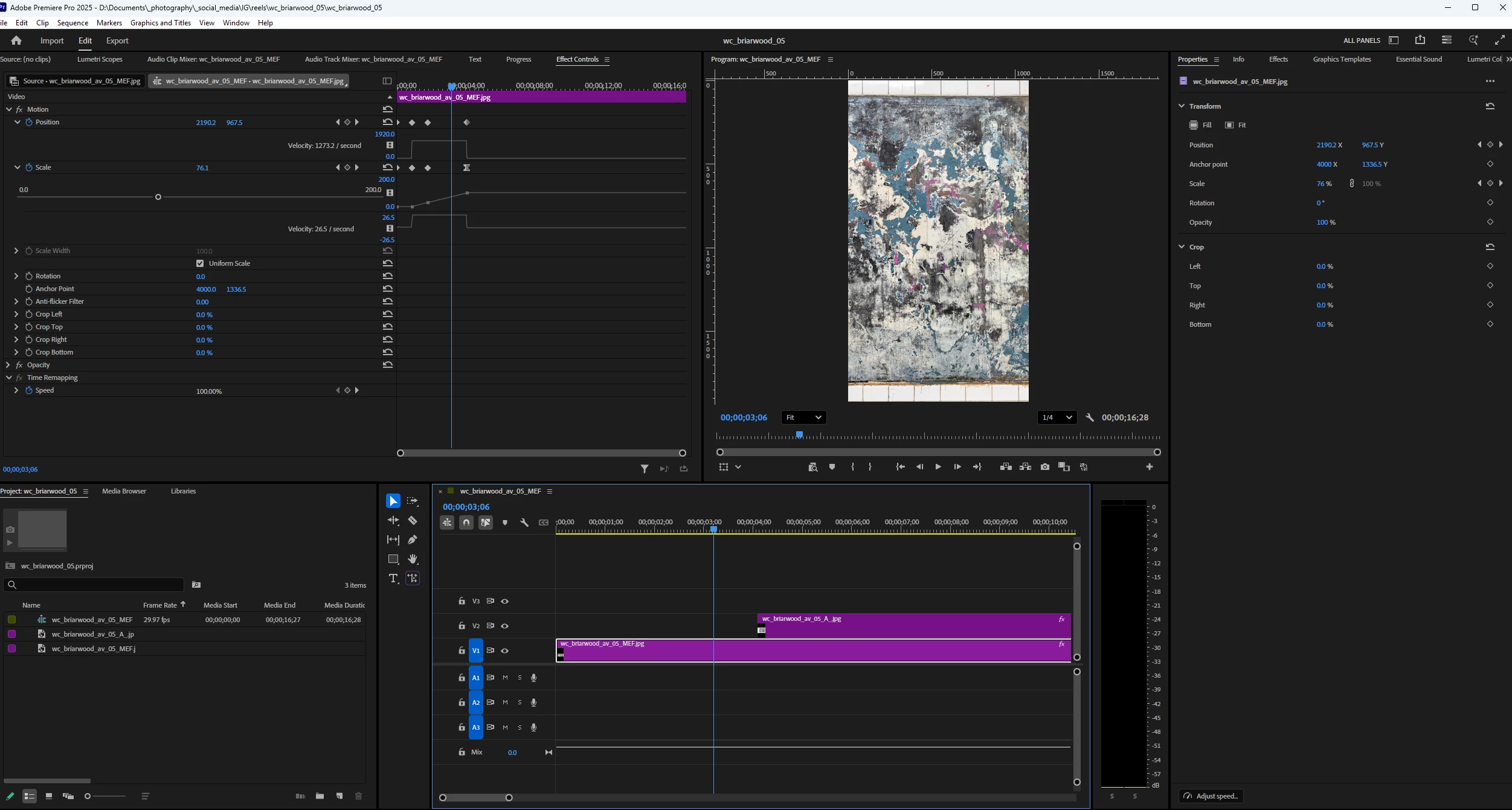
I want to create acceleration in the pan-zoom in my animated still.  I believe I can use Ease-In Ease Out to do this but am not sure how it works.  Screenshot 1 below shows the playhead midway between two sets of keyframes.  Because the animation is zooming in it appears the motion is slowing down but that's because of the change in the number of pixels being covered as I understand it.  I want a constant "speed" between these 2 sets of keyframes.  The same problem exists for the 2nd 2 sets of keyframes to a lesser extent.  I've attached the rendered file.  Thanks for any help.  
 

Barton5C39_0-1764553041396.png


Correct answer Swade18749549

Hi Barton! It helps to gain a basic understanding of easing and what that means generally, and in Premiere. If I understand your ask correctly, you will want to adjsut the speed between the keys to start slower and speed up toward the last key. You can do this using the temporal interpolation by right clicking on the keys - selecting temporal interpolation and then one of the options there. If you ease in or out of a key it will make the change in that property slow down as it nears the key. For example, if you right click your first key and ease out of it the motion will start slower and then speed up. Premiere Gal has a great tutorial on easing keyframes in Premiere here that covers a very similar scaling situation and will elaborate on the different types of easing better than I can in a text post: https://www.youtube.com/watch?v=DJG3l8R8cEM

1 reply

Swade18749549Community ExpertCorrect answer
Community Expert
December 9, 2025

Hi Barton! It helps to gain a basic understanding of easing and what that means generally, and in Premiere. If I understand your ask correctly, you will want to adjsut the speed between the keys to start slower and speed up toward the last key. You can do this using the temporal interpolation by right clicking on the keys - selecting temporal interpolation and then one of the options there. If you ease in or out of a key it will make the change in that property slow down as it nears the key. For example, if you right click your first key and ease out of it the motion will start slower and then speed up. Premiere Gal has a great tutorial on easing keyframes in Premiere here that covers a very similar scaling situation and will elaborate on the different types of easing better than I can in a text post: https://www.youtube.com/watch?v=DJG3l8R8cEM

Inspiring
December 10, 2025

Hi, thanks for your answer, but there are a few problems.  The clip used for the demo in the link you provided was very short, and despite her saying the clip looked better after applying Ease In and Ease Out, I couldn't tell how it was improved.  It was quicker, but so brief that the smoothness she cited was not apparent, at least to me.  A longer clip, with a more dramatic effect, and before and after comparisons of the 2 versions of the clip, would have helped.  I don't understand how Ease In and Ease Out can be applied to create a quickening of motion.  "Ease" suggests a slowing down.  Do these tools limit you to slowing down the start and end of motion at either keyframe?  I need to speed up the motion at the end of the keyframe, not slow it down.  I would like to keep this post open by unmarking your answer as correct but don't want to run afoul of community guidelines by doing so.  Am I allowed to do that?  Thank you for your help.  Yours was the first reply to my post.  

Community Expert
December 10, 2025

Maybe this will help. If you take any two given keys the same number of frames apart, no/linear easing will change from one key to the next at a constant rate of speed. If you want the speed to vary between the two keyframes, you can use easing to do that - for example having a move start slower then speed up toward the end. If you want an overall speed increase, regardless of the variability of the speed between the frames, you need to move the two keys closer together in time.


You may find it helpful to check out the website easings.net which shows you a visual illustration of how each different type of easing affects the way something moves. If you play around with the easing curves between the start and end frames of your scale change, I think you will eventually be able to get exactly the motion you want - starting more slowly and speeding up toward the end.