


Participant
December 12, 2024
Question

Dashcam Footage shows partial green screen when imported in Premier

  • December 12, 2024
  • 8 replies
  • 605 views

When I am adding dashcam footage in Premiere it seems there is a partial green screen. Previously this has worked and that too from the same dashcam. No settings are changed yet this problem is occuring.
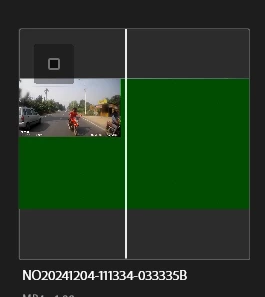
 

It stays the same when exported.
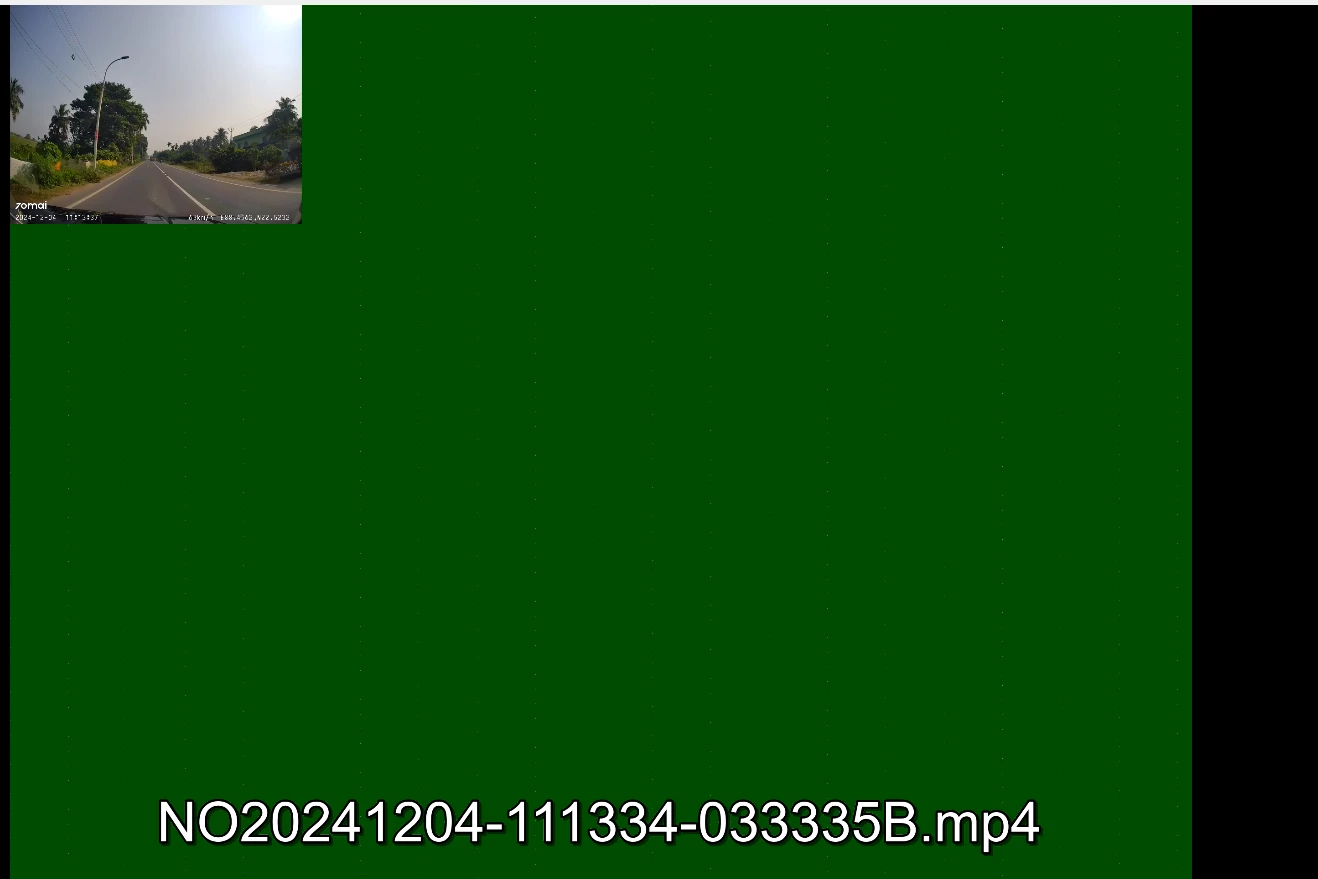


This topic has been closed for replies.

8 replies

Participant
December 13, 2024

Hi guys, thanks for all the help. It worked when I downgraded to 24.1. Now it's fine, although at some point I feel the 25.1 needs to be fixed.


Regards,

Arnab!

Participating Frequently
December 17, 2024

Hi @Arnab38316221lakg,

Thank you for the update. Could you please share a problematic media file that can help us reproduce the issue locally?
So far, we have been unable to replicate this problem in-house.

Best regards,
Mayjain

Kevin J. Monahan Jr.
Legend
December 12, 2024

Do you have an Intel CPU with an iGPU, @Arnab38316221lakg? Check out this discussion: https://community.adobe.com/t5/premiere-pro-discussions/premiere-pro-25-1-igpu-stopped-decoding-my-footage/m-p/15021522#M542214. It may have something to do with your iGPU, as a possibility.


Thanks,
Kevin


Kevin Monahan - Sr. Community and Engagement Strategist – Adobe Pro Video and Audio
Participant
December 13, 2024

Hi Kevin, I have AMD Ryzen CPU with Radeon RX  11 VEga Graphics


John T Smith
Community Expert
Community Expert
December 12, 2024

Here are the links for driver updates

Also check (copied link) https://www.tomshardware.com/reviews/gpu-hierarchy,4388.html
.
nVidia Driver Downloads https://www.nvidia.com/Download/index.aspx?lang=en-us
-for all Adobe programs use the STUDIO driver, not the GAMING driver
-To achieve the highest level of reliability, Studio Drivers undergo extensive
-testing against multi-app creator workflows and multiple revisions of the top
-creative applications from Adobe to Autodesk and beyond
.
If you have a laptop you MAY also need to check for a laptop specific nVidia driver
-SOME laptops require an approved driver from the laptop company, not nVidia
.
AMD/ATI Driver https://www.amd.com/en/support
.
Intel https://downloadcenter.intel.com/product/211969/Intel-HD-Graphics-Family
https://www.askwoody.com/newsletter/free-edition-working-with-the-intel-driver-support-assistant/


Participant
December 13, 2024

Hi John, I updated my AMD drivers as well...but the results are same. Even older clips which I have already used are displayed like this.


Ann Bens
Community Expert
Community Expert
December 12, 2024

Green usually means a GPU issue.

Make sure you have the most current graphics card driver installed. For NVIDIA that would be the studio driver.

or

the clips are corrupt. Run them through Handbrake first.

Participant
December 13, 2024

Hi Ann, I don't think the files are corrupt. I tried with clips which I have already worked with and they are also having the same issue.