Known Participant
August 4, 2025
Answered

Deleting markers also deletes clips

  • August 4, 2025
  • 5 replies
  • 726 views

When I want to delete markers in my project, it also deletes the footage in the sequence with them when there is an in-and-out selection in the sequence.
It only deletes the footage, not the other clips. So I need to put the in-and-out section at the end of the sequence to now delete my clips. Took me quite a bit until i figured that out. 

Correct answer Ann Bens

Wel yes if you have an and outpoint on the timeline, and you hit Delete then the footage and not the markers will disappear.

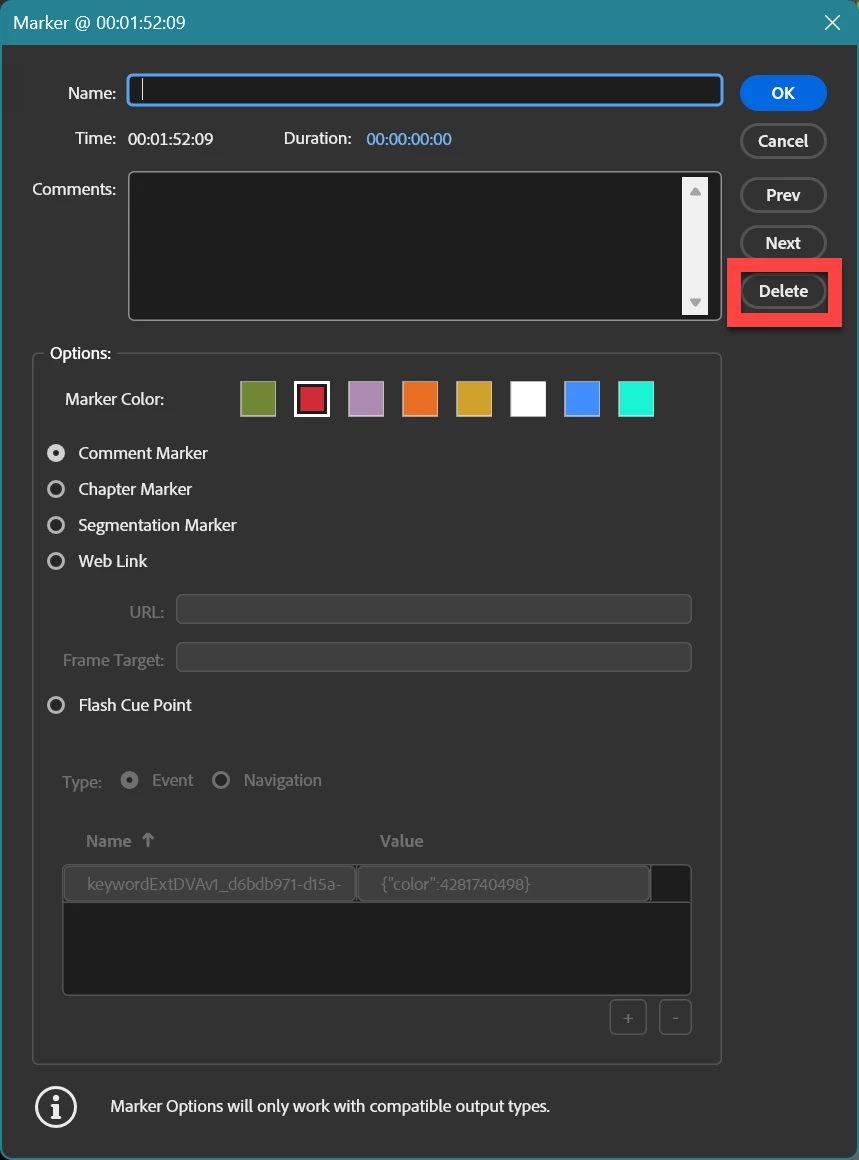
Try using the Marker panel: double-click on a marker in the timeline


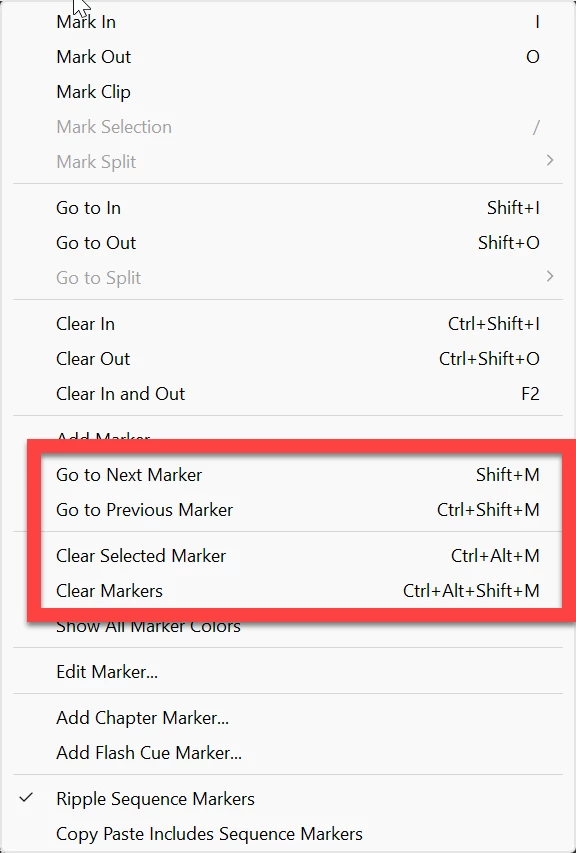
or use these shortcuts:


5 replies

Stan Jones
Community Expert
Community Expert
August 5, 2025

@Michael384395806ww5,


In responding earlier, I referred to what you were doing (e.g., in the marker panel), which led to confusion regarding what is working as expected and what is not. I am testing in PR 25.3.0 on Win 11.


The bottom line is that, counter to my expectations and yours, in the Markers Panel, using the delete key deletes a selected Marker AND deletes the in/out section of the timeline based on track targeting.


A few comments, mostly to agree with all the other conclusions.


There are shortcuts for Clear Selected Marker (Ctrl+Alt+M) and Clear Markers (Ctrl+Alt+Shft+M). I believe the Delete key is NOT intended for deleting markers, even though it works for this in the Markers panel. I noted before that these shortcuts are NOT working for me. I also assigned Ctrl+P to "delete selected marker." This shortcut works in the timeline for sequence markers, in the Source Monitor for clip markers, and for both from the Markers Panel.


Regarding in/out only and ignoring markers, in the timeline, with in/out set, track targeting determines what tracks are deleted by the Delete key. This includes A/V tracks and caption segments in a caption track. The deletion is on the in/out points (caption segments are trimmed).


Sequence markers light up if selected by clicking on them or by navigating using shortcuts (e.g. Ctrl+M or Ctrl+Shft+M). Clip markers cannot be selected in the timeline. Markers in the timeline are NOT affected by the Delete key.


Double-clicking a sequence marker in the timeline opens the Marker dialogue box. You can delete a marker by clicking the Delete button there; no shortcuts work there for deletion.


In the Markers Panel, you can select a marker by clicking on one. If you click on the icon on the left and hit delete, it deletes the marker. If in/out is set, it ALSO deletes the in/out according to track targeting. If, instead of clicking on the icon, you click in the name, time in, time out, or description fields, the delete key, of course, deletes that content, and has no effect on the marker itself or on the timeline. You are essentially in text-editing mode. 


There is a setting in the Marker Panel for "Ignore selection in timeline." I do not know what it does. The setting for "Show In Out" just puts a brighter line before and after the in/out points.


For me today, something is not working right for transcript markers, so I did not test them.


Your comment about Frame.io is interesting. I'll test that separately.


Stan


Known Participant
August 6, 2025

"Sequence markers light up if selected by clicking on them"
I tried that in a new sequence in a new project and it does not light up on my side. However, it does light up in the project where I use frame.io comments.

"There are shortcuts for Clear Selected Marker (Ctrl+Alt+M) and Clear Markers (Ctrl+Alt+Shft+M)."
I can only add my the expectation as a user here. I expect that this action is called "delete" and not "clear" which I think is ambigous (especially for non-native speakers who like to use Premiere Pro in englisch). I also expect that the delete key on a keyboard deletes the selected marker and Ctrl+A selects all markers (after selected one maker in the timeline). That's the established behavior of user interfaces.

Ann Bens
Community Expert
Community Expert
August 6, 2025

The lighting up is very subtle


This behavior has been in Premiere for many, many versions.

In the original marker panel it is called Delete.

If you don't like it make a feature request.


Ann Bens
Community Expert
Ann BensCommunity ExpertCorrect answer
Community Expert
August 4, 2025

Wel yes if you have an and outpoint on the timeline, and you hit Delete then the footage and not the markers will disappear.

Try using the Marker panel: double-click on a marker in the timeline


or use these shortcuts:


Known Participant
August 5, 2025

If this is intended behavior, then it doesn't make any sense. For instance, why does it only delete the video footage and not the images, motion graphics, music, etc.?

How should I know as user that deleting a marker - which it does - also deletes all all the video material under the condition that the videos under the condition that there are in and out points set? How would I as user get that these are connected?

The whole thing brought me in a lot of trouble because I didn't see that it deleted the clips initially. I only found out later after I worked a lot on other sequences.  

Ann Bens
Community Expert
Community Expert
August 5, 2025

@Michael384395806ww5 wrote:

, why does it only delete the video footage and not the images, motion graphics, music, etc.?


This behavior is also depended on track targeting.


In short, Delete does not remove markers.

Stan Jones
Community Expert
Community Expert
August 4, 2025

@Michael384395806ww5,


That is odd. I see what you mean using the Delete key, except it did not work with in/out set at the end either. Using delete does remove the marker, but also removes the in/out section. Using undo (and in history) it undoes the in/out delete, then the marker deletion.


In any event, the shortcut for delete marker is Ctl+Alt+M (and delete all markers Ctl+Alt+Shft+M). Except it is not working for me in PR 25.3.0. I assigned Ctrl+P to delete selected marker, and it does work.


It worked in the timeline or from the marker panel, and for sequence and clip markers.


I'm on Win11.


Stan


Known Participant
August 4, 2025

I am using the delete button on my keyboard. I did it in the markers window by selecting single markers. 
But I think I also tried it by just selecting the marker and then press delete. 

The method worked after setting the new in-and-out points at the end.
So it definetly wasn't some accidental selection of the clips. 

Ann Bens
Community Expert
Community Expert
August 4, 2025

How exactly are you deleting the sequence marker