
Desaturated colours in Premiere
Dear Adobe Support Community,
The colours of my videos get desaturated as soon as I import them to Premiere (or MediaEncoder).
I've read quite some posts about this problem here already, e.g. https://community.adobe.com/t5/premiere-pro-discussions/quot-why-does-my-footage-look-darker-in-premiere-quot-color-q-amp-a/td-p/4788414 and in other threads.
And tried everything mentioned, but the problem persists. Also, the users with this problem state, that the colours look okay in Premiere but as soon as exported, they look different. In my case, the colours already look desaturated in Premiere and the export just looks the same way desaturated.
Here is a sample/original video file with nice colours: in.mp4 (attached)
It's only 2 MB, that's enough to state the problem. Here is a VLC snapshot of the original video file with nice colours - that's how it should look like:
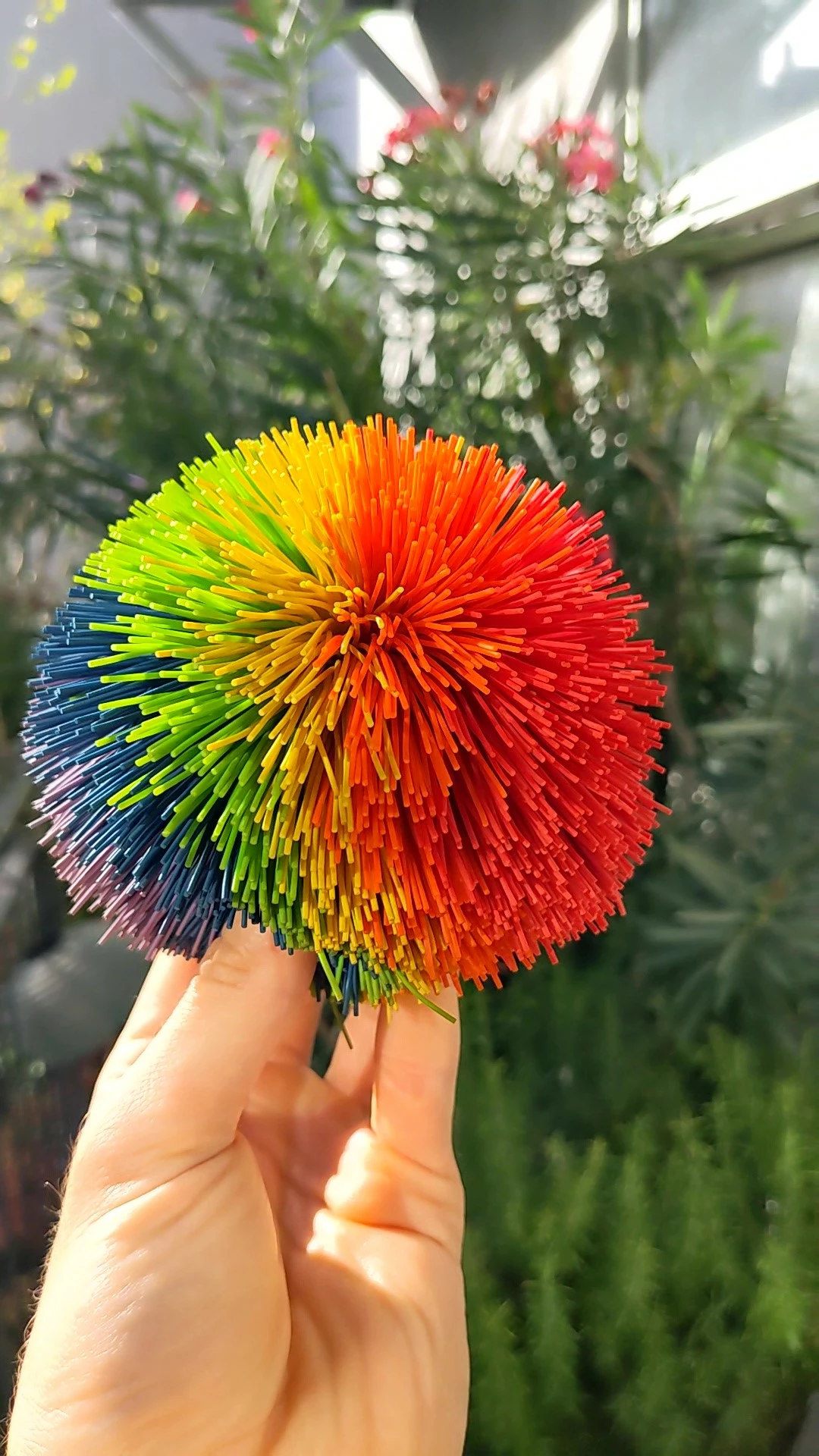
When I import this videofile into Premiere, automatically create a sequence and export it with all default settings, this is the output with desaturated colours: out.mp4 (attached)
Here a VLC snapshot of the output with desaturated colours:
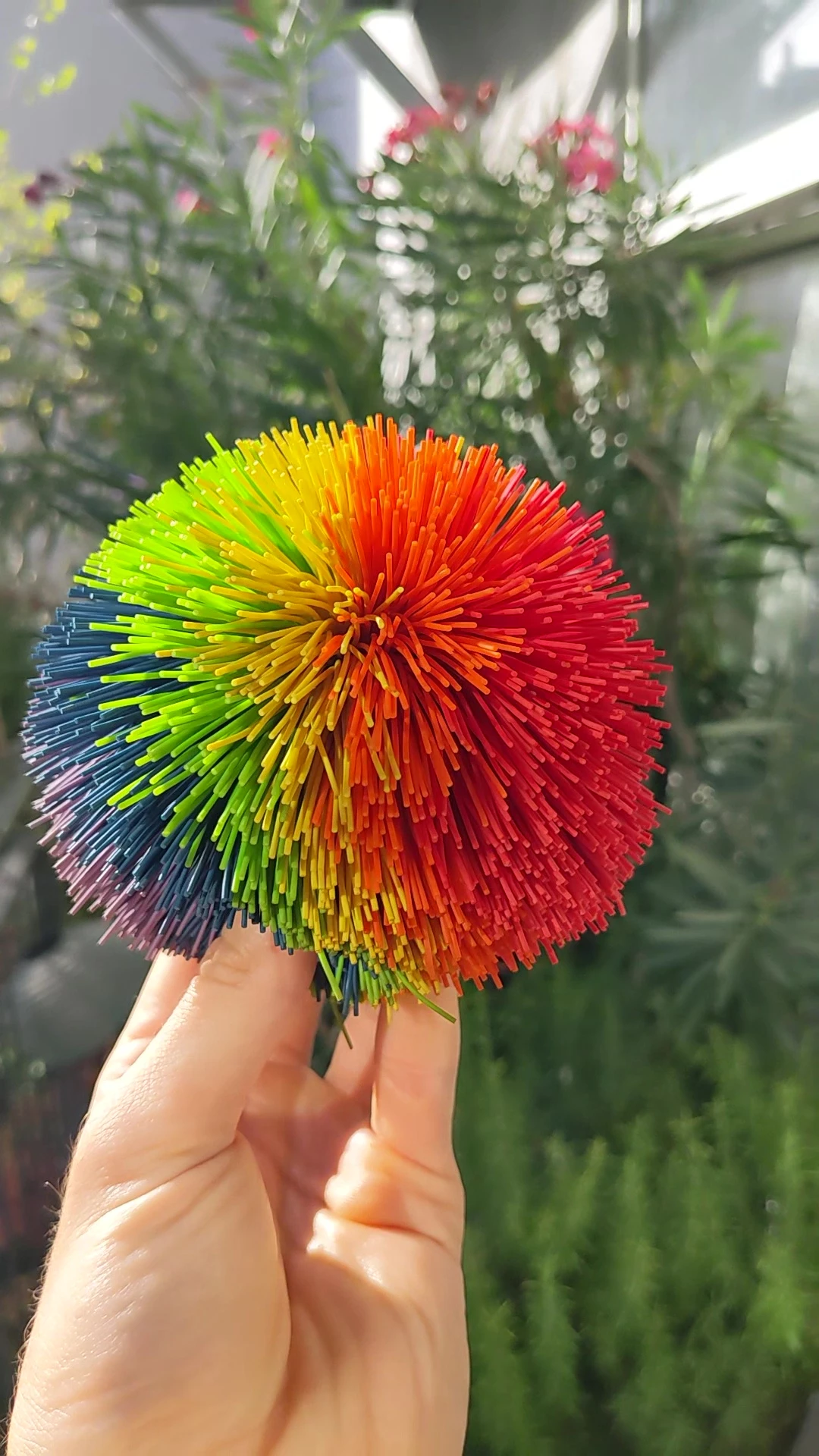
Save the two snapshots into a folder, so you can easily switch in between them and you can see a massive difference in colours.
If I apply the QT Gamma Compensation LUT, as suggested in other threads, the colours still look totally different to the original:
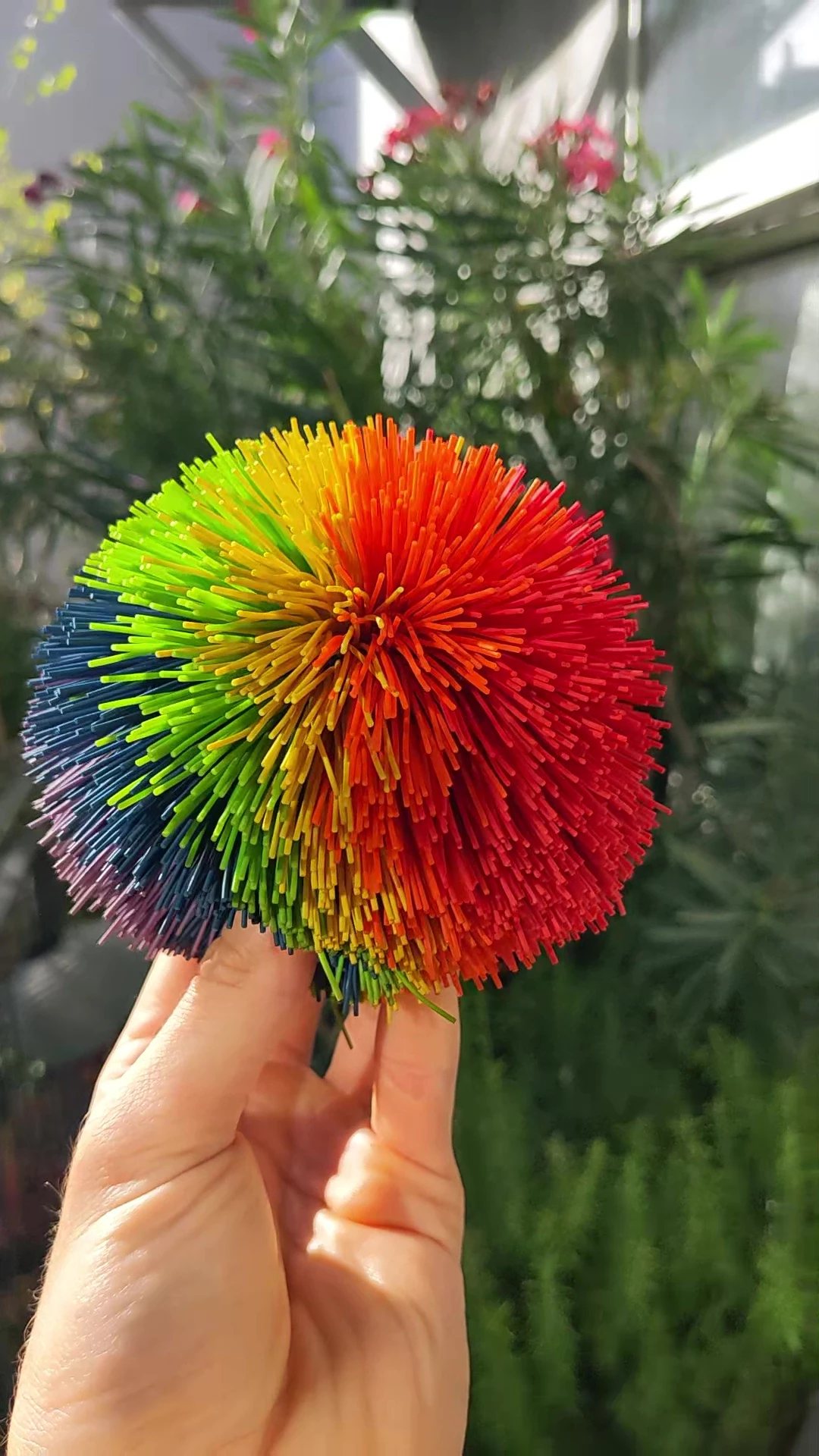
Why is that? I expect my rendered videos the same colours as the original, if I do no editing at all. Especially if I just compress them with MediaEncoder (exactly same problem there).
- Camera of the original file: Google Pixel 5
- Color space of the original file: ITU-R BT.601 Range (according to VLC)
- Premiere Pro 23.6 (all settings default, nothing changed)
- Export Preset: Match Source - Adaptive High Bitrate (default, nothing changed, but I also tried changing quite all possible settings, hardware/software encoding, different bitrate settings, render at maximum depth, H264 to HEVC - the problem persists with all settings)
- "Display Color Management" disabled by default. Activating it did not change anything.
- Project Settings Color Management:
- HDR Graphics White (Nits): 203
- 3D LUT Interpolation: Tetrahedral (GPU)
- Auto Detect Log Video Color Space disabled
- These are the default settings. I tried different combinations - problem persists.
- Sequence Settings (automatically created at file import):
- Working Color Space: Rec 709
- Auto tone Map Media enabled
- Again, these are the default settings. I tried different combinations - problem persists.
- App used for viewing video files: VLC 3.0.18
- PC: (I also tested it on another machine - same output, same problem)
- OS: Windows 10
- CPU: Intel i7-6700K
- GPU: MSI GTX 980 Ti
- Changing the Nvidia ControlPanel settings to Full Dynamic Range (0-255), as suggested in some other threads, did not change anything, thus set back to default.
All I expect Premiere/MediaEncoder to do, is if I just import a file and export it again (with all default settings), to display the colours the same way as the import file. Simple as that.
By the way: If I just apply the same export settings (or any other) with avidemux, the rendered output file has the exact same colours as the original. Just as I expect it to be. But I want it to work with Premiere/MediaEncoder.
I would be very thankful for support, as I know here are some highly qualified professionals around.
Thank you!
Best wishes
Josef


 AdChoices