December 2, 2017
Answered

Desynched transcoded M2V file

  • December 2, 2017
  • 1 reply
  • 3829 views

After transcoding an MP4 file into an M2V one, the audio and video become slightly shorter in length and desynch with subtitles: (Screenshot of encore and VLC media player)
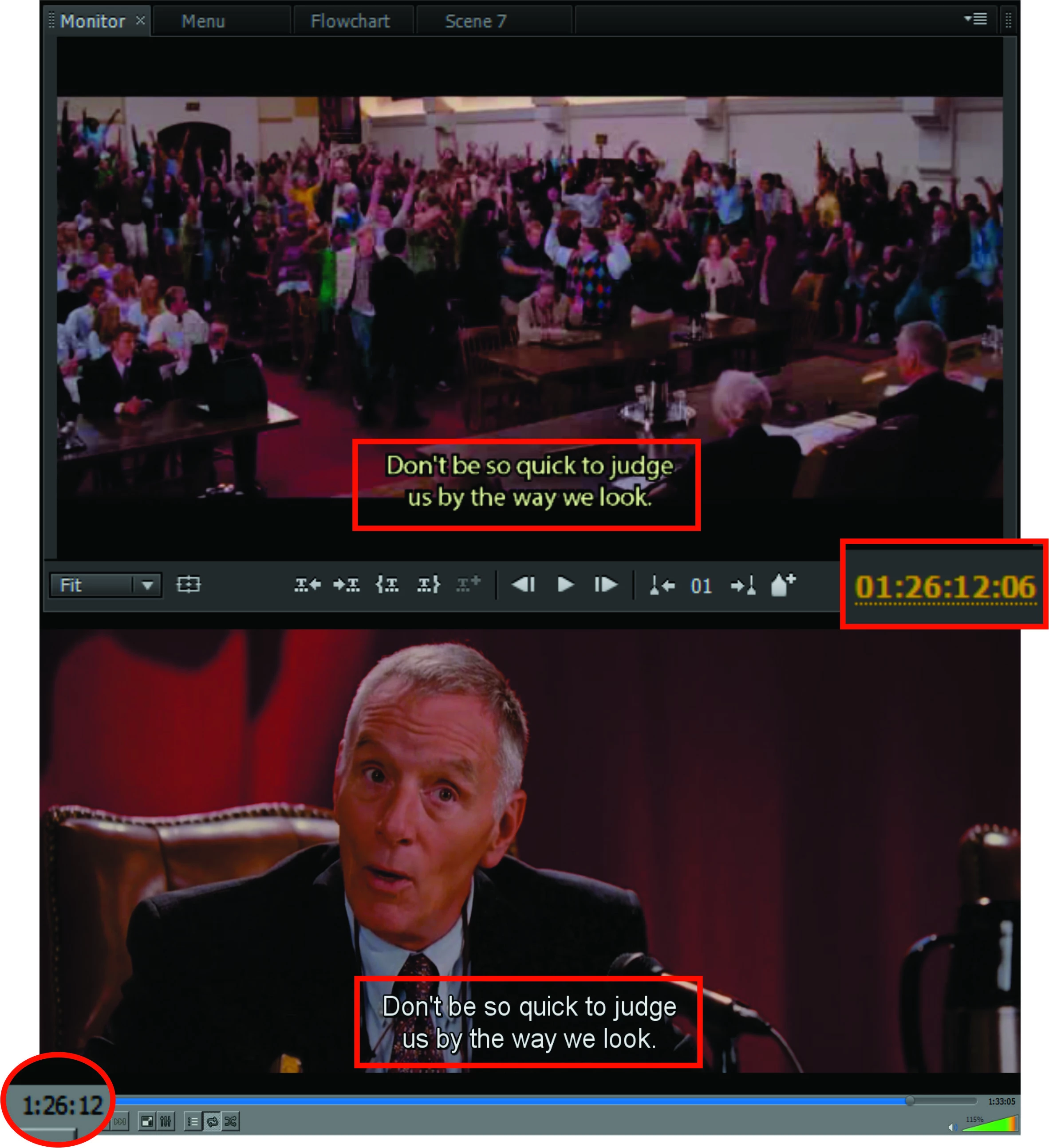
The subtitles themselves are not the problem: (Screenshot of "subtitle edit")

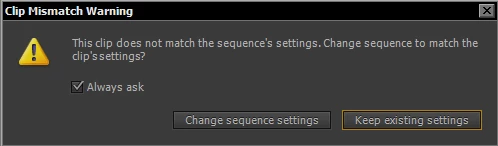
If i choose "Keep existing settings" when importing a video file into premiere pro, the video wont desynch, but it'll be zoomed, otherwise it wont zoom but it'll desynch:
Im sure the problem is pretty simple to solve, though im too amateurish to know what to do exactly .

This topic has been closed for replies.
Correct answer

It is from a film called "Accepted":

https://yts.gs/movies/accepted-2006

I've decided to use much smaller clips so as to transcodify much faster (should have done that from the beginning):

The Steven Seagal Show #002 - YouTube

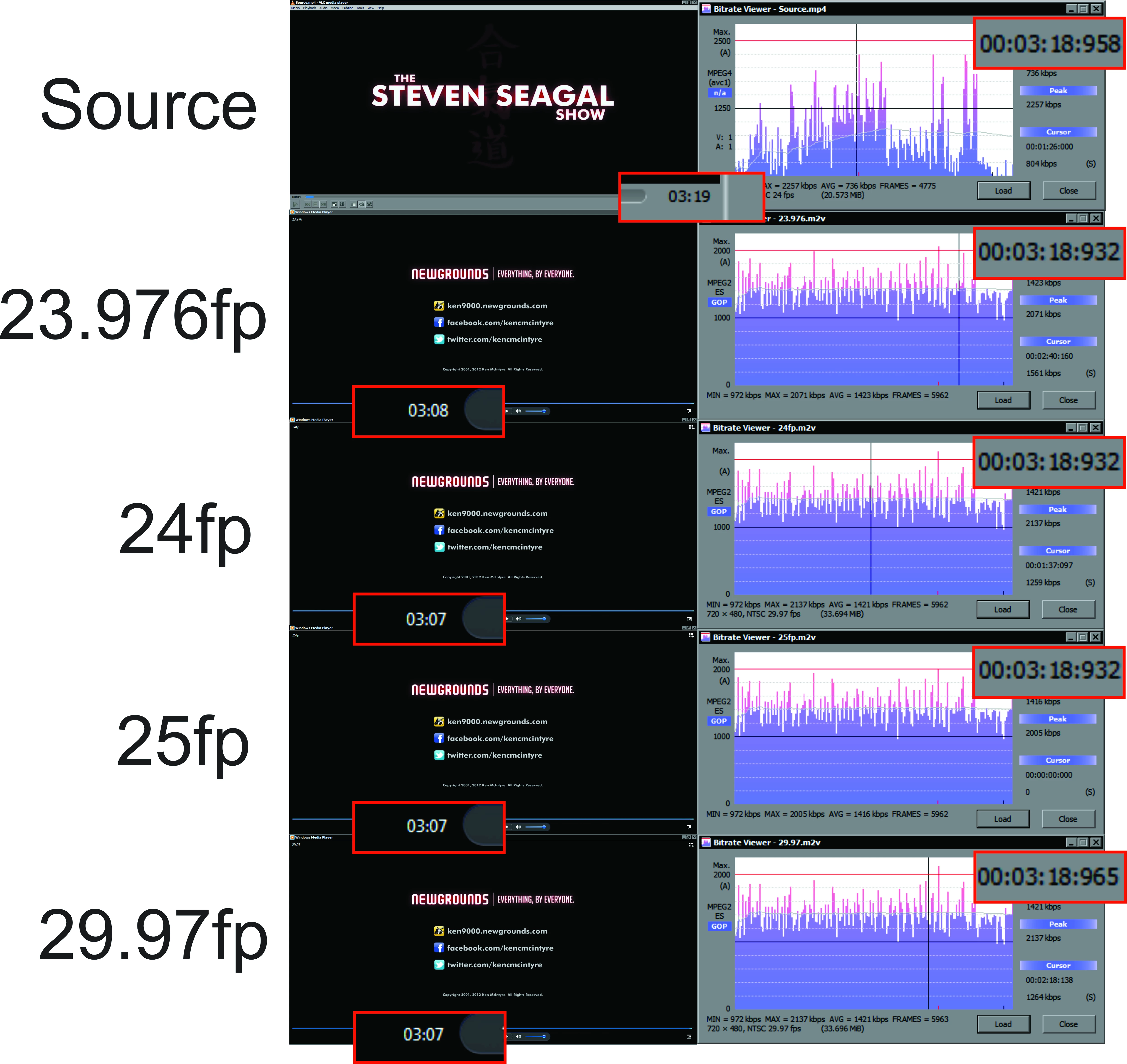
I've made some experiments with the above video and these are the results:

Bitrate viewer keeps telling me that the length doesnt change significantly and it is correct! even though windows media player and Splayer show otherwise. Also, this time, the M2V transcodifications didnt desynch.

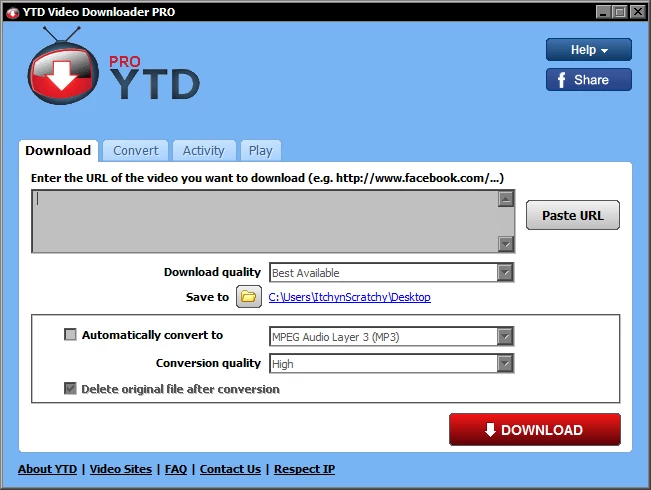
The source video is MP4 format and was directly downloaded from youtube using "YTD Video Downloader":

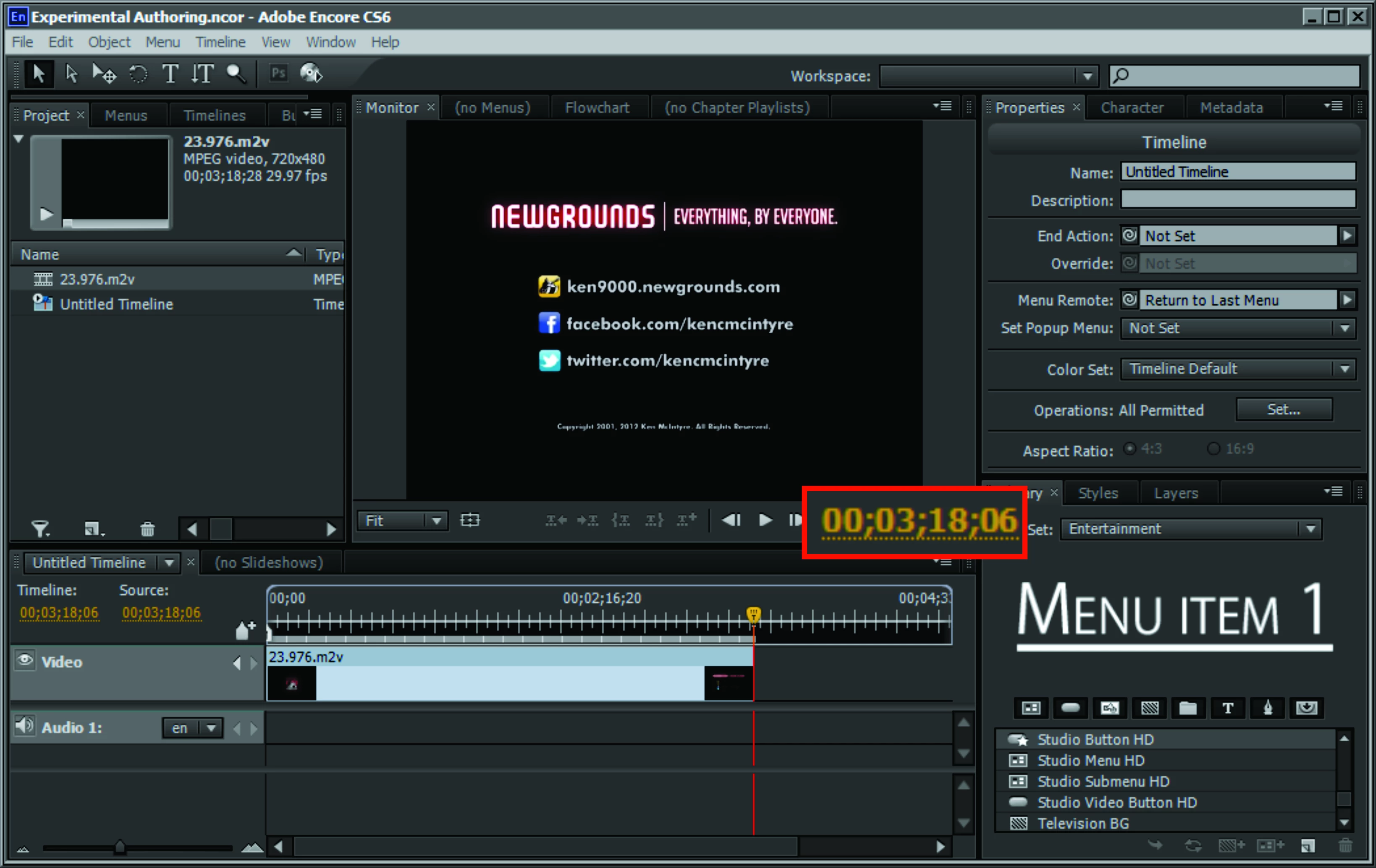
Finally, importing the 23.976fp M2V transcodification into Encore doesnt show any shortening or desynch:

So, well, at least the problem has been isolated to the actual film and not premiere pro.


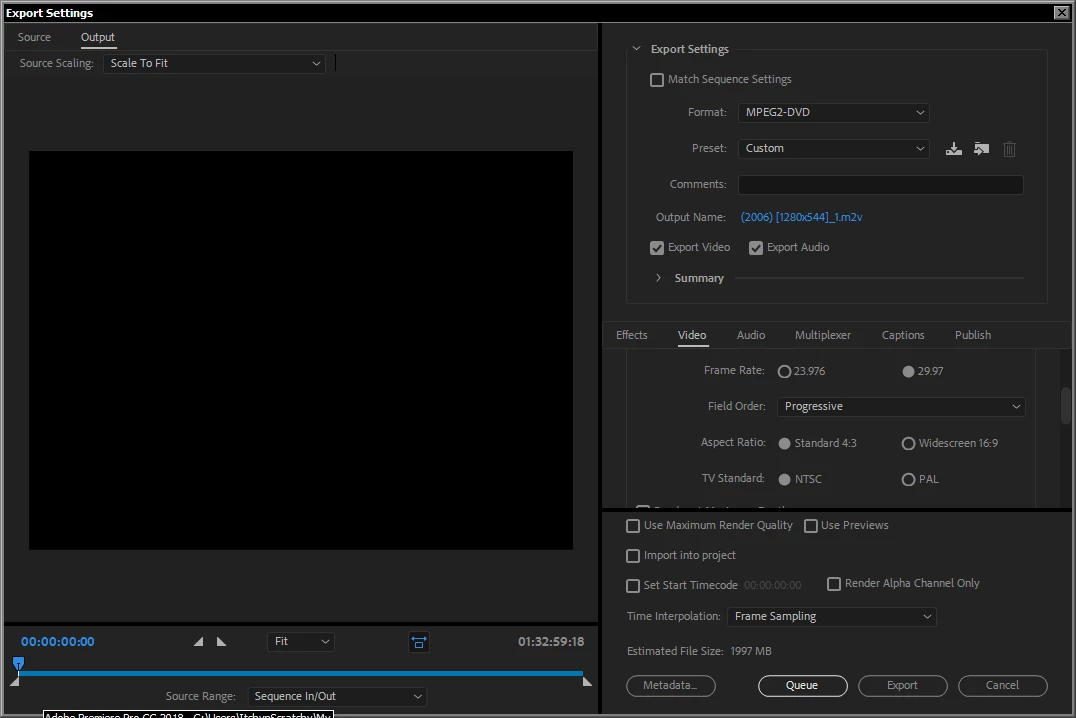
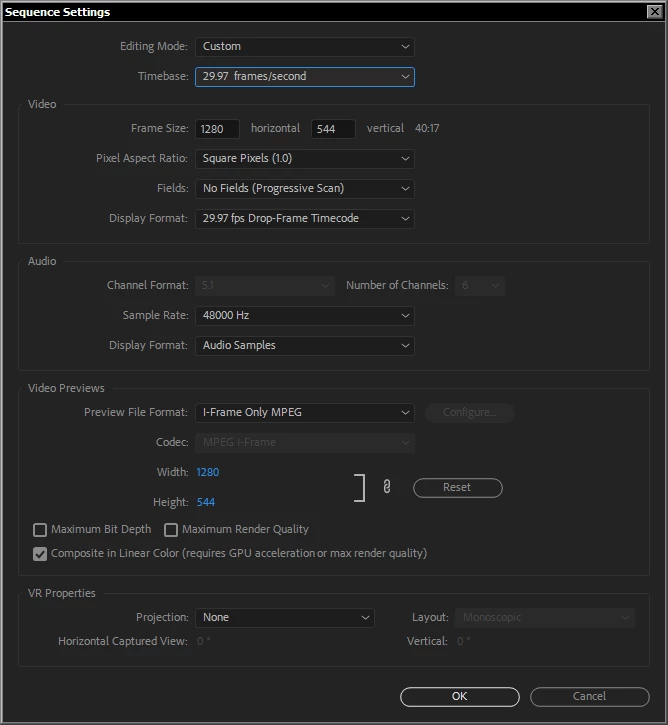
After a lot of research about sequence settings, Ive come up with the following sequence and exportation settings:

These have completely solved the issue on 5 different films .

1 reply

Stan Jones
Community Expert
Community Expert
December 2, 2017

I'm on my phone so can't see your screenshots well. But the usual problem here is that your sequence settings should match the clip you're importing. Do I get to the new icon and that should create a matching sequence. But what is your Source clip characteristics? Host country view of the Mediainfo properties.

December 2, 2017

"But the usual problem here is that your sequence settings should match the clip you're importing."

Excuse my ignorance but, how do I match the sequence settings?

Stan Jones
Community Expert
Community Expert
December 2, 2017

Just drag the clip to the new icon in the project panel and this will create a matching sequence.

However, if you have something like variable frame rates, you may have to convert to clip. That's why I asked for the media info information. Media info is a little app that examines your clip.