Participant
April 4, 2019
Answered

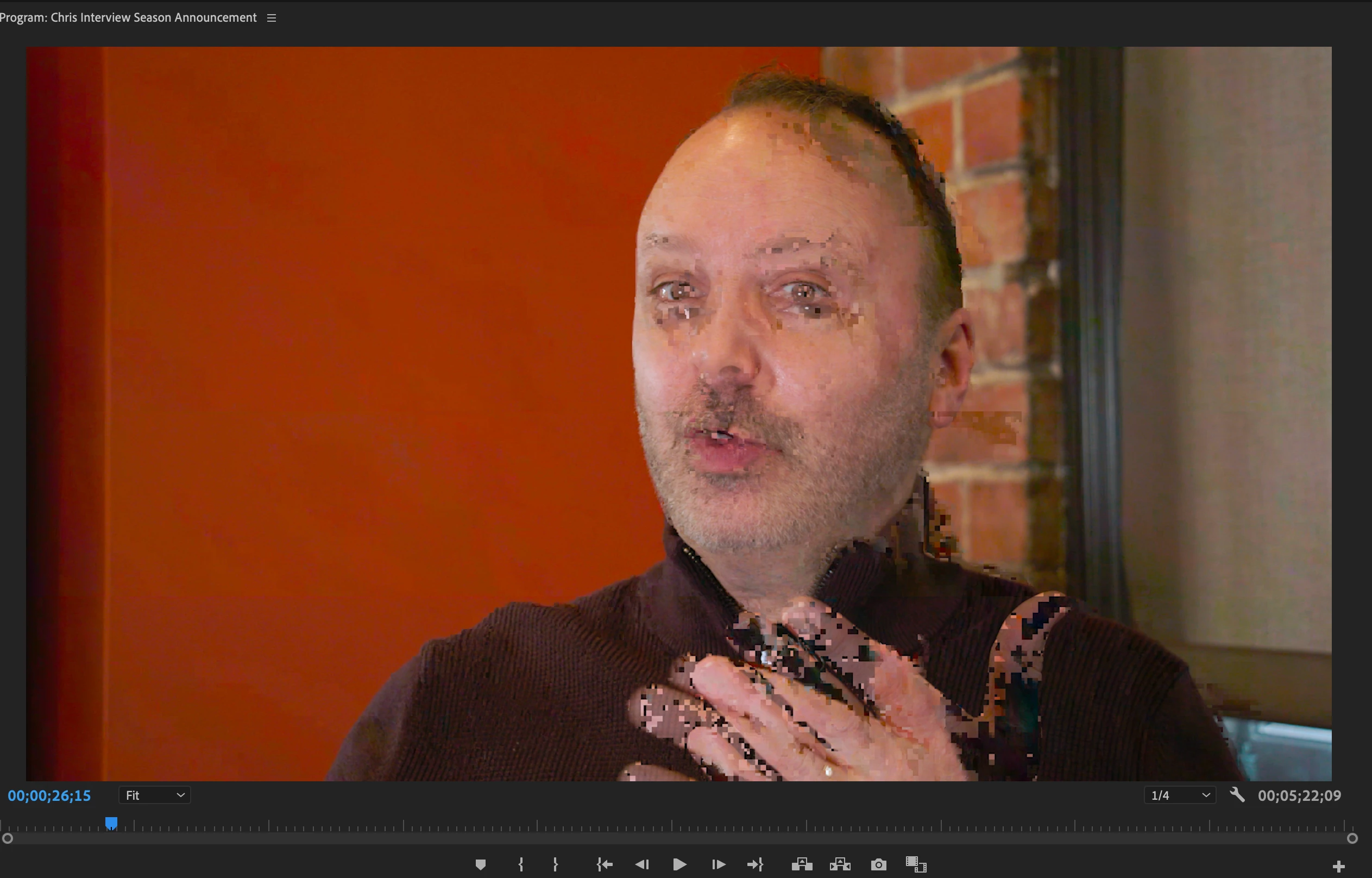
Digital artifacts on frame in sequence monitor NOT on original footage

  • April 4, 2019
  • 2 replies
  • 5590 views

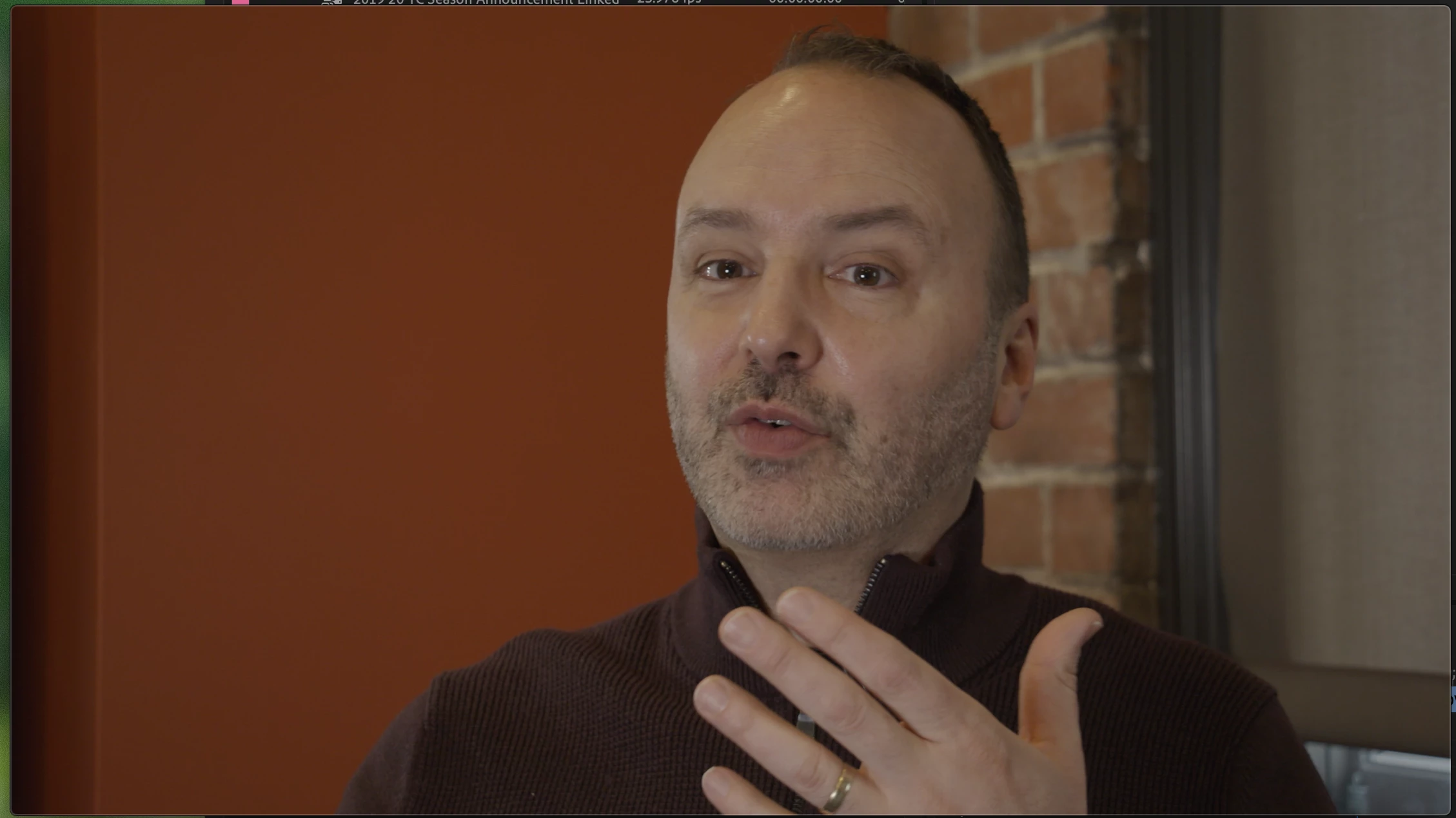
I am having an issue with Premiere that is causing digital artifacts to appear on frames in the sequence window that are NOT present on the original footage.  When I advance frame by frame it disappears.  Problem is, it exports the final sequence WITH those artifacts.  I've attached a frame grab (with the original footage in QT player) for reference.  I kind of recall this happening on a previous version of Premiere, but I believe it was fixed with an update.

I am on a 2018 iMac Pro:

3Ghz

32GB Ram

Radeon Pro Vega 56 8176MB

It doesn't matter if the footage is on a local or networked drive.
Thanks!

    This topic has been closed for replies.
    Correct answer Trent Happel

    Could you try setting the Renderer to OpenCL or Software Only and see if still occurs? File menu > Project Settings > General > Video Rendering and Playback > Renderer set to Mercury Playback Engine GPU Acceleration (OpenCL) or Software Only.

    If it still occurs, could you then try disabling HW accel. Go to Preferences > Media and uncheck "Enable hardware accelerated decoding (requires restart)" then Save and Quit Premiere Pro. Delete you Media Cache folders, then launch Premiere and import the clips again.

    FAQ: How to clean (delete or trash) media cache files?

    2 replies

    Trent HappelCommunity ManagerCorrect answer
    Community Manager
    April 4, 2019

    Could you try setting the Renderer to OpenCL or Software Only and see if still occurs? File menu > Project Settings > General > Video Rendering and Playback > Renderer set to Mercury Playback Engine GPU Acceleration (OpenCL) or Software Only.

    If it still occurs, could you then try disabling HW accel. Go to Preferences > Media and uncheck "Enable hardware accelerated decoding (requires restart)" then Save and Quit Premiere Pro. Delete you Media Cache folders, then launch Premiere and import the clips again.

    FAQ: How to clean (delete or trash) media cache files?

    dlenkDCPAAuthor
    Participant
    April 4, 2019

    Setting the Renderer to Software only slowed down the playback to a crawl.  I set it to Metal (it was originally Open CL) and it seemed to get rid of the digital artifacts.  Odd thing was, I changed it back to Open CL and the artifacts were still gone.  Don't know what this whole chain of events did, but it doesn't matter, it worked.

    Thank you for your help!

    dlenkDCPAAuthor
    Participant
    April 4, 2019

    Just realized I never gave any details on Premiere, or the footage.  Currently on the latest version of Premiere (13.1), footage has a LUT applied, but it doesn't matter if it doesn't.  Still the same artifacts.  The footage is 8bit 4k (3840x2160) 150Mb sec shot on a JVC GY-LS300.