Participant
October 21, 2022
Answered

Emulating live streaming and comments for short film

  • October 21, 2022
  • 3 replies
  • 1670 views

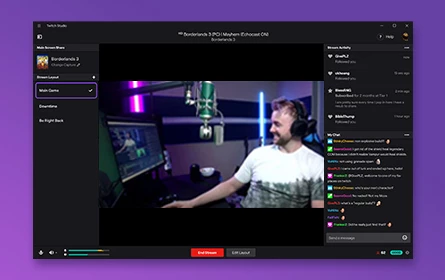
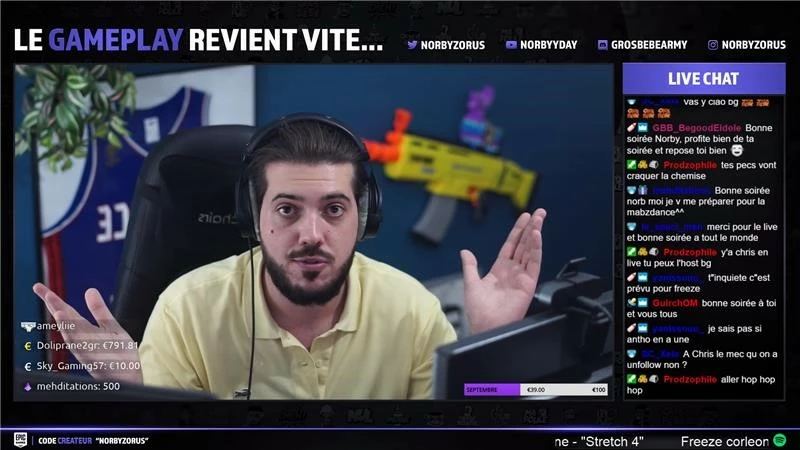
Hello, I am making a short film about a live streamer (a person who broadcasts themselves on the internet doing various things, whilst people watch them and interact via chatting) and will be editing with Premiere Pro. My question is this: How do I emulate/add in an overlay like the one that live streamers use on platforms such as Twitch or YouTube, and show the comments that people make in the chat? 


I have attached pictures for clarity. 
Correct answer PaulMurphy

Since you're essentially just working with text and shapes, and a few logos, this can all be done directly inside Premiere Pro.

Open the Properties panel and click Create New Graphic at the bottom.

  • Add text, shapes, import graphics, and animate movement using either the Properties panel or by applying effects from the Effects panel.
  • Use Groups (the folder icon) to organize layers and limit effects to specific elements.

To create a scrolling effect like live-stream comments, you can use the Roll option:

  • Deselect all layers in the Properties panel, then check the Roll box at the bottom.
  • If you only want the roll effect applied to the live comments, place them in a separate graphic clip on the timeline from your static elements. This allows you to control the animation independently.

3 replies

PaulMurphyCommunity ExpertCorrect answer
Community Expert
September 13, 2025

Since you're essentially just working with text and shapes, and a few logos, this can all be done directly inside Premiere Pro.

Open the Properties panel and click Create New Graphic at the bottom.

  • Add text, shapes, import graphics, and animate movement using either the Properties panel or by applying effects from the Effects panel.
  • Use Groups (the folder icon) to organize layers and limit effects to specific elements.

To create a scrolling effect like live-stream comments, you can use the Roll option:

  • Deselect all layers in the Properties panel, then check the Roll box at the bottom.
  • If you only want the roll effect applied to the live comments, place them in a separate graphic clip on the timeline from your static elements. This allows you to control the animation independently.
Participant
September 13, 2025

You can just build the overlay as a transparent PNG and drop it on top of your footage in Premiere. For the chat, most people fake it by keyframing text or using essential graphics to make messages appear line by line. Looks pretty close to Twitch/YouTube without needing any special plugin.

R Neil Haugen
Legend
September 13, 2025

And the new FilmImpact extension panel has the Typewriter text effect, so the letters come in one at a time, which would be a huge help for this.

Everyone's mileage always varies ...
Inspiring
October 21, 2022

This is something that's going to be a lot easier to do in After Effects. You can create your design in Photoshop or Illustrator, and import it into After Effects to animate. Then you can either export your animation (or use Dynamic Link to bring your After Effects composition into Premiere with a live link), stick your video on top of it so it looks like everything is combined, and finalize your video. 

Participant
October 21, 2022

Does this mean I would need to pay/install photoshop and after effects whilst paying for premiere pro? Is there no way to do this using only PP? 

Also, how would I go about adding in fake comments for my actor to read, as if users are commenting on his stream? Further, I would be using fake donations, is this possible/difficult to do? 

Inspiring
October 21, 2022

This would be incredibly difficult and messy to do using only Premiere since you would need a ton of layer and would want to do a lot of keyframed animation. Maybe you can find a set of stock footage/animation that replicates the overlay feature?