


Inspiring
October 2, 2017
Answered

Enlarging a square mask in premiere

  • October 2, 2017
  • 6 replies
  • 8967 views

How do I keep the corners of a rectangular mask at 90 degrees and expand it in premiere?  I am not talking about the "mask expansion" effect, which only goes so far and give my rectangle rounded edges.  I want to create a large rectangle from the rectangle mask, but when i click on a corner or two pressing "shift," this does not allow me to keep the shape a rectangle with 90 degree angles.

    This topic has been closed for replies.
    Correct answer Ann Bens


    6 replies

    Doug vanderHoof
    Participating Frequently
    April 19, 2023

    The rectangular mask is one way and it works, thanks!, but I have to look up the process every time.

    Another way is with the Crop effect. You can key frame the edges. Higher percentage on top, bottom, right and left mean the edges move in from the sides.


    WARNING: Extremely counter-intuitive Crop>mask. Just the way you can draw an opacity mask with an oval, square or pen tool, after you apply the Crop effect you can use the same tools under the Crop heading for the shape of the crop. Though NOTHING HAPPENS when you do that.


    Then hit the INVERT button and increase the top or bottom or left or right % to 100% so it wipes across the whole frame.. NOW everything is cropped/gone except within the mask shape.


    Can someone conceptualize this process so it makes sense to me? I'll owe you one.

    Cordially,

    Doug vanderHoof in Chicago

    R Neil Haugen
    Legend
    January 22, 2022

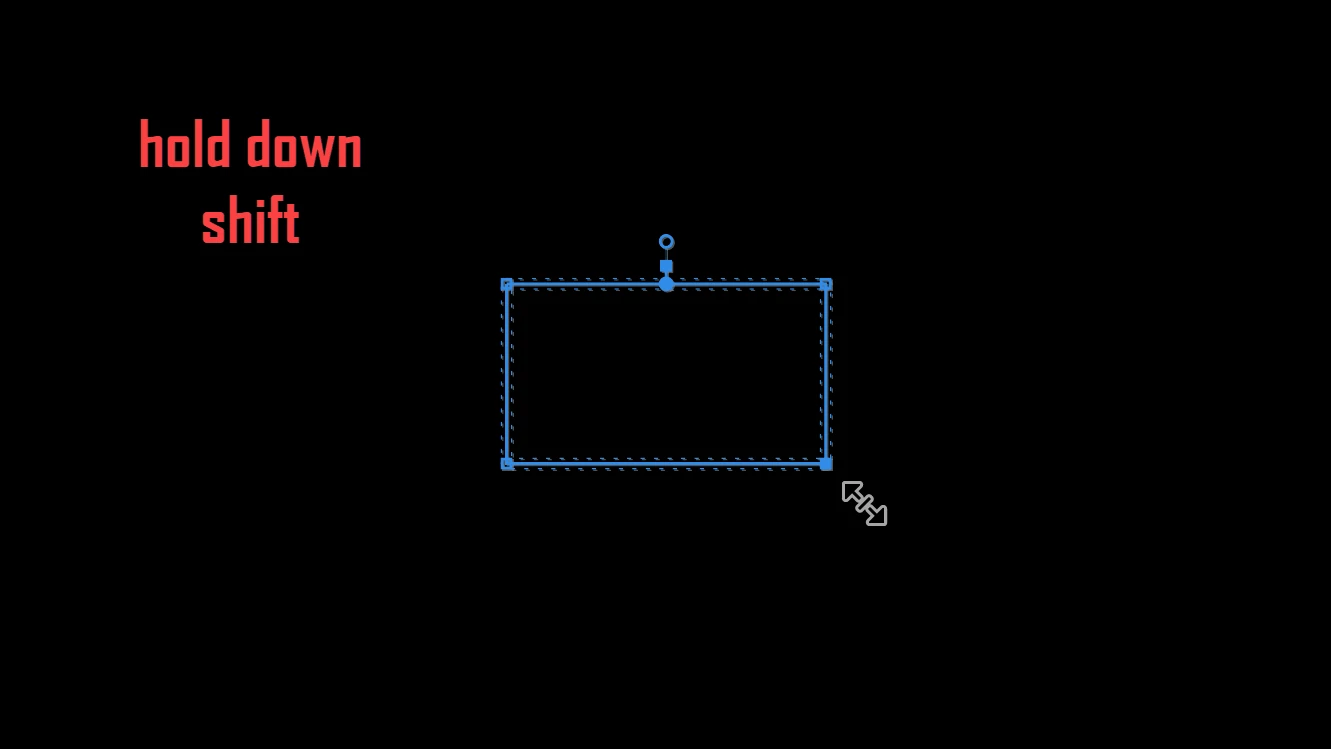
    To fill out Ann's answer a bit, tap and hold the Shift key with the cursor away from the mask. While holding the Shift key down, move the cursor in towards a corner until you get the double-ended arrow that goes in and out from the mask ... NOT the curved double-ended that goes around the mask.


    Now you can click on a corner and drag to resize the entire mask.


    Neil

    Everyone's mileage always varies ...
    M1st3rT
    Participant
    January 22, 2022

    This drives me crazy every time I re-size a rectangular mask. 

    Ann Bens
    Community Expert
    Ann BensCommunity ExpertCorrect answer
    Community Expert
    January 22, 2022


    M1st3rT
    Participant
    January 22, 2022

    UHHHH yeah one would think that's how it works... but it doesn't.


    Inspiring
    October 3, 2017

    neither of the above replies was working for me. the best solution i've found so far is to hover with Shift pressed down over a corner or the mask until your cursor looks like diagonally oppositional arrows. then you can drag to expand the size of the mask, keeping it in rectangle shape.  But I would like to make it a square shape, keeping the angles at 90 degrees, and have no solution for that yet.

    Participant
    September 21, 2020

    3 years later and there is still no way to make a simple square mask and adjust its size in Adobe Premiere. Itäs really surprising.

    Known Participant
    March 15, 2021

    Yup. Pathetic.

    Inspiring
    October 2, 2017

    You need to do it on a side by side basis:

    With the selection tool, click outside the mask and drag over the two corners you wish to move together, and release.

    The two corner boxes you dragged over will fill blue (this is kind of hard to see).

    Click on either of the two filled boxes first, then hold down the shift key (to constrain the movement to 90 degrees) and drag the side of the rectangle where you want it.

    Repeat with the other sides of the rectangle.

    MtD

    MyerPj
    Community Expert
    Community Expert
    October 2, 2017

    I believe it ctrl-shift-alt click/drag, then drag from one of the sides and not the corner