Participant
January 8, 2020
Question

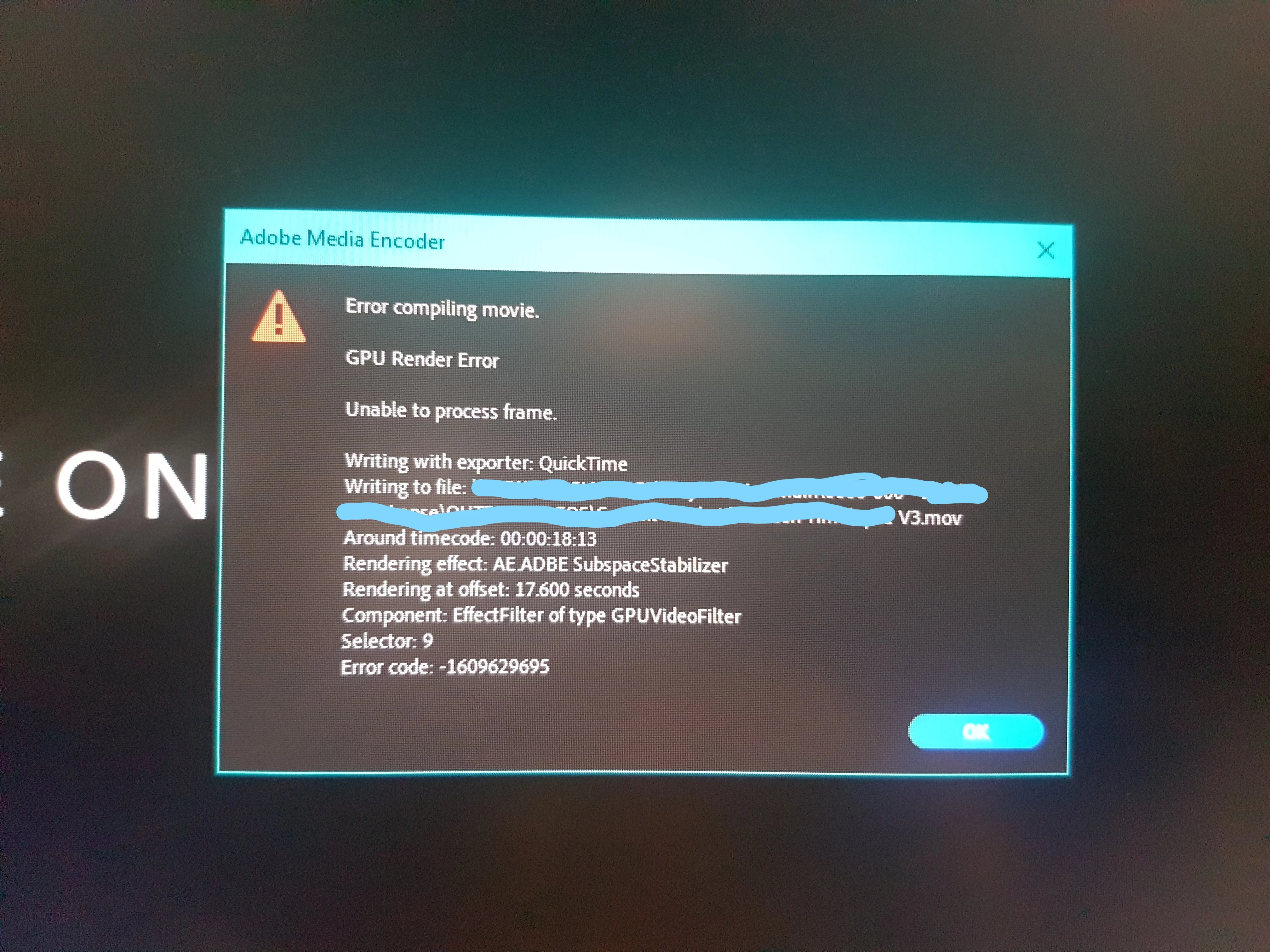
Error compiling movie.
  • January 8, 2020
  • 3 replies
  • 359 views

Having a massive issue with Premiere recently across all three PCs in our studio, The only way that i can find to fix it is by turning cuda rendering off and only using software renderer instead. I have only started having this error within the past month and i was getting it on CC19 and now on CC20 too. This is making Premiere impossible to use commercially because even 1 minute simple timelines are now taking 30 minutes to output and without cuda acceleration premiere is impossibly slow. Tried to contact adobe support about this but they are their usual useless selves, this may be the last straw before finally committing to moving to Davinci...


If anyone could help with this that would be most appreciated.


Thanks,

Tom


[title edited by mod]


This topic has been closed for replies.

3 replies

R Neil Haugen
Legend
January 9, 2020

Warp stabilizer is about the heaviest resource demand in Premiere ... and you're resizing, THEN adding both Warp and Lumetri, to H.265 long-GOP media. That is problematic.


You might get better results by say resize/Warp then nest the clip, then apply Lumetri and everything else. Using nesting to separate processing steps frequently sorts out processing problems.


Personally, I'd probably use a MediaEncoder watch folder if I were doing a lot of that media regularly. Drop the next day's project in it for overnight t-codes to something like ProResLt or Cineform or DNxHD/R. Dump the t-codes after the project is done as you can recreate them.


Neil

Everyone's mileage always varies ...
DarrenManden
Known Participant
January 8, 2020

Further on from the details that Neil has asked for (which are always really good to pop into the initial bug post), I've found that I have run into a similar problem from time to time when the Sequence Preview File Format has been set to I-Frame Only MPEG.


If you go to Sequence Settings, and change that particular setting to something else, like ProRes, for example, and re-render, you might find that the problem disappears. If Preview File Format is greyed out, change your Editing Mode. I tend to just set it to Custom (scroll up), and adjust from there.


I've always meant to explore this more, but it's fallen into the area of "Premiere issues that I have a workaround for, so essentially don't care about at this stage" box 😛

R Neil Haugen
Legend
January 8, 2020

This typically means one of two things ... first, your video card and/or its drivers are not up to date or usable, or ... there is an issue at that spot in the timeline that you need to redo.


You haven't given us any information to even guess between the two, so ... what is the hardware you're using, CPU/RAM/GPU/vRAM/GPU-driver number; and of course the media involved and any effects you're using plus any third-party effects or plugins.


Neil

Everyone's mileage always varies ...
P1TWAuthor
Participant
January 9, 2020

Hey,


Sorry for the lack of details before, the timeline is set to 1920x1080 at 25p in ProRes.

Specs are:

8700k

32gb ram

2x1tb m.2s for project drives

500gb sata ssd for cache

gtx 1070


The media is all h.265 from a fuji xt3 at 4k 50 but then scaled down, only effects used are lumetri colour and warp stabilizer. 


Also with the error, it's not always appearing in the same place, its usually in the middle of a clip and there is no indication of what is wrong on the timeline that could cause an error.