Participant
August 13, 2021
Question

Export issue: Trying to retain lossless quality while keeping same raw filesize (Is it possible?)

  • August 13, 2021
  • 5 replies
  • 4329 views

Hello, my name is DJ and I've ran into an issue that many people face when it comes to exporting videos. The problem at hand is attempting to retain lossless quality while not bloating my filesizes to the moon. Is that even possible? Like keeping it around the same filesize as the original file?

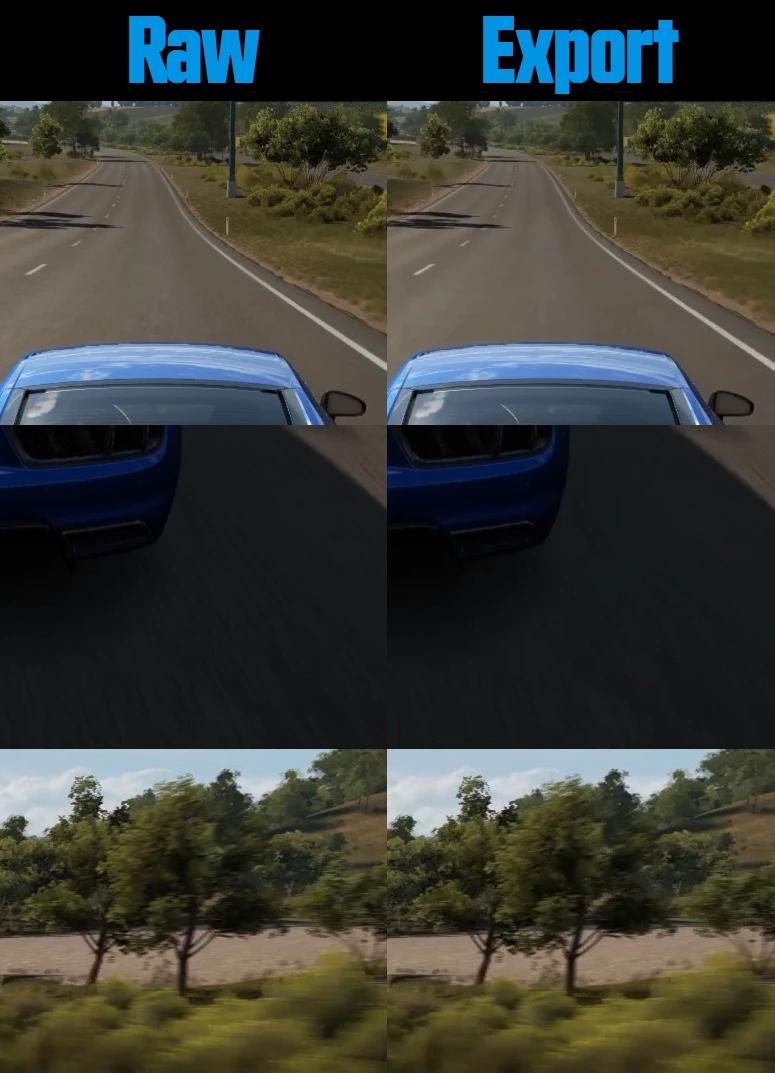
I've been wanting to chop up my raw video files that I've recorded to be reused in future Youtube videos, but most exports seem slightly blurry when you compare them to raw footage. It's like I lost data and a lot of sharpness. I've attempted a few different codecs like Quicktime + ProRes422/ProRes4444 and those bloated my test file towards 4-5GB's compared to the raw 359MB file.

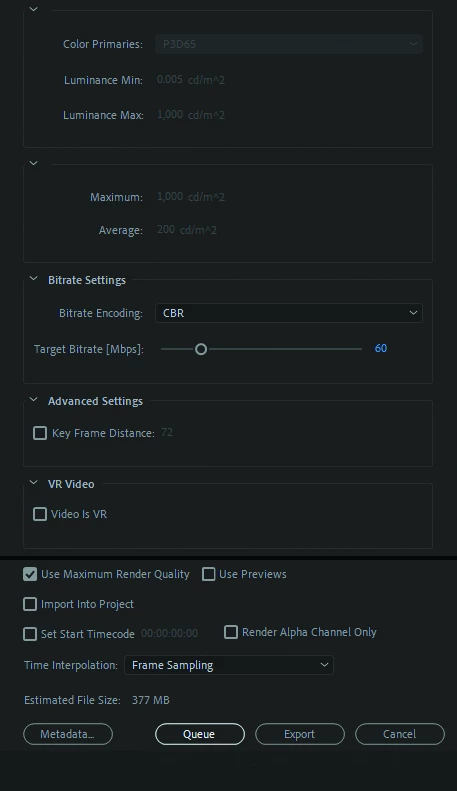
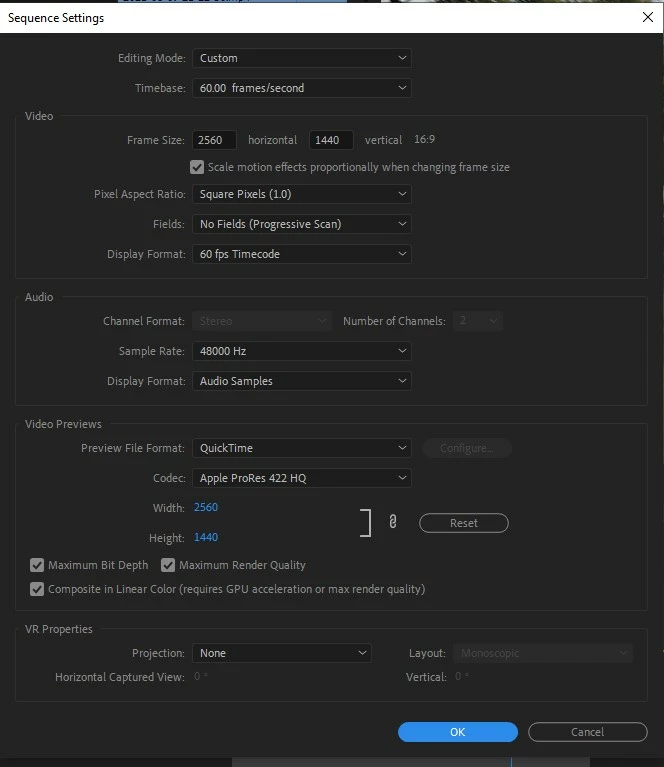
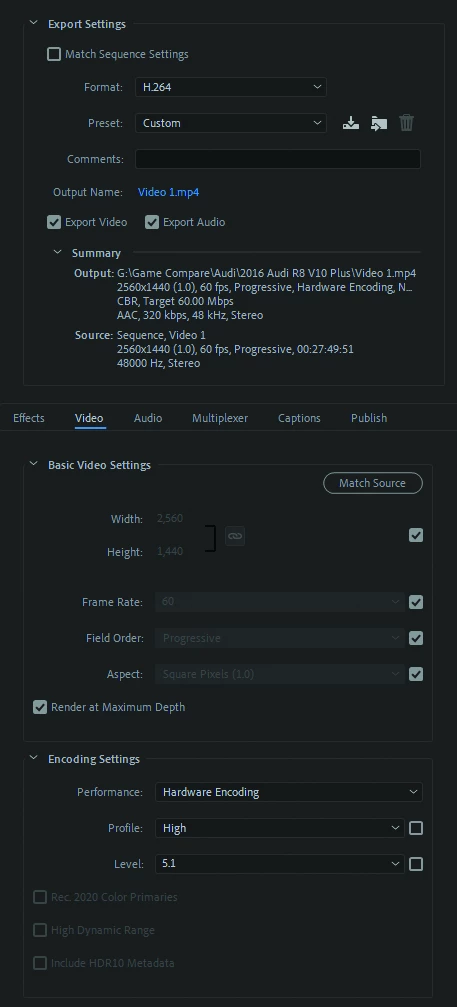
At this moment, I keep going back to H.264 because so many Youtubers use this for rendering video game footage and there's got to be a better way. I've attached the current export setup that I'm using and you'll notice certain areas was lost in the export as well. The most noticeable areas are around the pavement, either in front of the vehicle or shadows near the rear bumper. I want to keep that data on the road as much as possible please.

.

I'll add some PC specs just in case
Nvidia RTX 3090 FE
AMD Ryzen 3950X
Corsair Vengeance LPX 64GB
Windows 10 Home

.

Also adding the test footage so you can download and try for yourself until some conclusion is made. The test footage in question is 359MB for a 50 second video (mp4) recorded at 60,000kbps in 1440p.

Raw file from Google Drive:
https://drive.google.com/file/d/1bgGYybwvGUYRLetZIUoiWWA9NLl3u-sU/view?usp=sharing

.
This topic has been closed for replies.

5 replies

DJKustomsAuthor
Participant
August 19, 2021

Sorry it took so long on replying back and had a feeling someone would point out that I used the term raw instead of source.. Although, at the end of the day that still doesn't help the question at hand.

@Mike Dziennik - Shutter Encoder seems like a good alternative when it comes to cutting footage outside of Adobe, only downside I edit/export modified audio within the footage as well, it wouldn't be a straight cut from the original file in most cases.

@Averdahl - There is something I should mention. Everything I've showed in those screenshots isn't the normal settings I use to render my usual videos, most options that are checked or selected are there to see if anyone mentions anything different. I run Maximum Bit/Render quailty off, Software encode and Key Frame Distance to 30 already.

I've attempted almost everything you've mentioned inside Adobe software before making this thread like Maximum Bit Depth/Render Quailty, Hardware vs Software encoding, Key Frame Distances and every codec Adobe gives you straight out of their software. It's been a multiple year guessing game when I think about exporting full length videos or small video clips.

I was wondering when someone would mention any sort of plugin to enhance exports. I've heard of TMPG but never tried the trial version until now and notice a great improvement over normal H.264. I've heard about the original H.264 isn't great to begin with and plugins can pull better quailty in most cases.

Now the question is what settings can increase it further if I kept using the TMPG plugin? The quailty between source and TMPG export is great while keeping around same filesize.

Ann Bens
Community Expert
Community Expert
August 19, 2021

Everything I've showed in those screenshots isn't the normal settings I use to render my usual videos,


If you want adequate help please post screenshots with settings you do use. Posting random screenshots is no help to us. Otherwise is just a big guessing game.


DJKustomsAuthor
Participant
August 22, 2021

Same can be said of editing my photo while posting a very broad url link to Adobe's own help page for your first comment. I know not everyone has roamed across the internet looking for answers, although I have came across it in a few threads on other websites. All that does is point to a very open topic for other users and I've attempted majority of those codecs and options during test exports. Don't get me wrong, some export codecs within the url have been great on holding the pixel quality, but comes at a great cost of bigger filesizes.

The second link on the other hand is a nicely packaged article outlining his results within Adobe's own software. Since it was quite new when it was published I gave it a read and outside of some of his conclusions is information I've seen in other forums, just little pieces all over the place. It's a great link to give to people if they've never seen some of it before.

As for my own agenda, everyone does something different, either straight forward or the way I'm handling this discussion. In my experience over the years for most topics of any nature I usually get better answers by doing it the wrong way. It helps weed out conflicting answers that I've already seen/done and look towards people who may post something unique like a plugin/external software.

It may annoy people when they find out, but exporting is a very open world where everyone exports differently. I want to say sorry for leading down this stupid path, it was the best way to get newer answers that I have yet to see in other threads on different websites.

Averdahl
Community Expert
Community Expert
August 13, 2021

I would skip Maximum Bit Depth and Maximum Render Quality and switch the Hardware Encoding to Software Encoding and lastly under Advanced Settings change the Key Frame Distance from 72 to 60 or even 30.


  • Maximum Bit Depth and Maximum Render Quality do not create the best quality in all situations.
  • Hardware Encoding do always look worse than Software Encoding.
  • Key Frame Distance at a lower value creates more I-frames = Better quality.


ProRes 4444 is really overkill for your needs, go for ProRes LT. The file will be less large but can be uploaded directly to YouTube and that will give you great results but longer upload times. But yes, larger files and it demands a fast internet connection.


Or, get a better encoder such as TMPGEnc Movie Plug-in AVC for Premiere Pro that will give you x.264. There is a free 14-day trial with no watermarks available: TMPGEnc Movie Plug-in AVC for Premiere Pro. This plug-in will let you export directly from the timeline the way you do today.


I personally use TMPGEnc Movie Plug-in AVC for Premiere Pro for all my encodes to .mp4/Blu-ray, etc.

Ann Bens
Community Expert
Community Expert
August 13, 2021
Averdahl
Community Expert
Community Expert
August 13, 2021

I have already read it but it is still an issue with those settings in some cases that has been proven many times here.


- My renders look bad - help!

- Un-check Maximum Bit Depth/Maximum Render Quality

- Yes, that solved the issue


Sometimes it does not solve the issue to uncheck Maximum Bit Depth and/or Maximum Render Quality but most of the times it does.


I have never seen a post like this been solved by checking those boxes, yet, unless the source footage was 10-bit or higher or some scaling on the output were done.

Mike Dziennik
Community Expert
Community Expert
August 13, 2021

And yes, as @Ann Bens says, you shouldn't use the term 'Raw' as this implies a method of storing unprocessed data coming off the image sensor of a camera. The term is widely misused to denote 'source' files - which in your case comes from a screen-recording type scenario so there is no 'raw' image data.


Ann Bens
Community Expert
Community Expert
August 13, 2021

RAW footage is something entirely different.

Unfortunately H.264 will never give you lossless quality.

Smart rendering in Premiere Pro

Mike Dziennik
Community Expert
Community Expert
August 13, 2021

H.264 is pretty much always going to give you this issue, even at high bit rates as it will be creating new keyframes in different places from the source.

You might want to take a look at Shutter Encoder and use the 'Cut without re-encoding' function. It will only let you cut on keyframes so it might not trim to exactly the frame you choose but it won't do any re-encoding so it will be fast.