Participating Frequently
October 18, 2020
Question

Exported frame randomly pixelated

  • October 18, 2020
  • 8 replies
  • 5309 views

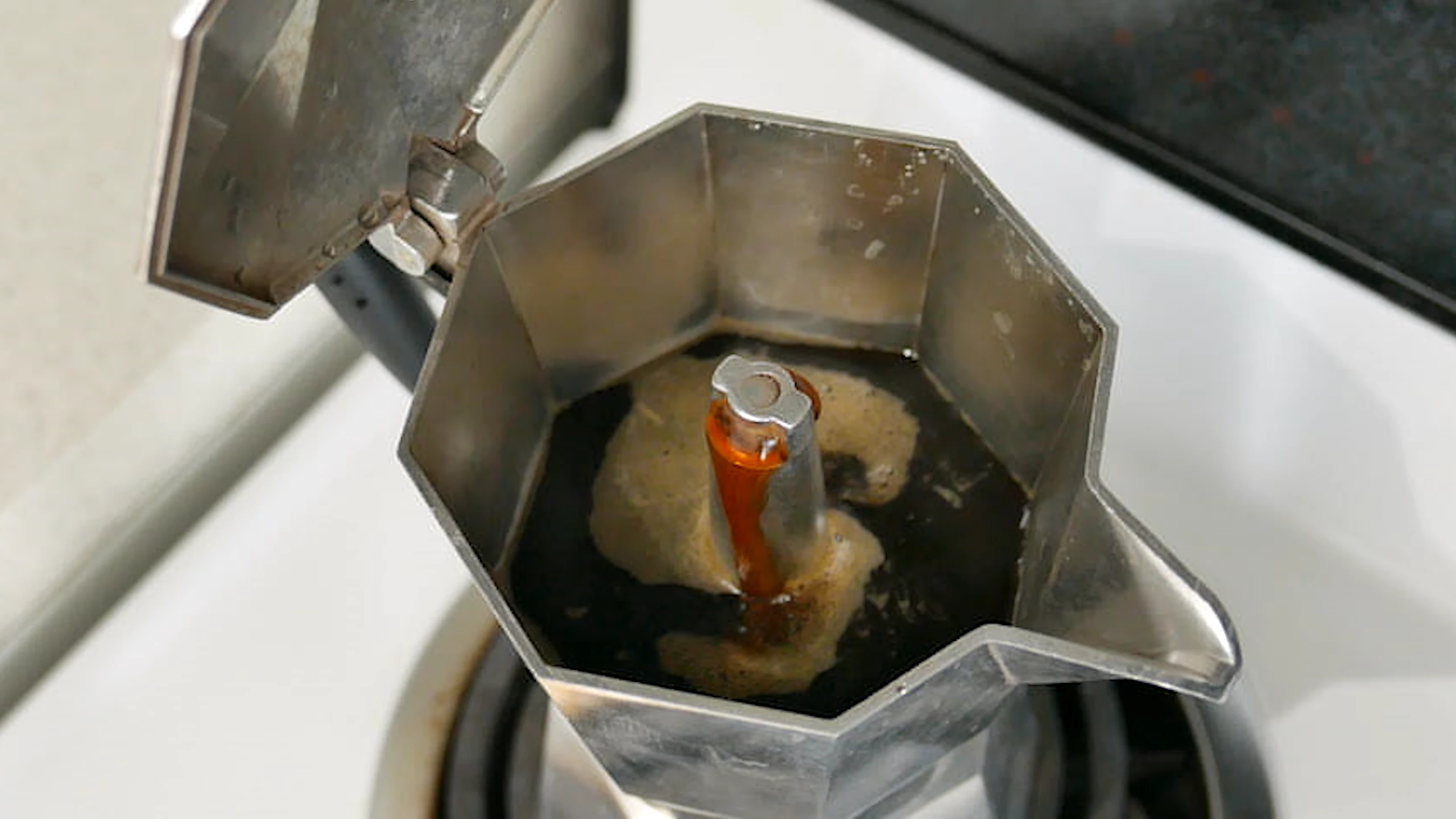
When I use the "Export Frame" feature in the timeline (Shift + E), whether I export JPEG or PNG or TIFF, the same image will randomly be rendered in a poor/pixelated quality, and sometimes rendered properly.


For example the image below was me exporting that frame twice in a row:


Zoomed in to see better on the forum:



I exported it 6 times, it went like this: bad, good, good, bad, bad, bad (the images above are the 2 first).


This have been consistently happening on all my projects for the past couple of months.


I use proxies, and I tried exporting the frame with them on/off and this doesn't make a difference.


Any idea what could be causing that and how to fix it? Thanks!


Using Premiere 14.4.0 on macOS 10.15.7.

This topic has been closed for replies.

8 replies

Known Participant
December 22, 2024

Incredibly it is now 2024. Adobe still has failed to remedy this simple export. My timeline is rendered, my files are rendered, my proxies are disabled, my Program Monitor is showcasing incredibly crisp detailed images, frame by frame, and my export is a piece of garbage pixelated mess.

What's going on Adobe? Are you not making enough money yet? This is a 4 year long community-wide issue and you have no remedy for simple JPEG frame exports?!?!?!?!?! It's a lottery system???

Participating Frequently
May 31, 2023

Just updated to the lattest version v23.4. Same problem with low quality frame, even after proxies are switched off. It makes the simple job of removing tripod shadow from 360 video into an overcomplicated task. Shame.

Inspiring
November 3, 2023

Also having this issue - Premiere 23.1.0

The fact that his has been unresolved for years is a joke.

raymondh32483922
Participant
March 14, 2023

Your assesment was correct. I've been having the same issue. Detaching proxies is the fix. I reveal the cilp I need a still frame from  in my project and then detach the proxy. 

Participant
October 26, 2021

I've got the same problem. Super annoying.

I did find a workaround though.

When I use the export frame shortcut (shift+e, or clicking the camera icon) it's a crap shoot, and I never know what I'm going to get.

However, frames appear to export correctly every time if I do it the long way, through the export media dialog (cmd+m).

Hope this they fix this.

Hope this helps in the meantime.


Using Premiere 15.4.1 and MacOS 10.15.7

Participant
May 19, 2022

Erm, this needs more information. What exactly do you select/enter into the "export media dialog"?

Participant
October 8, 2022

I was having the same issue. Found that detaching proxies fixed the issue

jmvdigital
Known Participant
August 12, 2021

Inexplicably, also still having this issue on Premiere Pro 15.4! Regardless of whether the proxy is active or not in the Program window, it will export proxy-resolution frame grabs only. So stupid. 

Known Participant
January 13, 2021

Same issue on my machine. In 5 or 6 clicks on "export frame" I get only 1 at full quality. The rest are proxy quality, scaled to full resolution. Any good solutions?


2019 Macbook Pro, MacOS Big Sur 11.1, 20C69
AMD Radeon Pro 5500M 8 GB
Premiere 14.7.0 Build 23
Peru Bob
Community Expert
Community Expert
October 18, 2020

Also:

Please use the free MediaInfo and post a screenshot the properties of your media in tree view:
https://mediaarea.net/en/MediaInfo

Many users are having issues with VFR. If the file is variable frame rate, use Hand brake to convert to constant frame rate:
https://handbrake.fr/downloads.php
Here is a tutorial:
https://www.youtube.com/watch?time_continue=34&v=xlvxgVREX-Y

Peru Bob
Community Expert
Community Expert
October 18, 2020

Delete the Media Cache and Media Cache files:
https://community.adobe.com/t5/premiere-pro/faq-how-to-clean-delete-or-trash-media-cache-files/td-p/....

If that doesn't work,try resetting the preferences:
https://community.adobe.com/t5/premiere-pro/faq-how-to-reset-trash-preferences-in-premiere-pro/td-p/8236158?page=1

If that doesn't work, try resetting the Workspaces:
Reset a workspace
Reset the current workspace to return to its original, saved layout of panels.
1. Do one of the following:
• Click the Workspace menu icon and select Reset to Saved Layout.
• Choose Window > Workspace > Reset to Saved Layout.
from here:
https://helpx.adobe.com/premiere-pro/using/workspaces.html

If that doesn't work, try Preferences > Audio Hardware and set Input to None.

If that doesn’t work, try updating or rolling back your graphics driver directly from the video card manufacturer’s site.

If that doesn't work, try creating a new project and import the old one into it.

Also, please help us help you:
https://community.adobe.com/t5/premiere-pro/faq-what-information-should-i-provide-when-asking-a-question-on-this-forum/td-p/3929027?page=1

vava722Author
Participating Frequently
October 19, 2020

Thanks for the tips!


Sadly, none of that solved the issue, however trying in a new project, I noticed that the issue only happens when I have a proxy for the given video file and when the timeline


Here's a sample 1s 4K video I'm using to repro the issue: https://drive.google.com/file/d/1Qx0n7ltMrXZoRPrgi-9cg3P536GUC44U/view?usp=sharing


Putting that on a timeline on a new project and creating a proxy for that video (I usually do ProRes Medium but I tried H.264 Medium as well with the same result), then exporting frames from that video, some of the epxorted frame will be randomly pixelated.


Turning proxies on/off on the timeline doesn't change anything, however disconnecting proxies in the project panel fixes it.


I also tried on Windows 10 and managed to reproduce the issue in the same way, however, on Windows only, toggling proxies off in the timeline (without disconnecting proxies in the project) did fix the issue, while this doesn't do anything on macOS.


I'm not sure what more to do at that point, probably submitting Adobe's report a bug form? Thanks!