
Participant
February 19, 2017
Question

Exporting a 2.39 sequence to 16:9 anamorphic

  • February 19, 2017
  • 2 replies
  • 3446 views

Hi all,

I've been editing a film in 2.39 and have been asked to deliver it as 16:9 anamorphic (squeezed). Below are the specs I received:

• Quicktime movie in native resolution (HD 1920 x 1080, minimum resolution of 720 x 480/NTSC) • Uncompressed, ProRes (HQ) Codecs (preferred), H.264 (acceptable)

• Aspect Ratio should be 16:9. We understand your film might be in 1.85:1 or 2.39:1 or 4:3 as an aesthetic choice, but please conform your video file to 16:9 before delivering to us. If you do not, we will conform the video file ourselves at our discretion. When conforming the video files on your end, please be sure to make it anamorphic.

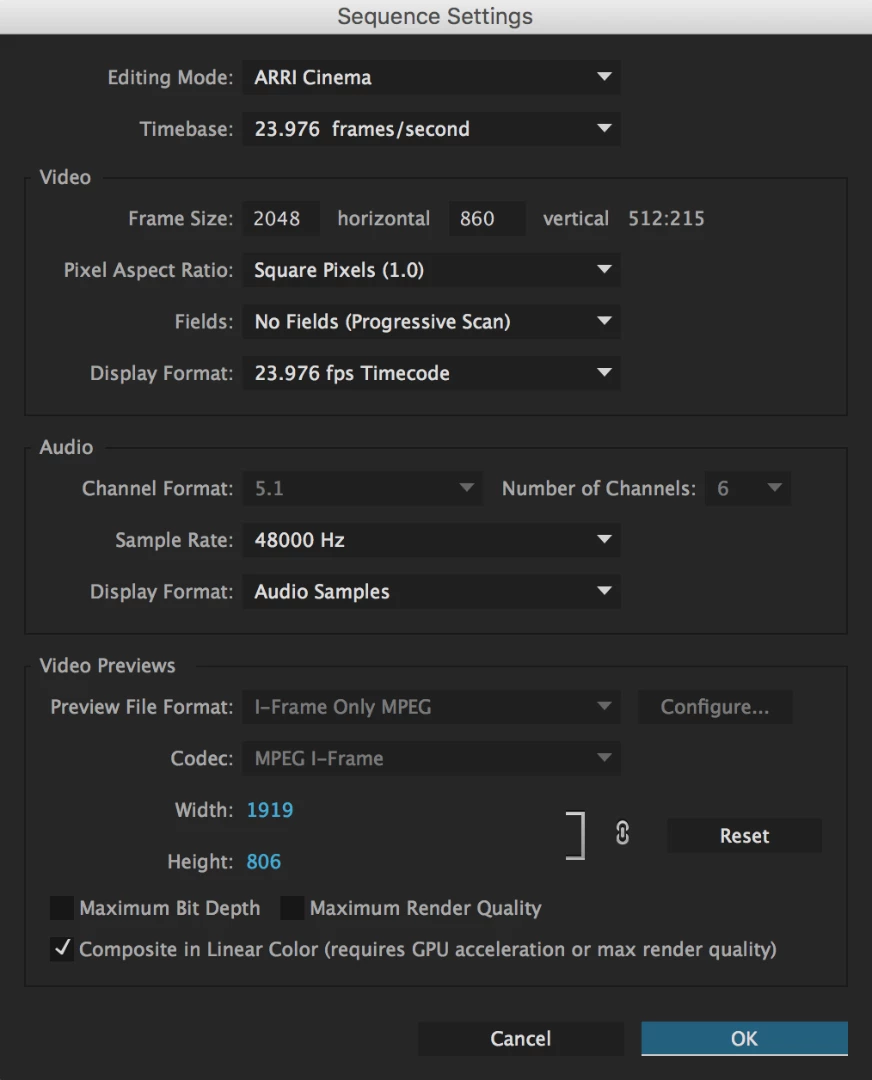
Below are my timeline specs. What should my export settings be?

Thanks so much for your help,

Mandy
This topic has been closed for replies.

2 replies

Legend
February 20, 2017

been asked to deliver it as 16:9 anamorphic (squeezed).

I would question that request, as it would reduce the quality (resolution) of the original.  The ideal is square pixels, not the rectangular pixels required for anamorphic.

Ann Bens
Community Expert
Community Expert
February 20, 2017

Anamorphic is more used for SD DV widescreen and HDV footage.

With suggested workflow I think you are getting a distorted image.

I would make it 16;9 letterbox.

Warren Heaton
Community Expert
Community Expert
February 19, 2017

Here's one approach:

  1. In the Project tab, right click on your current Sequence and choose New Sequence From Clip.  This will nest your current Sequence into a new, containing Sequence with the same name.
  2. In the Project tab, add something like "Conform to 16x9 ProRes HQ" to the end of the Sequence name.
  3. With the new, containing Sequence still selected in the Project tab, choose Sequence > Sequence Settings and change the following:
    • Editing Mode: Custom
    • Frame Size: 1920x1080
    • Preview File Format: QuickTime
    • Codec: Apple ProRes 422 HQ
    • If the Video Previews are not set to 1920x1080, click "Reset" to do so.
    • Then click OK. (Premiere may present a dialog box stating the Preview files need to be deleted, click OK or Yes.)
  4. In the Timeline tab, select the nested Sequence.
    • In the Effect Controls for the selected nested Sequence, uncheck "Uniform Scale".
    • Set the Scale Height to 125.6 and the Scale Width to 93.8.
  5. When you export your containing Sequence (File > Export > Media), enable "Match Sequence Settings".  Set the Output Name and location as you would normally and then click either Queue or Export.
Participant
February 20, 2017

Hi Warren,

So is there no need to adjust the pixel aspect ratio? The projector will be able to recognize how to desqueeze it? Thanks so much for your help!

Mandy