
Participant
November 15, 2017
Answered

Exporting timeline to individual clips while keeping your lut, original file names?

  • November 15, 2017
  • 1 reply
  • 1093 views

I'm looking to export my timeline to individual clips after I've applied the LUT to all of the selected clips.  They're starting in mov files and need to ultimately be Avid files.  I can do this at the moment but I have to do each clip individually and it does not keep the original file name.  I've tried the project manager option and that did individual clips but did not keep my LUT nor did it change from mov to an Avid file.  Thoughts?
    This topic has been closed for replies.
    Correct answer R Neil Haugen

    Easy, if you're working with full clips ... select the clips in the Project panel ... right-click, "Export Media".

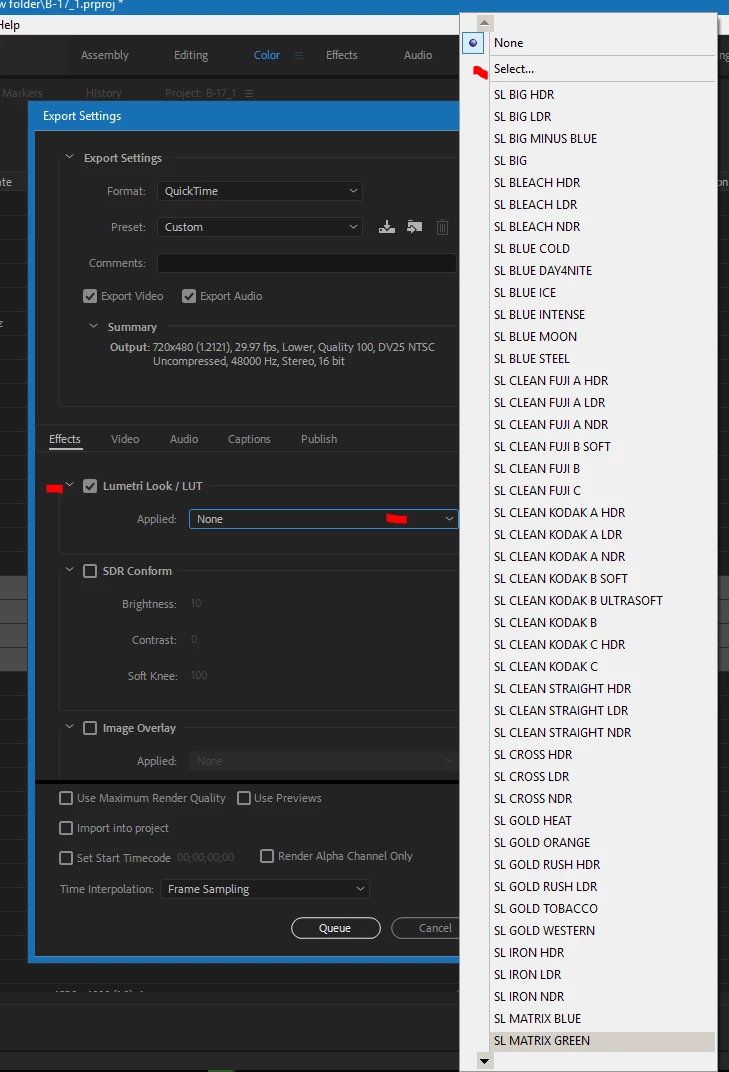
    Brings up a dialog box, like this ...

    See my red marks ... click the Effects tab and then the box for Lumetri Look/LUT ... click in the Applied slot, and use "Select" to navigate to the LUT you need.

    Then click Queue, it opens Media Encoder with all the clips loaded, start the process, they all get exported as individual clips with that LUT applied, with their original name and in whatever coded you chose.

    Notice, you don't need a timeline if you're applying to complete clips ... but if you're wanting to apply to parts of clips, you'd have some troubles, as the clips in the project panel are 'full', and subclips are of course renamed.

    Neil

    1 reply

    R Neil Haugen
    R Neil HaugenCorrect answer
    Legend
    November 15, 2017

    Easy, if you're working with full clips ... select the clips in the Project panel ... right-click, "Export Media".

    Brings up a dialog box, like this ...

    See my red marks ... click the Effects tab and then the box for Lumetri Look/LUT ... click in the Applied slot, and use "Select" to navigate to the LUT you need.

    Then click Queue, it opens Media Encoder with all the clips loaded, start the process, they all get exported as individual clips with that LUT applied, with their original name and in whatever coded you chose.

    Notice, you don't need a timeline if you're applying to complete clips ... but if you're wanting to apply to parts of clips, you'd have some troubles, as the clips in the project panel are 'full', and subclips are of course renamed.

    Neil

    Everyone's mileage always varies ...
    Participant
    November 15, 2017

    Nailed it Neil!  Thanks a  million, I was looking forever to solve this one.