
Sutton87
Participant
February 4, 2020
Question

Exporting video produces photos with static that were not in the export preview, or sequence preview

  • February 4, 2020
  • 2 replies
  • 1650 views

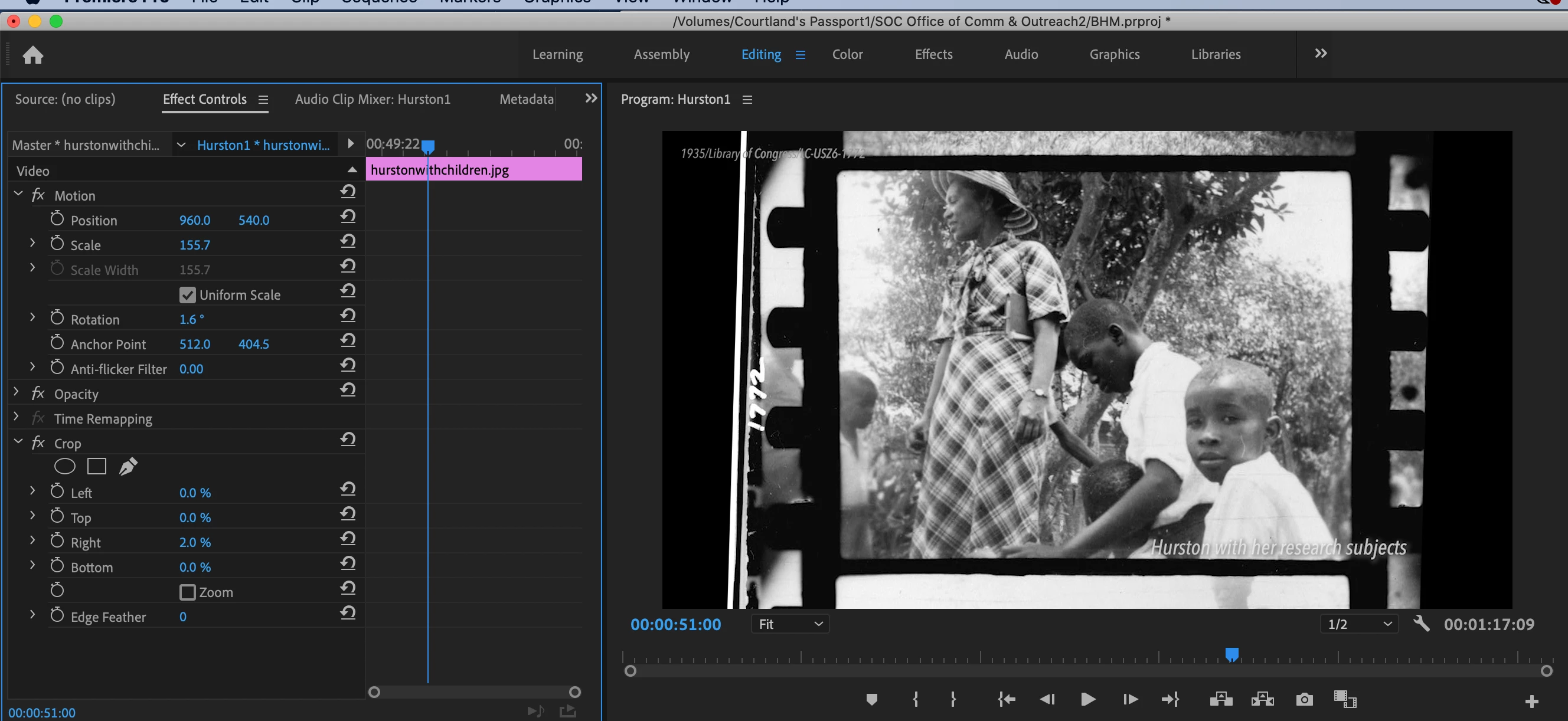
When exporting a video, some of the photos appear pixelated/scrambled/like tv static. These are all photos I happened to crop while editing the video. During playback on the workspace, the photos are not "staticky," but do become so when the workspace is paused. They are are also staticky after export. This does not change after multiple exports, but does correct itself when I remove the crop from the photos. The three photos are all jpgs, higher resolutions of 120, 120, 47 KB.


What is this called, how can I keep it from happening, and export as I wish?


You can see here, where I have kept the crop on the desired left and right sides.
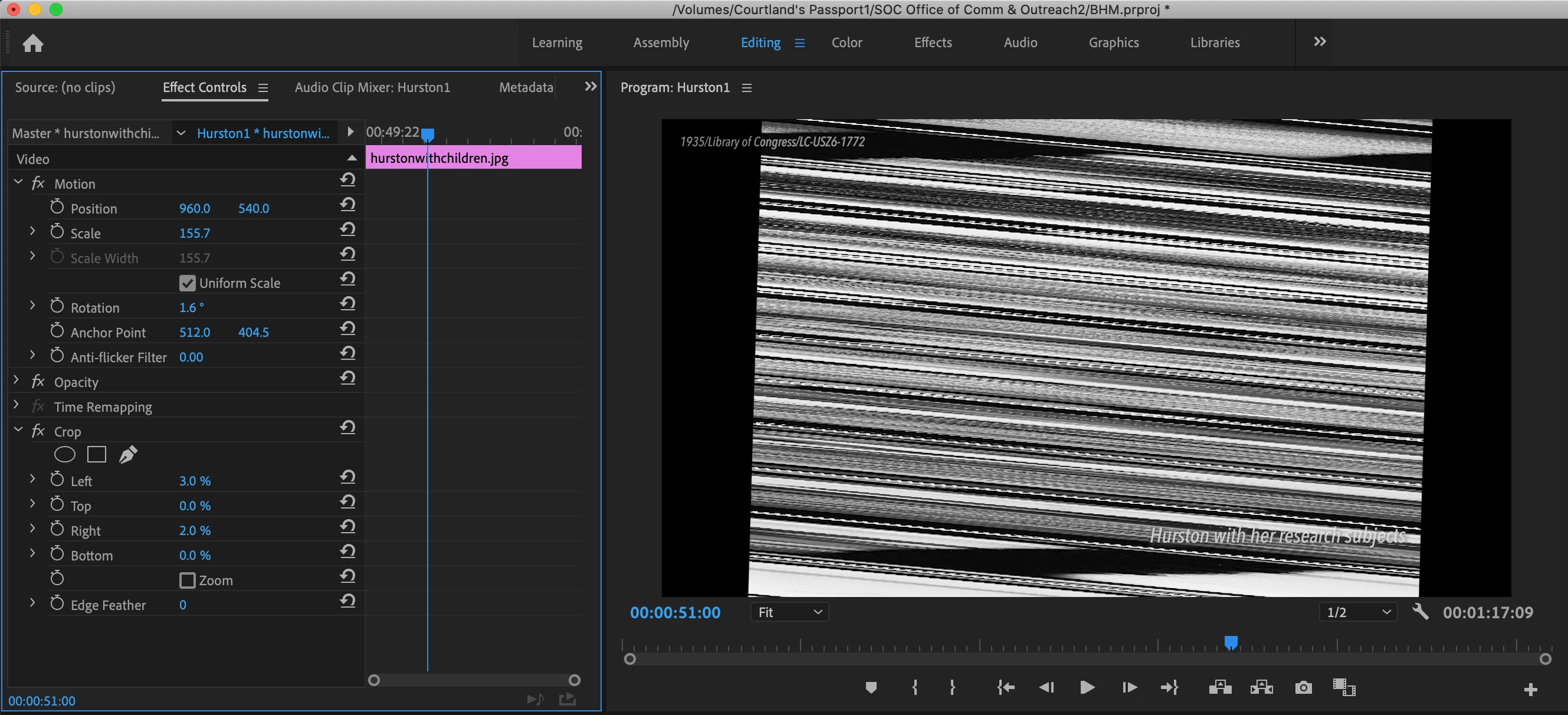
 

Here, the program was extra finnicky, and I only had to remove the crop from the left for the photo to return. Not the left and right, as it happened for other photos.
This topic has been closed for replies.

2 replies

Richard van den Boogaard
Community Expert
Community Expert
February 4, 2020

JPEG is a lossy format, that requires processing from PPro in order to render them correctly.

Most of the time this works out just fine, but sometimes it doesn't.


A better way is to process the images through Photoshop and save them out as PSD files, before importing those in PPro.


In Photoshop, please change the DPI of the images to 72DPI, whilst keeping the resolution at your preferred size needed for PPro (and any cropping you may need to do in there).

Community Expert
February 4, 2020

I can't tell you why this is happeniing, it may be an issue with the jpgs (possible corruption) or your computer. But here are some things to try to get you through this issue:

  • Open the images in Photoshop and crop them in there, then save them as new files. That way you avoid having to apply the Crop effect at all in Premiere. (Set to jpg quality to MAX so as not to lose any detail).
  • Opening and resaving the images in Photoshop may clear up the issue, as it would eliminate any image corruption. Saving as PNG may also help.
  • You can also try setting your sequence preview codec to a good mastering codec like ProRes 422, and render previews for the sequence. If the photos still look fine after rendering then you can proceed to Export: click the "Match Sequence settings box" to generate a ProRes file and be sure to click the "Use Previews" box at the bottom. This will generate a file that matches exactly what you see in your rendered timeline, with no deviations (also known as "Smart Rendering.")
-------------------------------------------------------------------------JVK | Editor/Designer/Software Instructor. Pr, Ae, Ch, Ps, Ai, Id